
With the introduction of the block editor and site editor, WordPress design has become increasingly simple. However, there are still some special situations that may require you to know how to upload an HTML file to WordPress.
For example, you may need to transfer custom designs to your site. The good news is that it is very straightforward. Actually, you can do this in several ways.
Why would you want to upload an HTML file to WordPress
WordPress is highly accessible and user-friendly. As content management systems (CMS) evolve, developers are constantly looking for ways to honor their mission to democratize publishing.
In fact, the WordPress community is moving away from complex coding solutions to more intuitive systems like page builders. It’s clear that drag-and-drop editing and block-based design principles are here to stay.
So, you might be thinking – why would you want to upload HTML files to WordPress?
The truth is, in most cases, it’s probably not the best idea. It may be easier to redo whatever elements or content are in that HTML file using a WordPress block editor or page builder like Elementor.
Nevertheless, there are some situations in which you may need to know how to upload an HTML file in WordPress. Here are a few of them:
- Importing existing designs, Sometimes, it can be easier to import an already existing design using an HTML file. This is especially true if you are transferring your website from a different CMS or website builder.
- Creating custom layouts outside your theme, All WordPress themes are highly customizable. They usually give you the flexibility you need to create custom layouts that are unique to your brand and vision. Even then, you may need to create some designs outside the framework of your theme and then import them into your site.
- Verify your website with Google Search Console, If you want to set up your website with Google Search Console, you’ll need to verify that you own it. One way to do this is by uploading an HTML file to your site.
In short, uploading HTML files is not something you will need to do frequently in WordPress. However, it’s good that you learn how to do it if you find yourself in any of the above scenarios.
How to upload HTML file to WordPress
Now that you know why you would want to upload an HTML file to WordPress, we are going to show you two ways to do so:
- basic WordPress block editor,
- SFTP to upload file directly to your server,
1. Using the Block Editor
The first way you can upload an HTML file to WordPress is by using the block editor. This method can be especially useful if you want to import a specific design element or custom layout.
You can upload HTML files in the block editor in two ways:
- You can upload the original file only. This will allow other users to download the HTML file.
- You can add HTML from a file to the editor to show that design. This is helpful if you want to display the actual HTML design on the page, rather than just a link to a file.
To get started, navigate to your WordPress dashboard and open the page or post where you want to add the file:
click on plus symbol (+) In the top left corner of your screen to open your block menu:
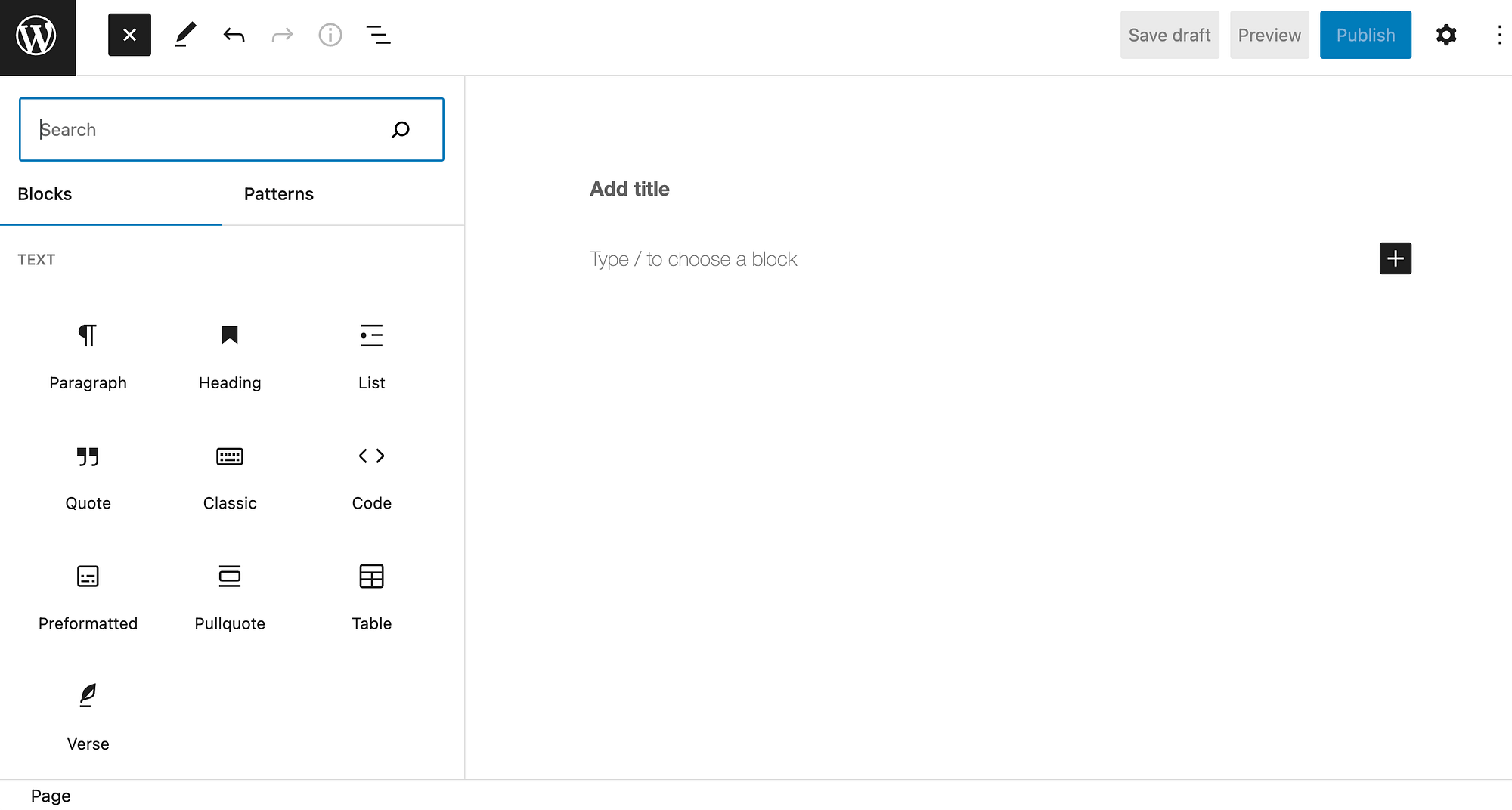
Next, type “file” in the search field to find file Block and click on it to insert it into your Page or post:
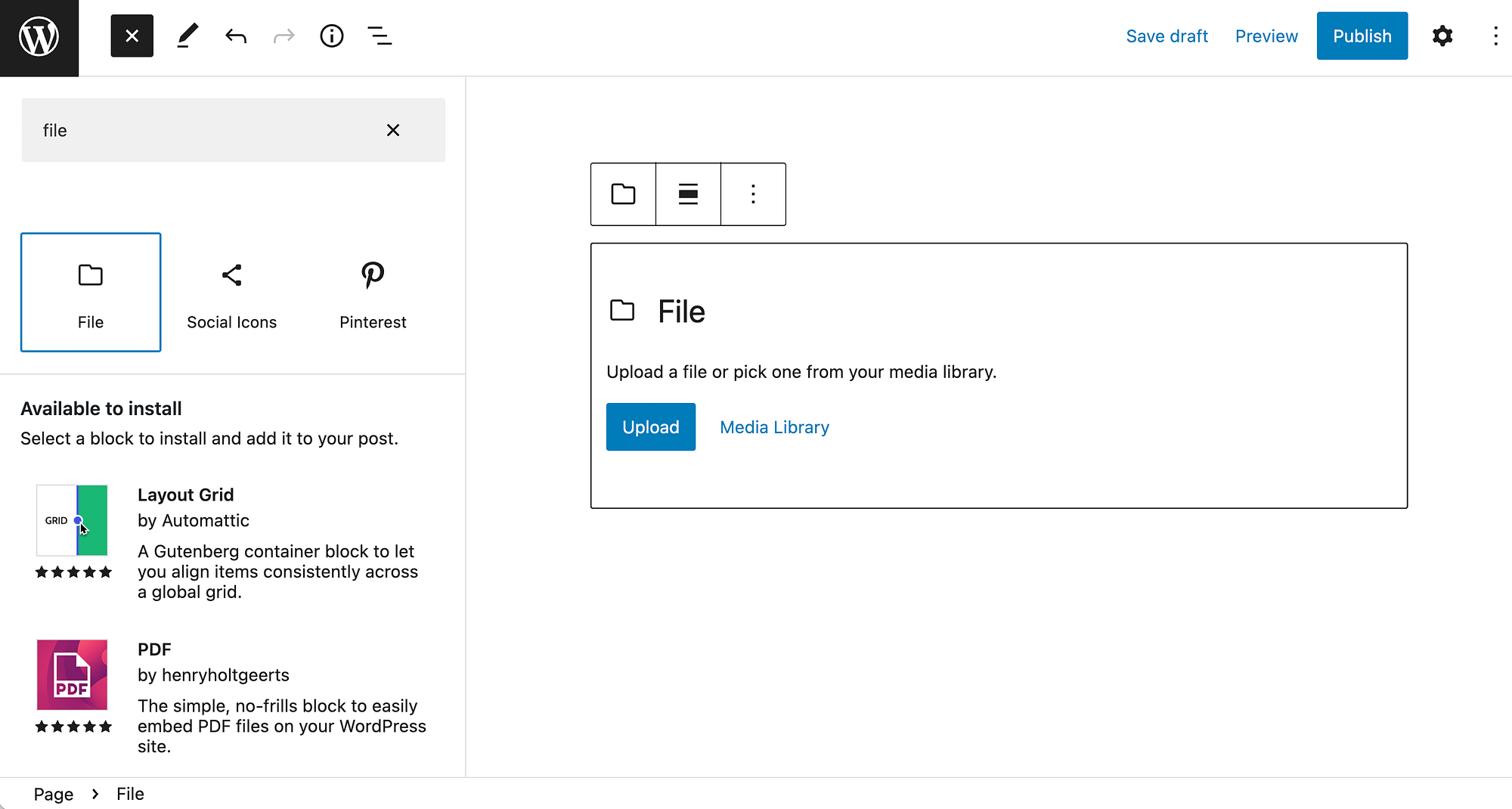
Then, upload your HTML file to the block. After that, you can make any additional modifications to your page or post and hit To publish To make these changes come alive.
Alternatively, you can use custom HTML block.
To view this element, return to your block menu and type “HTML” in the search field:
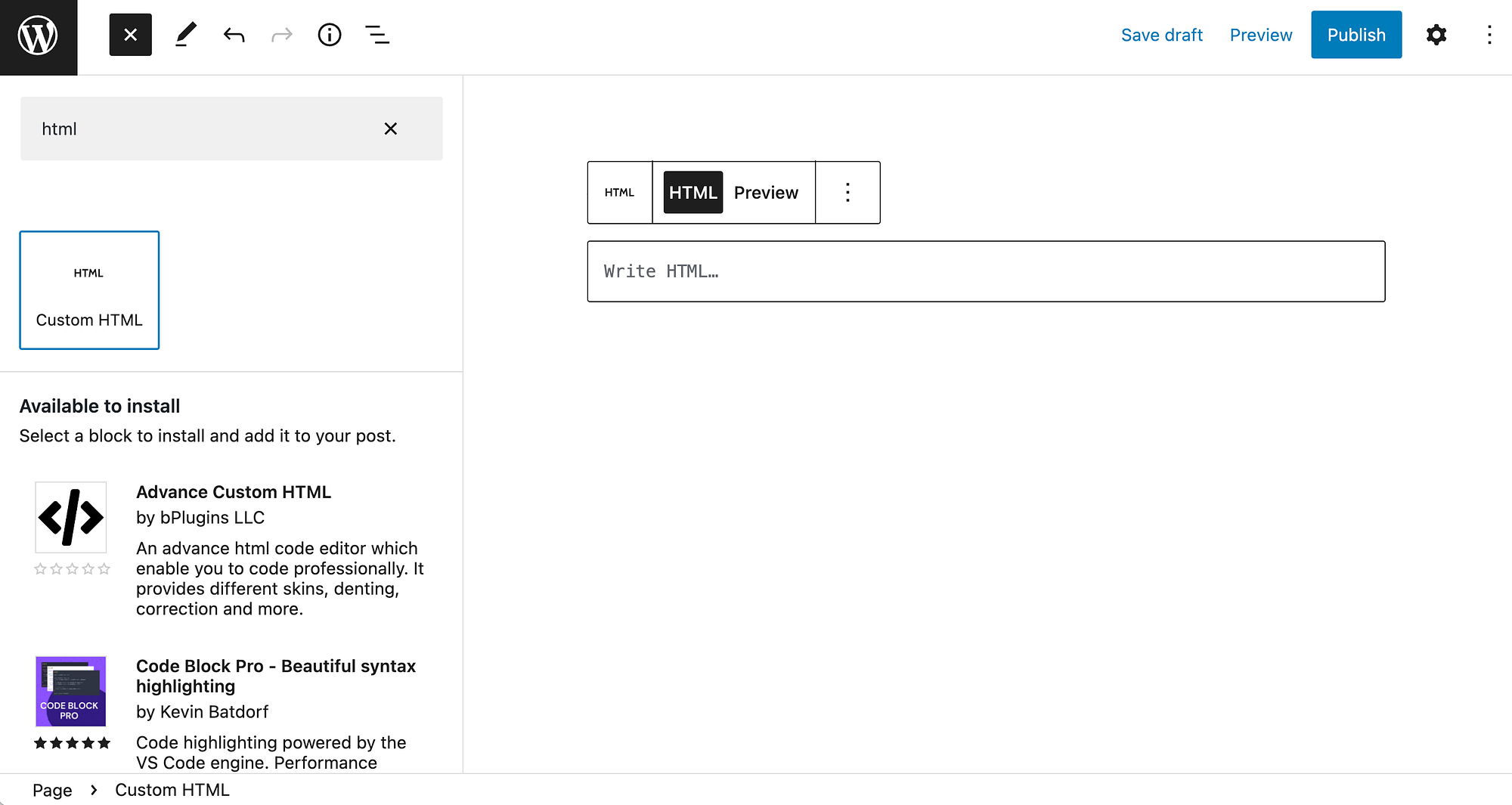
If you choose this option, you’ll need to copy the HTML directly from your file, then paste it into the box that says write HTML,
However, you may run into some problems when using this approach. So, we are going to show you another way to upload HTML file in WordPress.
2. With FTP Client
The easiest way to upload an HTML file to WordPress is by using the block editor. However, if this method is not working for you, you can also upload the file manually. That said, this method is only useful if you want to add an entire page to your website.
You’ll need to use a file manager like cPanel or a File Transfer Protocol (FTP) client. In this walk through, we’ll be using the latter.
Accessing and modifying your site files can be a bit tricky if you’re not familiar with the process, and a small mistake can damage your site. So, before getting started, you might want to back up your site.
We also have a full guide on using FTP to connect to WordPress if you want more detailed instructions.
To start, you need to download an FTP client such as FileZilla,
Once the download is complete, you can open the program and connect to your website:

This will require some basic information including your server and user details. You must fill in the fields for host, User name, Password And port, Then click on join soon,
We also recommend that you change the protocol from FTP to SFTP before proceeding. To do this, click on site manager Icon in the far left corner of the horizontal menu:

it will open Common Settings where you can make this modification:
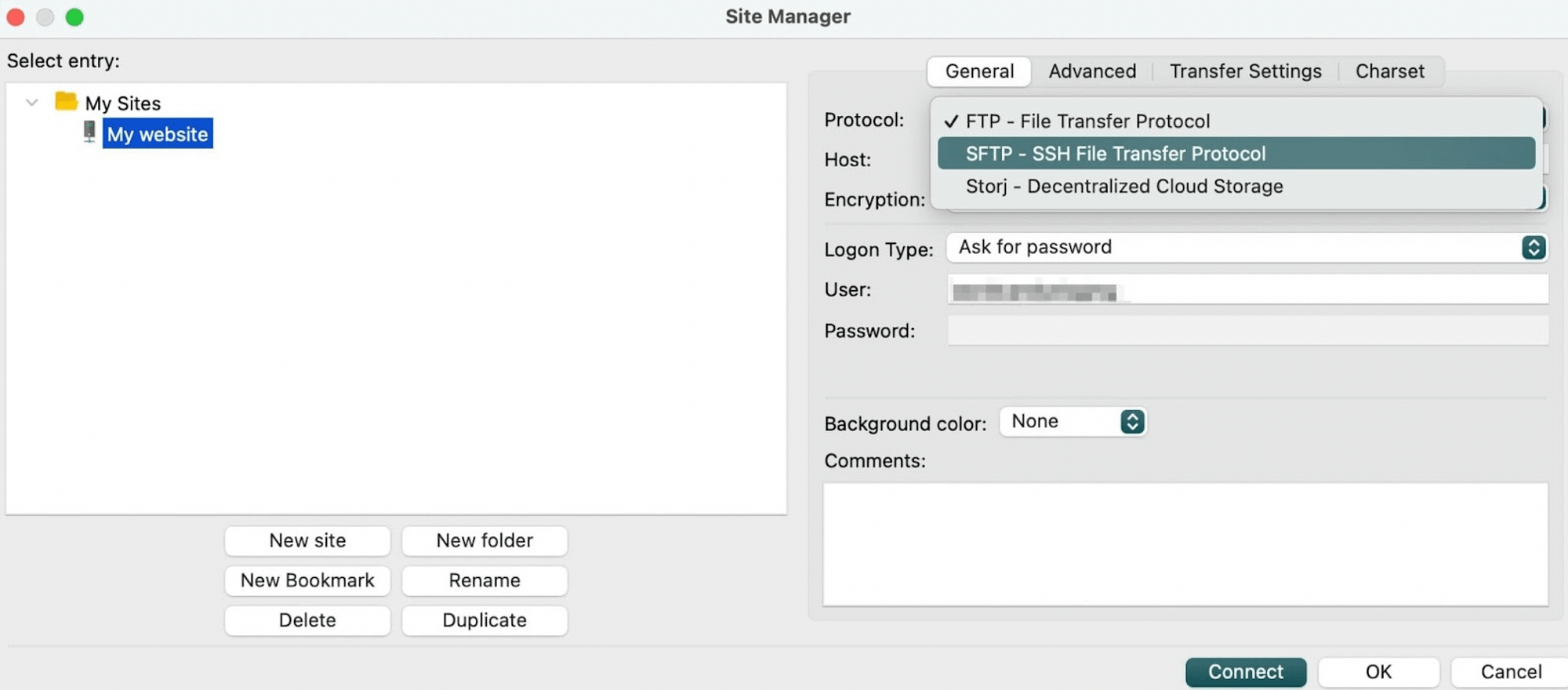
Using the SFTP option will make the process more secure.
Now, you should be able to see two panels on the screen: on the left are the files and folders on your local device and on the right are the files on your site.
In the right-hand panel, you’ll need to find your root directory, which is usually a folder labeled public,
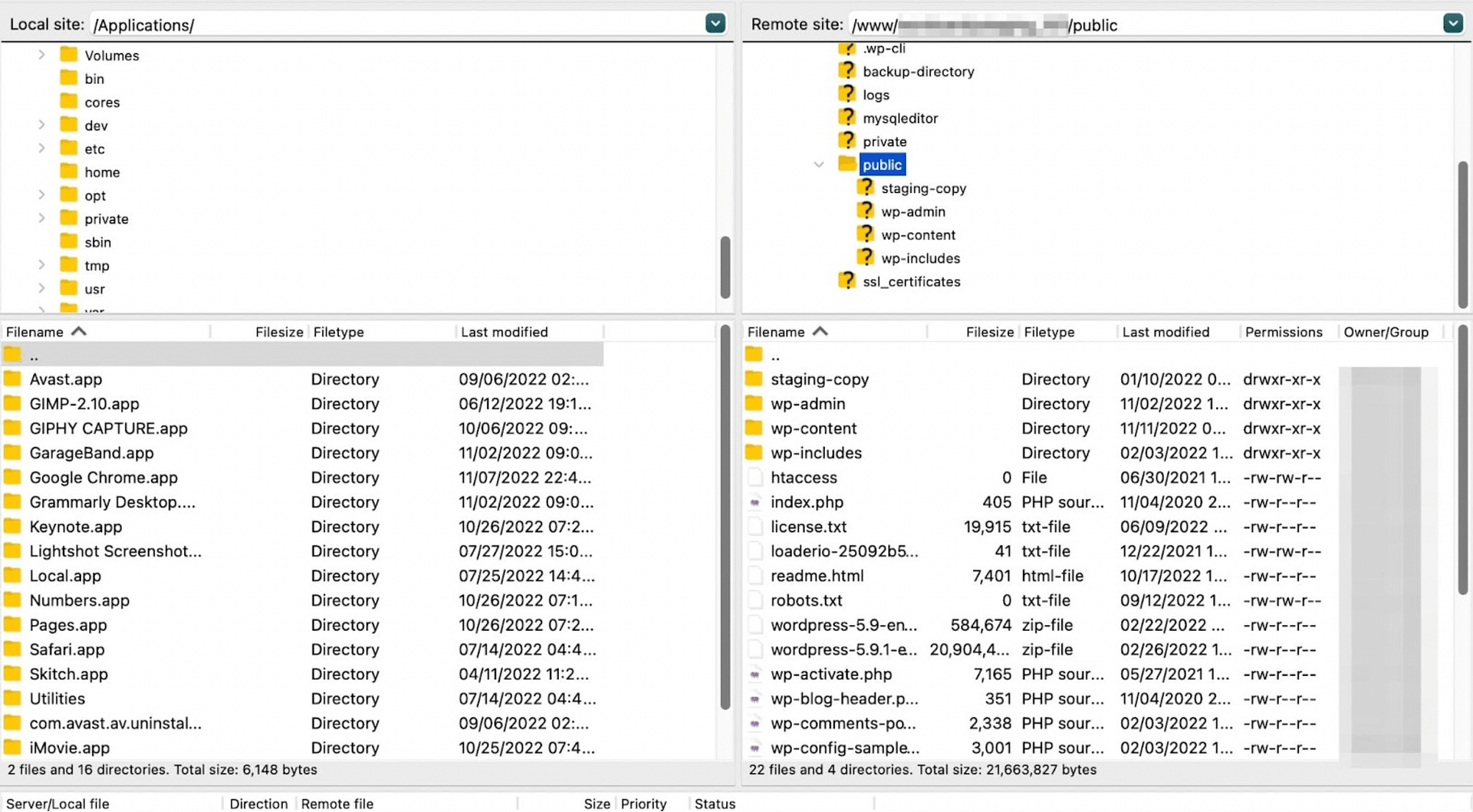
Now, locate the HTML file you want to upload in your left-hand panel (i.e., your computer). Then, add the file to the root folder of your site and you’re done!
Conclusion
Even if you’re a web design novice, you can easily replicate custom layouts with a block editor or page builder of your choice. Nevertheless, there are some situations in which you may need to know how to upload an HTML file to WordPress.
To recap, here’s how to upload an HTML file to WordPress:
- Use file Or custom HTML Block within the block editor.
- Add the file to the root folder of your site using an FTP client such as FTPClient FileZilla,
