
Ever said something and wish you could take it back? This is not possible in real life, but making modifications to your WordPress site is entirely possible. We will show you how to unpublish a page in WordPress so that it is no longer visible to anyone who visits your site. Plus, we’ll teach you how to hide or archive pages so they’re only visible to a selected audience, or password-protect your work so it’s not easily accessible.
Whether you’ve accidentally published a draft version of an article or simply changed your mind about it, you’ll need to know how to unpublish a page in WordPress – and this guide will teach you how!
Let’s take a look at some of the ways you can unpublish WordPress pages.
How to unpublish a page in WordPress
When you unpublish a page in WordPress, it is removed from your live website but leaves you the option of editing the page and republishing it later.
All you have to do is change the published page to Draft status. Visitors won’t be able to see it, but logged-in users can access and edit it through the WordPress dashboard.
This is a great option if you want to improve or improve the content of your post. In your WordPress admin console, go to pages , all pages, Use YOUR MOUSE to hover over the page, and click edit link when it appears.
Clicking on edit will open the page. At the top, you’ll see a button saying switch to draft,
Clicking on this button will open a pop-up asking if you want to unpublish your post. Click Correct To unpublish your post.

This will now convert your live post to a draft. You can either edit the post or delete it. If you want to delete the page, just click on Trash Link at the bottom of the post in your admin console.
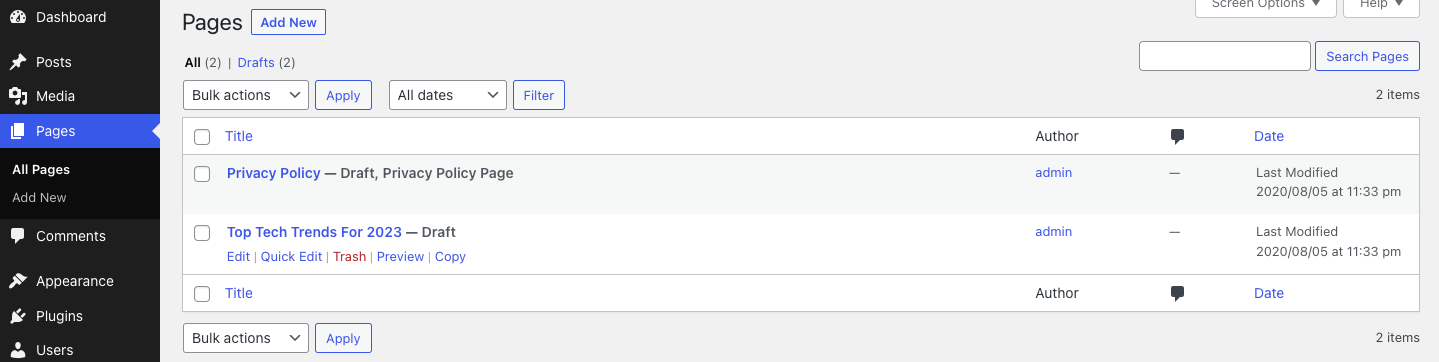
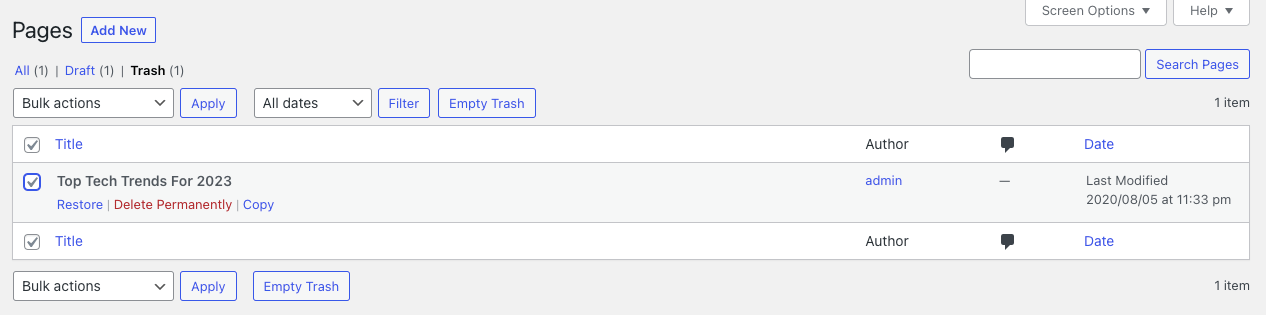
As a word of warning, note that WordPress will delete anything in your Trash after 30 days. If you change your mind, you can recover by visiting the page pages, all pages, and then Trash Add. This will give you the option of restoring your page or permanently deleting it.
Things to keep in mind when unpublishing a page
You now know how to unpublish a page in WordPress, but proceed with caution! Even if you have deleted the page, if it is indexed, it is going to appear in search engine results. This means visitors are getting a 404 page and will probably go somewhere else. Guess it’s not a good form as a website owner, so you have to redirect the URL of the removed page to another page you’ve published.
Choose a page that contains information similar (if not identical) to the information you unpublished. You will retain your SEO benefits and hopefully your new visitors too. This is going to help you if you have left somewhere an internal link to a page that no longer exists. Instead of deleting the links one by one, you can implement a simple redirect. Here’s a how-to guide to do just that.
You should also change your menu structure if your unpublished page or page is there. There are menus to help visitors navigate their way around your WordPress website; Dead-end links are going to have a negative impact on their user experience.
how to unpublish multiple pages in WordPress
You already know how to unpublish a page in WordPress – one page – but if you’re redesigning your WordPress site or moving to a new domain, you may need to unpublish several at the same time. Pages or posts may need to be removed or edited. (It is also possible to unpublish your entire WordPress site if you need to).
You do not need to unpublish each page one by one in WordPress; You can unpublish everything at once from your WordPress admin dashboard. all you have to do is go pages, all pages And check the box next to the pages you want to unpublish.
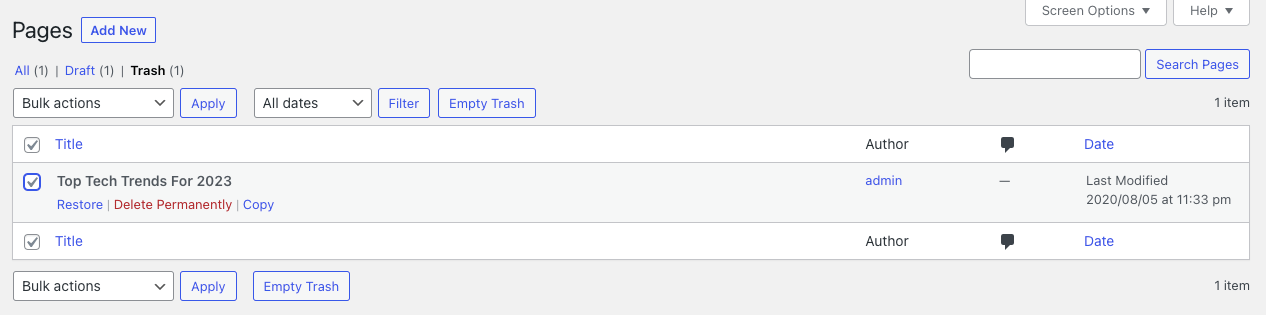
Click on bulk action and choose edit from the dropdown menu. Kill apply,
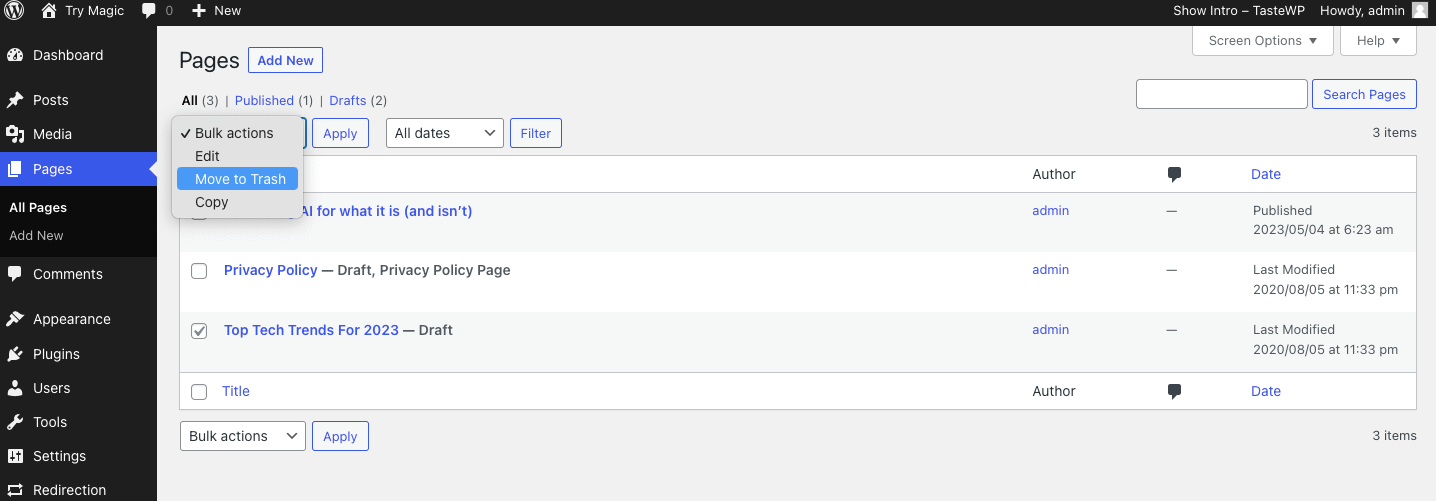
Using this action, you can convert all the posts you’ve selected to Sticky Posts, change the author, or edit pages in a number of other ways.

You can convert multiple Live Pages to Draft by opening the Status dropdown menu and selecting Format, clicking on the Updates button, and you’re ready to go.

If you are 100% sure you will never need these pages again, you can do so by opening the Bulk option dropdown and move to Trash Option.
As in the previous example, deleting or deleting content can result in many broken links and dead ends. Unless you want to permanently delete your WordPress site, it is a good idea to implement redirects wherever possible.
How to password protect a page in WordPress
If you don’t want to technically unpublish a page (or post) in WordPress, but you don’t want the public to see it, you can password-protect your pages or make them private.
To limit sections of your website to your co-workers, members, or customers, simply open the page you want to password-protect.
In your admin console, go to pages, Hover over the page you want to password protect and click edit, This will open the page. click on the public button next to the visibility Option.
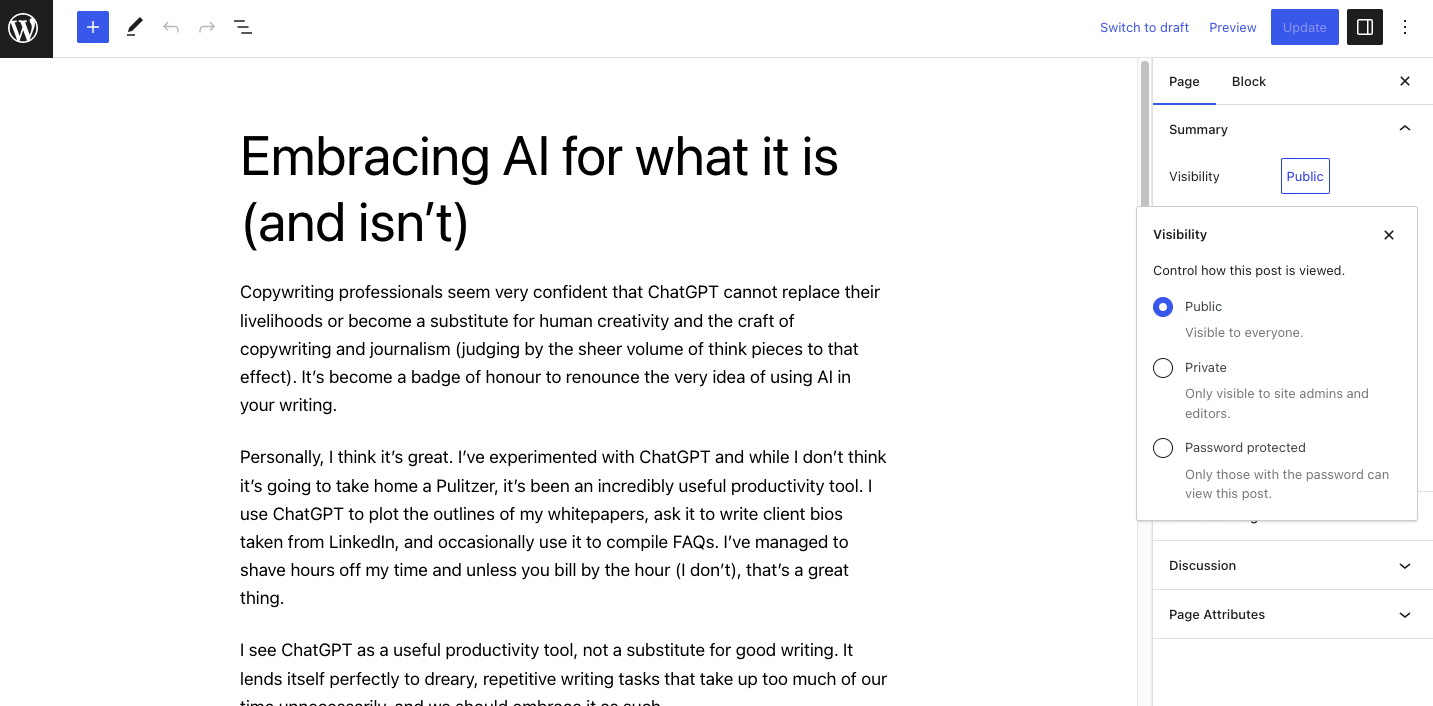
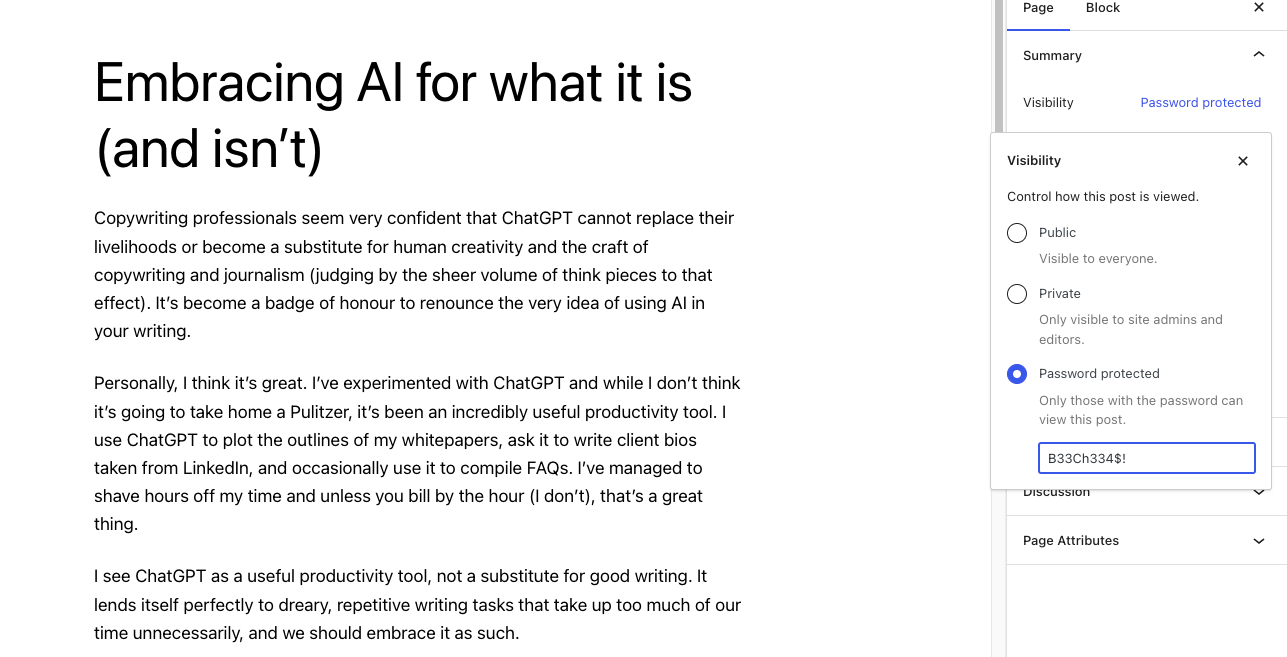
Choose the password-protected button and enter a password. Anyone with the password will be able to view the content, so use a secure password that includes a combination of letters, numbers, and symbols. Click Updates to save your changes.
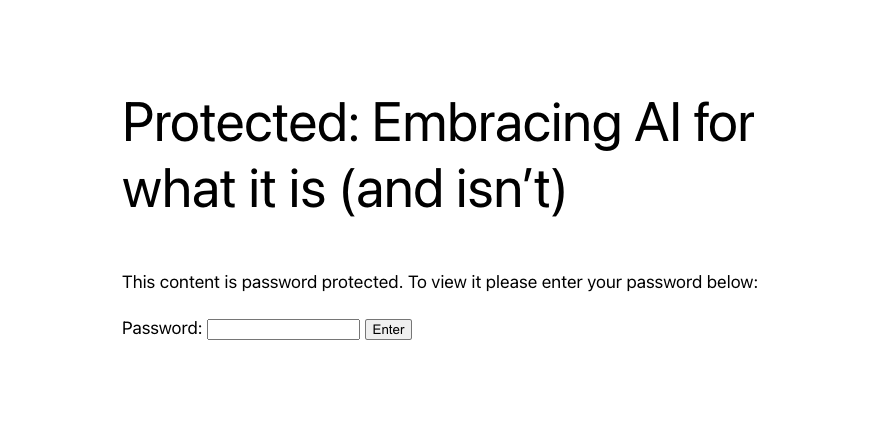
Anyone who visits the page who does not have editor or administrator rights will be asked to enter a password before viewing the content.
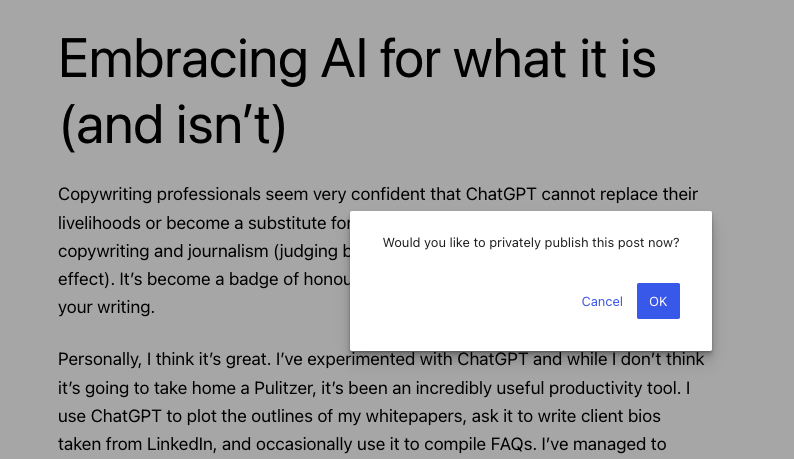
Alternatively, you can set the page to private by clicking the public button next to the visibility choice and selecting Personal,
You will see a pop-up asking you to confirm the change; click on the Correct button to make your changes.
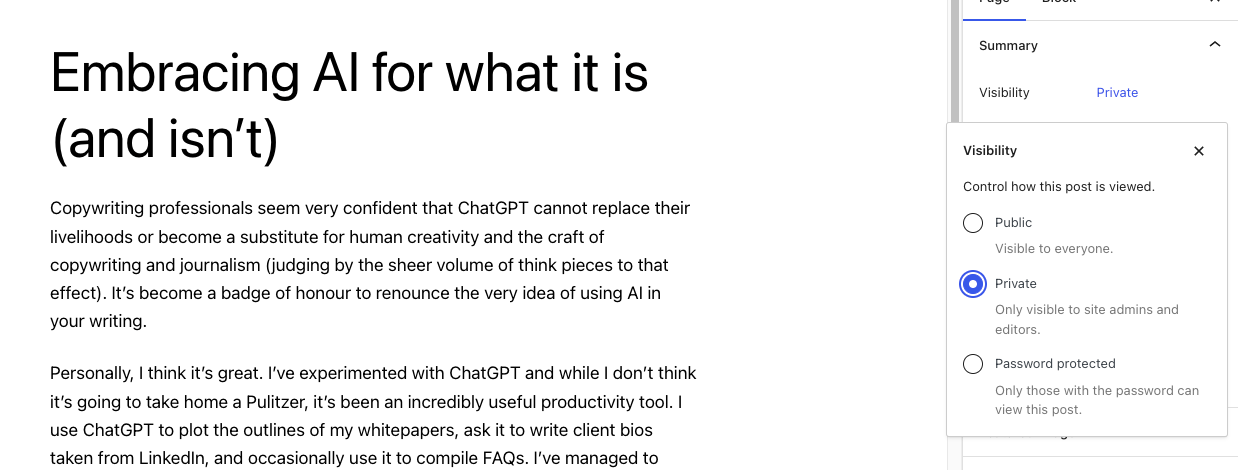
If you make a post or Page private, only members with specific user roles will be able to see it. The downside to this method is that making a post private will remove it from your site. It will also show a 404 error to non-logged-in users who click on the URL. If you share the URL too far and wide, it can lead to a bad user experience.
When it’s appropriate to unpublish a page
If the pages you are removing from your site are out of date, no longer relevant to your brand, or of poor quality, unpublishing or reformatting the content will only enhance your user experience and improve your SEO ranking. Google likes to rank websites with good content (which they call “people-first” content) over bad material.
By setting your WordPress posts to private, you will effectively lock all unauthorized users out of that content. Password protection likewise keeps areas of the WordPress site private. You can decide who can access the content at any given time. This is especially useful if you want to keep content separate for coworkers or clients, or restrict access to a site while you’re working on it.
Password protection can also be a great way to give extra privileges to paid or premium users. By providing passwords only to users who sign up for your newsletter or promotion, you can convert visitors more easily.
How to unpublish a WordPress page in 3 easy ways
You have learned three easy ways to unpublish a page in WordPress. In short, these are: unpublishing a page by setting it to draft, unpublishing multiple pages using the Bulk Actions tool, or password-protecting your pages to hide them from public view.
Using a platform other than WordPress but still want to unpublish some of its posts or pages? Here’s our handy guide to unpublishing pages in Wix.
