
Max_execution_time WordPress error is a common error that most WordPress users face at some point while operating their sites.
The error is related to the incomplete execution of the PHP script due to a lack of time.
What is the max_execution_time WordPress error? what causes it?
WordPress is coded in the PHP programming language, along with plugins and themes. This means that PHP scripts are being executed continuously when you are running a WordPress website.
By default, the execution of scripts is often under what? 30-second time limit through your hosting server. This is done to prevent overuse of server resources.
This number can be higher or lower on some hosting providers – but most hosts use a default configuration of 30 seconds.
If a script does not complete execution within the time limit of 30 seconds, the function is terminated and you are shown a max_execution_time error.
In most cases, this particular error occurs when you are trying to install or update a plugin or theme.
Max_execution_time WordPress error can also be displayed with different messages.
For example, sometimes you will see a message like the following in your WordPress dashboard: Fatal error: Maximum execution time of 30 seconds exceeded.
On the front of your WordPress site, this error can also appear as a generic WordPress error message: The site is experiencing technical difficulties.
Now that you know why the max_execution_time WordPress error occurs, let’s figure out how to fix it.
How to fix the max_execution_time WordPress error?
In this section, we are going to discuss two types of solutions: permanent and temporary.
The permanent solution involves deactivating plugins and themes. It may not be possible to do this immediately for many of our readers, so we are also offering a temporary solution.
If the temporary solution is more suitable for you, then implement it, but make sure to do the permanent solution soon otherwise you risk facing the max_execution_time error again and again.
Permanent fix
We know that the max_execution_time WordPress error occurs due to time constraints on PHP script. But we still need to know which PHP script was being executed in order to fix the error.
In most cases, people face this error Installing a Plugin or a Theme, This means that a plugin or theme is causing the error.
The PHP execution time limit set by the hosting provider is sufficient to allow the majority of Plugins and themes to work properly.
But poorly coded or malware-infected plugins and themes require more resources to function. So, to fix the max_execution_time error, you need to remove the plugin or theme from your website and replace it with an alternative.
If you started experiencing the error shortly after installing a new plugin or theme, then it’s a pretty good indication that the problem comes from that extension.
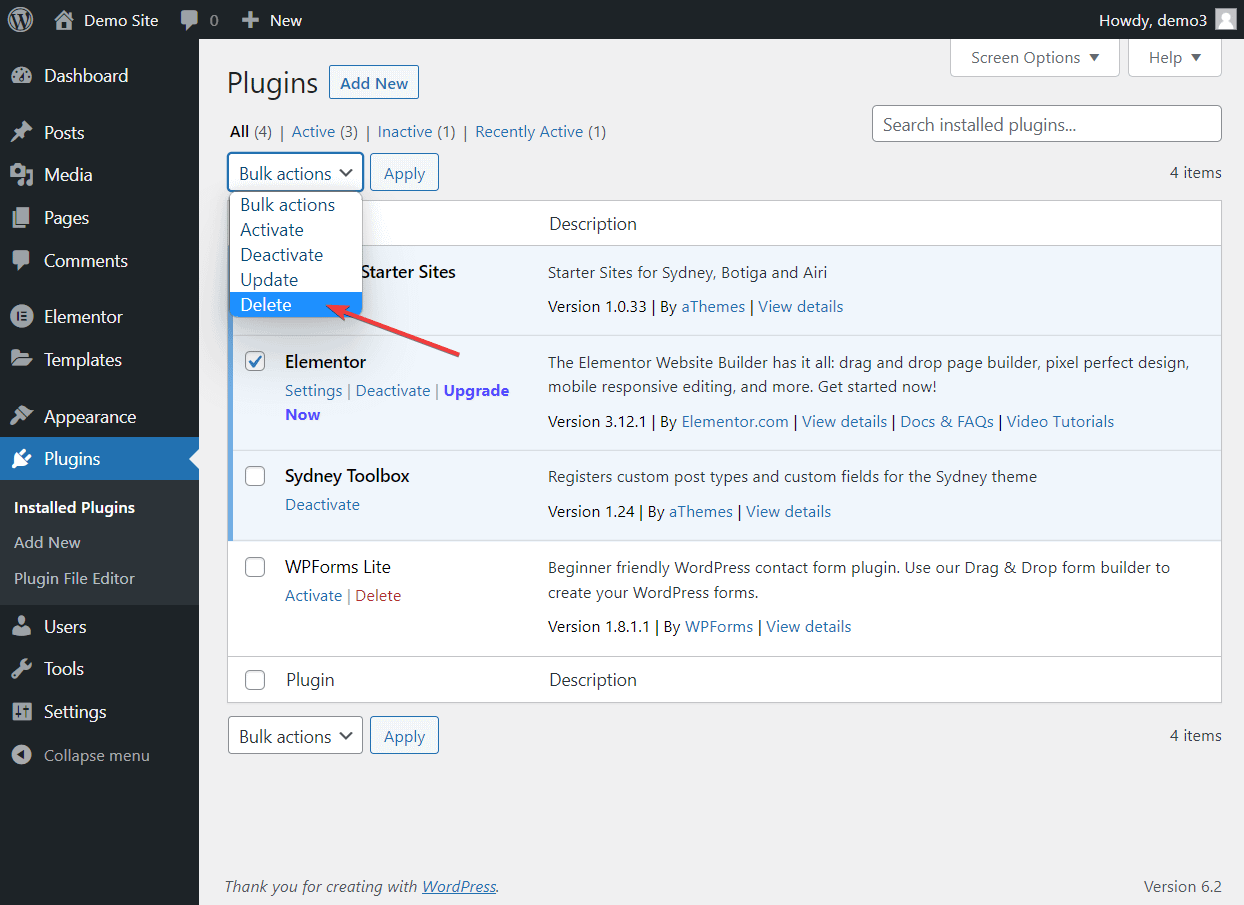
Multiple updates to plugins and themes are also known to cause the error. So we recommend to avoid bulk updates and apply updates one by one.
If the error appeared when you were not operating your site, there are still ways to find out the real cause of the error.
- The file name in error may be Giving you a clue about its cause.
- WordPress (if you have version 5.2 or above installed) may have sent you an email Revealing which plugin, theme or software triggered the error.
They may have also sent you a special link using which you can open your site in recovery mode. Recovery mode is needed when your site stops working due to a fatal error. This particular error, although called a fatal error, does not prevent your site from functioning normally. So when you don’t need to access recovery mode to remove the culprit plugin or theme, there is no harm in using it.
Temporary fix
A temporary fix for the max_execution_time WordPress error involves increasing the maximum PHP execution time.
You can try to do this using one of the four methods below:
- a dedicated plugin
- wp-config.php file
- .htaccess
- php. ini
However, it’s worth noting that the success of these methods will partially depend on your hosting environment and how it’s configured.
Method 1: Increase PHP Execution Time Using a Plugin
While there are some plugins in the WordPress repo that allow you to increase the execution time of PHP at the time of writing this article WP Tools by Bill Minozzi Is the only plugin that is being updated regularly. Therefore, we recommend using this plugin. We also recommend checking the plugin’s WordPress repo page to make sure it’s being updated at the time of reading this article.
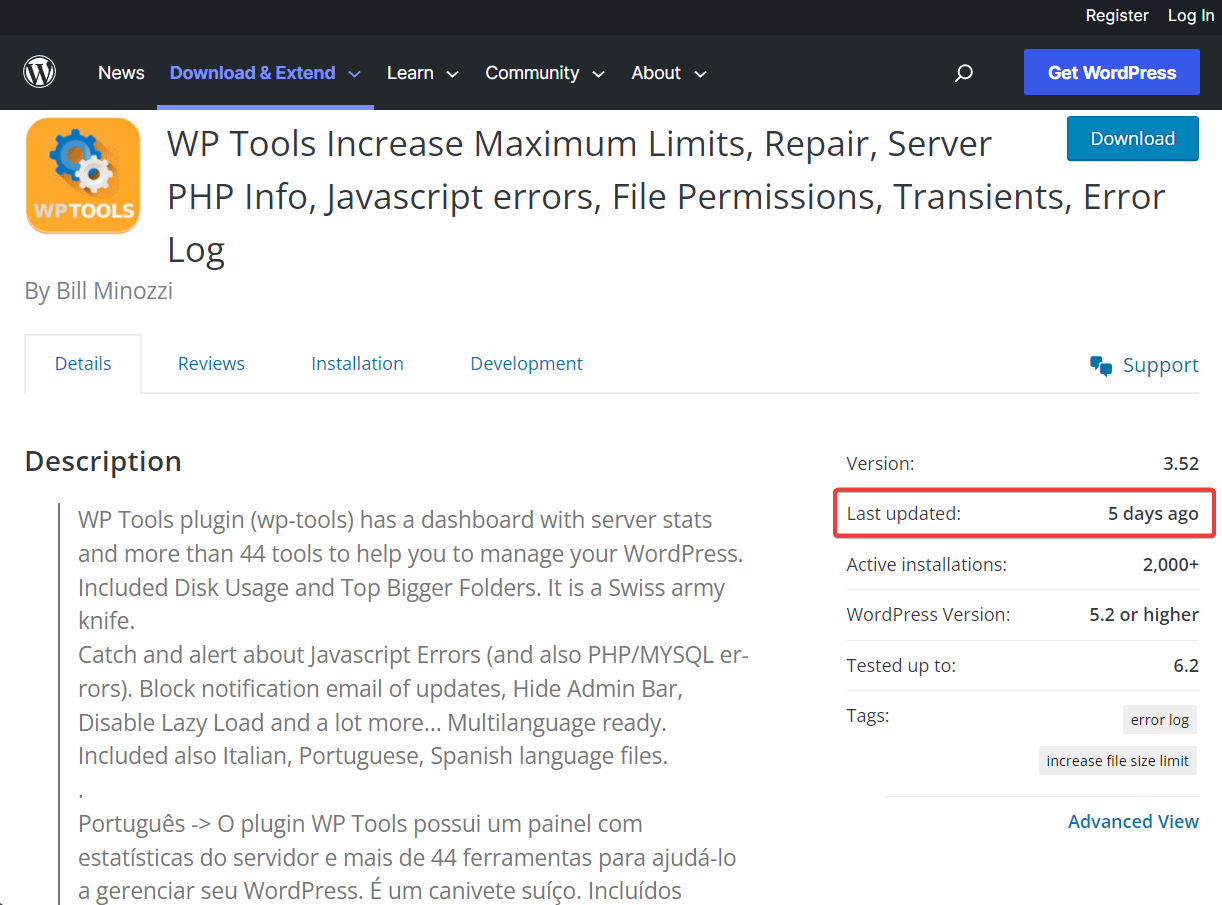
download wp tools and establish It’s on your WordPress website. As soon as you do this, a WP Tools option will appear on your dashboard menu.
go for WP Tools → Settings → General Settings and you should be able to see an option called add max execution time limit,
This will show you your current execution limit which can be increased from 120 seconds drop-down menu,
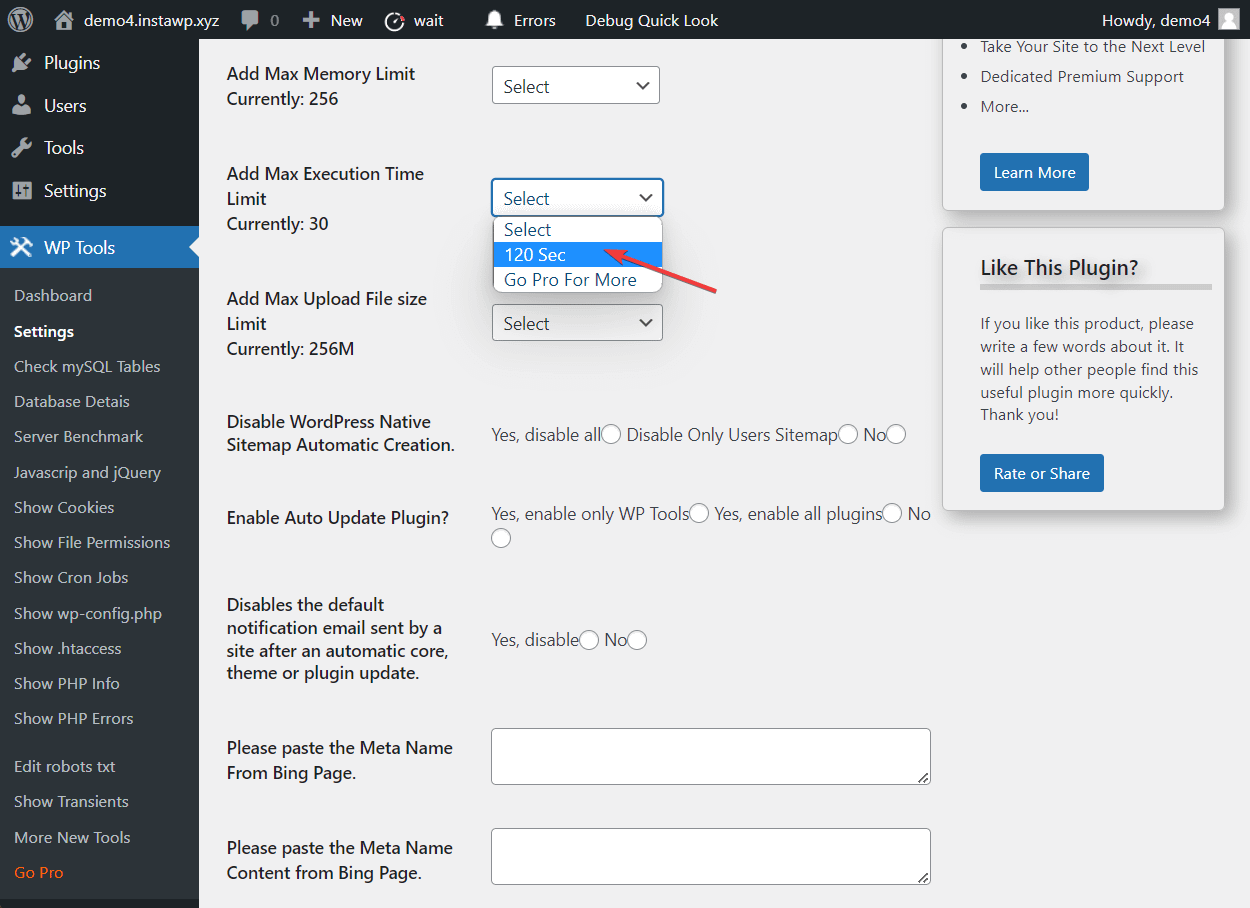
Try updating or installing the plugin or theme that is triggering the error. If it is still showing the error, you probably need to increase the time limit to 300 seconds.
This can be done using the WP Tools plugin but you need to upgrade to the premium version of the plugin. We recommend manually increasing the time limit instead. In the next few sections, we cover the manual method.
Method 2: Increase PHP Execution Time Using wp-config.php
You can modify your site’s wp-config.php file using the cPanel file manager or an FTP client. We’ve covered how to use an FTP client like Filezilla in a separate guide. So in this tutorial, we will show you how to use cPanel.
First of all, you have to take a backup of your website. It is very important. You will be making changes to an important file and if things go wrong, you could break your site. The backup will be your safety net.
Open and find your hosting account cPanel,
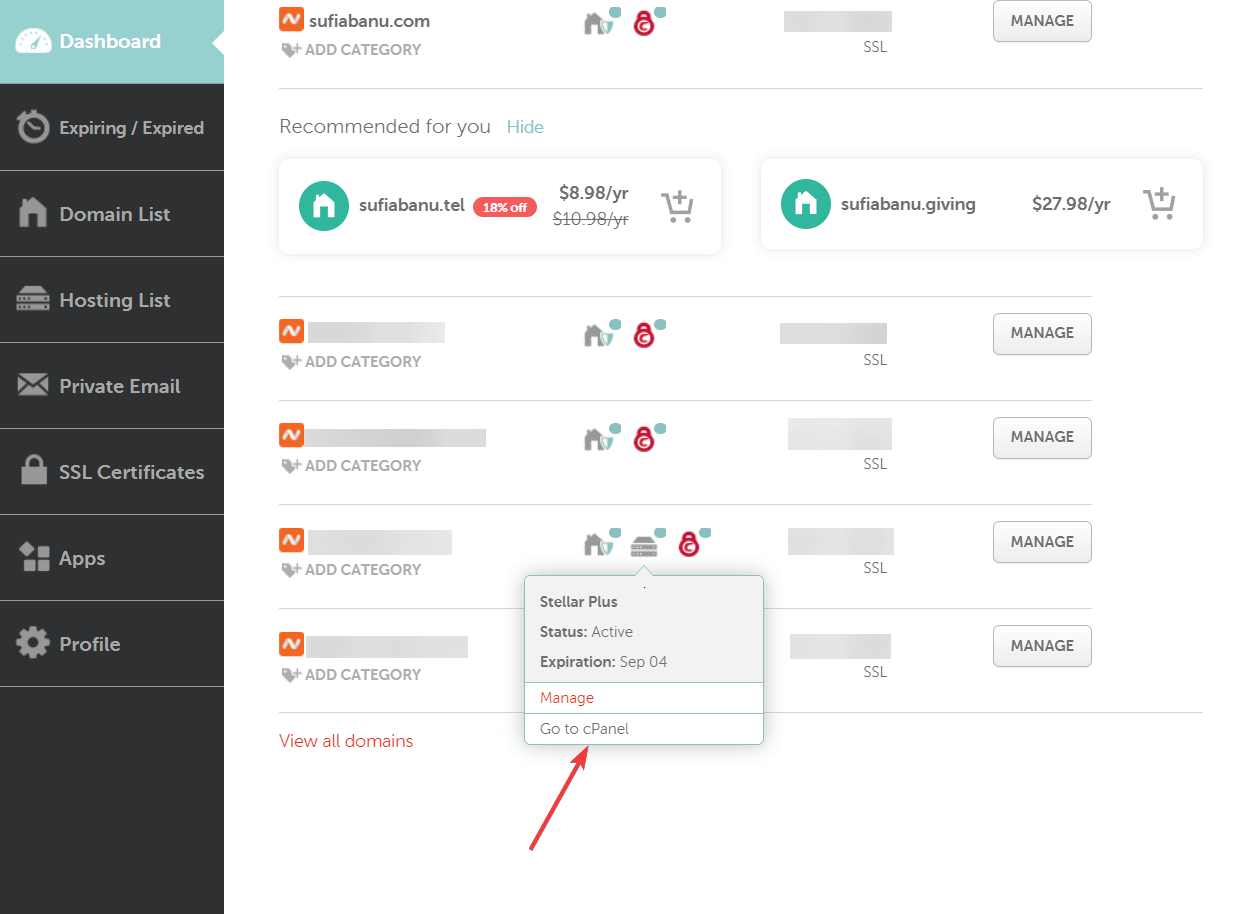
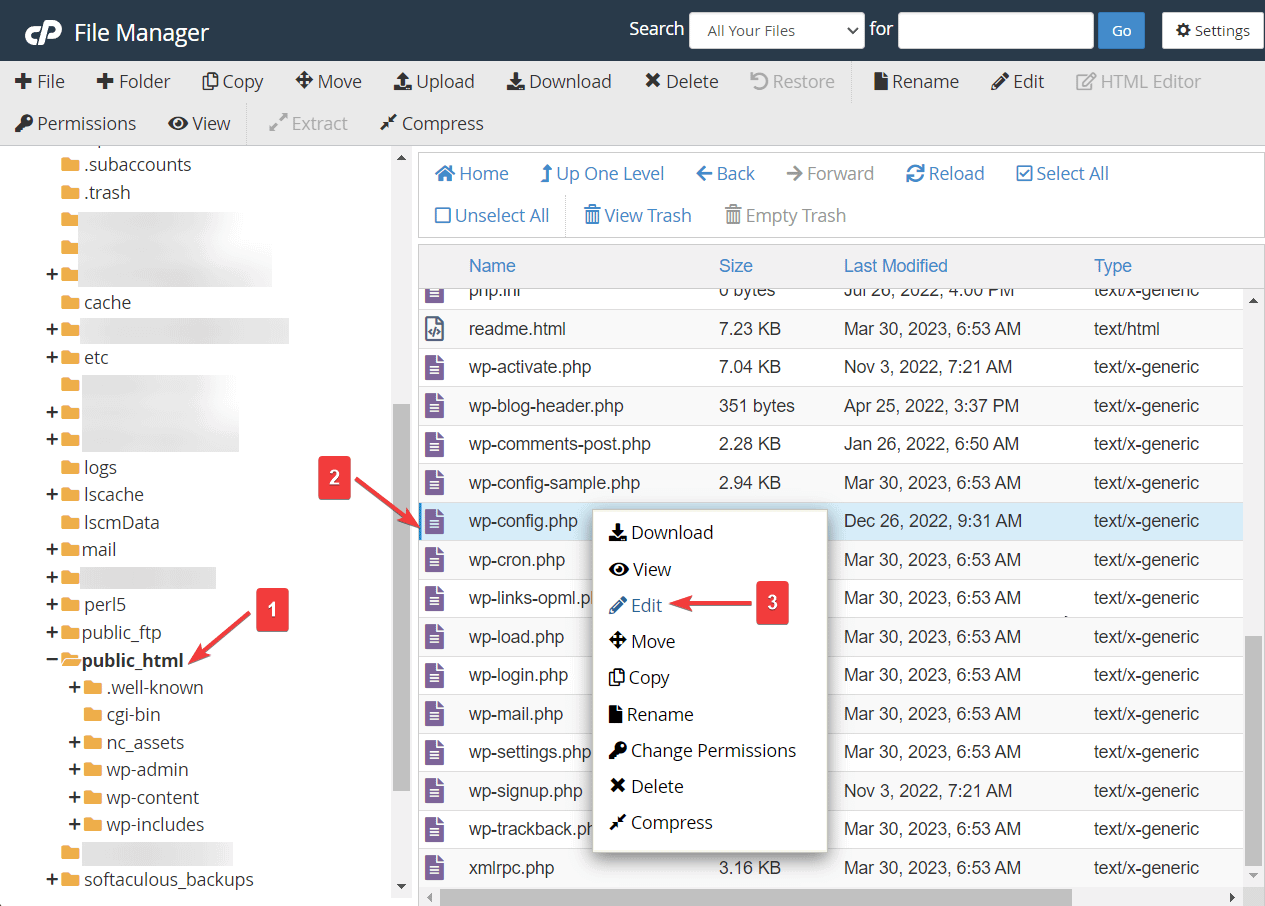
open again file manager to the public_html folder and you will find the wp-config.php file in that folder.
right click on the wp-config file and choose the edit button.
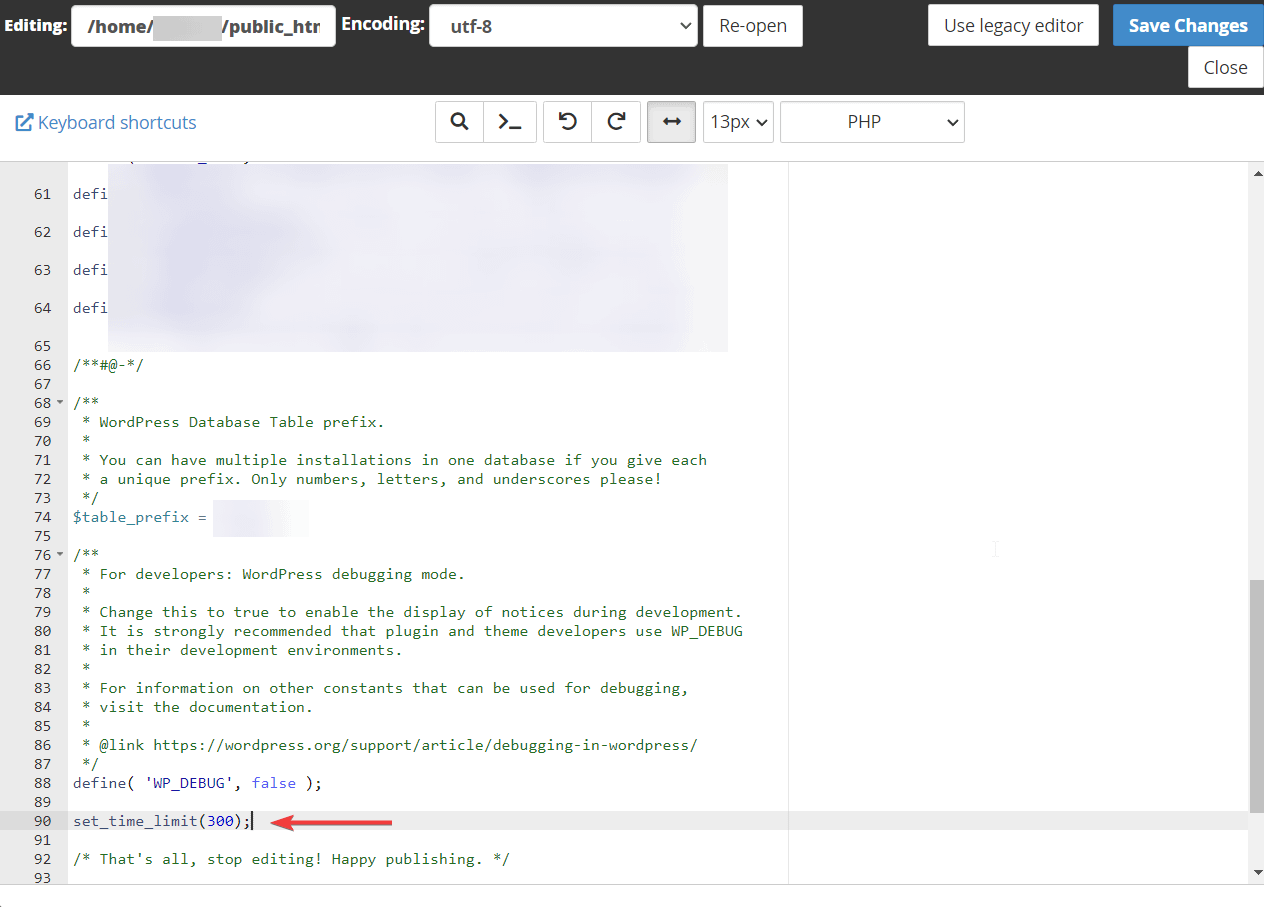
Scroll down to the end of the file and right above the line “/* That’s it, stop editing! Happy blogging. ,Enter this code:
set_time_limit(300);
Beat save Changes Close buttons and tabs.
Method 3: Increase PHP Execution Time Using .htaccess
If your web server supports .htaccess (Apache and LiteSpeed), you can also increase PHP execution time by using .htaccess file.
You can access the .htaccess file by opening your hosting account and going to cPanel → File Manager → public_html → .htaccess, right-clicking on the file, and hitting the edit button.
Then put the following code at the end of the file:
php_value max_execution_time 300
save Make your changes and exit the file.
Method 4: Increase PHP execution time using php.ini
Log in to your hosting account and go to cPanel → File Manager → public_html → php.ini, Right-clicking on the file and selecting the Edit file edit button.
Go to the end of the file, enter the following code, and save your changes:
max_execution_time = 300
If you don’t see the php.ini file, you may need to enable hidden files. Or, your host may offer a separate php.ini editor tool.
Did nothing work? get help from hosting
If both the permanent and temporary fixes fail, there may be a problem with your hosting provider. Contact your hosting support team. Tell them about all the steps you have already taken. They will be able to help you remove the error from your site in no time.
How to prevent max_execution_time error in future
In most cases, the max_execution_time WordPress error occurs either when you are updating a plugin or theme or installing one.
To prevent the error from occurring in the future, you must take the following steps:
1. Update Plugins One by One
Avoid updating plugins all at once as multiple updates overwhelm the server and can trigger errors like max_execution_time WordPress error.
2. Use a Staging Site During Updates
A staging site is a replica of your WordPress website. You can make updates to this site as if it were your live site. This will ensure that post-update issues are limited to your staging site only.
3. Download Plugins and Themes from Trusted Sources
We have mentioned earlier how poorly coded plugins and themes hog more time and resources for PHP scripts to execute. So you need to make sure that you are using well-coded software on your site. The problem is that it’s hard to tell which plugins and themes are well-coded and which are not.
The best way to ensure the quality of a plugin or theme is to download them from the WordPress repo, popular developer websites, such as Themisle, Ethemes, Astra Themes, etc., or marketplaces, such as CodeCanyon, ThemeForest, TemplateMonster, MojoMarketplace, etc..

Fix max_execution_time WordPress error for good
Max_execution_time error is a common WordPress error and can be easily fixed by removing the culprit plugin or theme from your website.
If you have a heavy dependency on a plugin or theme and don’t want to remove it immediately, increasing the PHP execution time limit can be implemented as a temporary fix. Just remember that the real culprit is still on your site and needs to be replaced with an alternative.
For some other tips to keep your site up and running, you can read our guides to Troubleshooting WordPress and Fixing 20+ Common WordPress Errors.
