
Want to fix “cURL error 28” on your WordPress website?
It is common to encounter errors while operating a WordPress website. “CURL error 28” occurs when cURL (a communication tool) times out after the server took too long to respond to the request.
What is cURL error 28? Why does this happen
To understand cURL error 28, you must first understand the role of cURL in your WordPress website.
for fewer clients for urlcURL is a tool used to communicate with external services such as social media platforms, payment gateways and email marketing services, among other things.
In addition, cURL is also used when updating plugins, themes, and WordPress core. The tool connects to wordpress.org servers and helps in retrieving the latest software version.
In more technical terms, cURL lets WordPress (and other services) send and receive data using URLs.
CURL errors are of different types and occur due to the following reasons:
- SSL certificate verification failure Because it is out of date or invalid or because of wrong server configuration.
- Unable to connect to remote servers (of wordpress.org, email marketing services, payment gateways, and social media API servers) due to slow server response times, network connectivity issues, incorrect server configuration, or firewall restrictions.
- Remote server returns an HTTP error code which can be caused by problems with the database, website code, or server configuration.
- Older versions of WordPress, plug-ins, Subject matter even more PHP cURL can cause errors due to incompatibilities with newer versions of cURL.
- DNS issues Incorrect DNS records, misconfigured DNS servers, or DNS cache issues can also cause a cURL error.
While these are common causes of cURL errors, cURL error 28 is usually caused by the cURL operation timed out because the server took too long to respond.
Before we dive into the solution, let’s take a look at some cURL error variations:
- CURLE_OPERATION_TIMEDOUT or cURL error: 28 (OPERATION_TIMEOUTED)
- CURLE_COULDNT_CONNECT
- CURLE_SSL_CACERT
- CURLE_HTTP_RETURNED_ERROR
How to fix cURL error 28
To fix cURL error 28, you can try the following troubleshooting steps:
- disable firewall
- deactivate plugins
- Check for SSL Misconfiguration
- Update PHP and cURL versions
- Verify DNS Settings
Please note that you do not need to complete all the steps at once. You need to take it one step at a time and then check your site to see if the error is gone. If the error persists, proceed to the next step.
Also, back up your website before trying any of these troubleshooting steps.
In the following solutions, you will be asked to take steps such as deactivating plugins and updating PHP versions, among other things. These solutions may cause your website to break. The backup will be your safety net. If things don’t go according to plan, you can use the backup to get your website up and running.
One more thing: Clear your browser cache and check if the error still shows up.
Browser caching is a technique used by web browsers to temporarily store website data, such as images and stylesheets, in order to reduce page loading times for subsequent visits to the same page.
Some WordPress errors appear temporarily and are removed within a few minutes. But you can still see the error because you are shown the cached page version. So, before moving ahead with the solution, clear your cache and make sure the error is still showing up on your site.
1. Disable Firewall
Firewalls are there to monitor your site and prevent malicious visitors from accessing it. Sometimes firewalls mistakenly block legitimate requests, delaying the server response, and triggering cURL error 28.
WordPress websites have different types of firewalls. Some sites have a dedicated plugin installed, others have a firewall installed as an add-on to a security plugin or CDN (Content Delivery Network).
You can disable the standalone dedicated firewall plugin from your WordPress dashboard (or via FTP if you can’t access your WordPress dashboard).
For security services, some of them have dashboards that can be accessed from the WordPress dashboard and others have external dashboards that can be accessed from the security plugin’s website. Wherever the dashboard is located, you need to find it and disable the firewall.
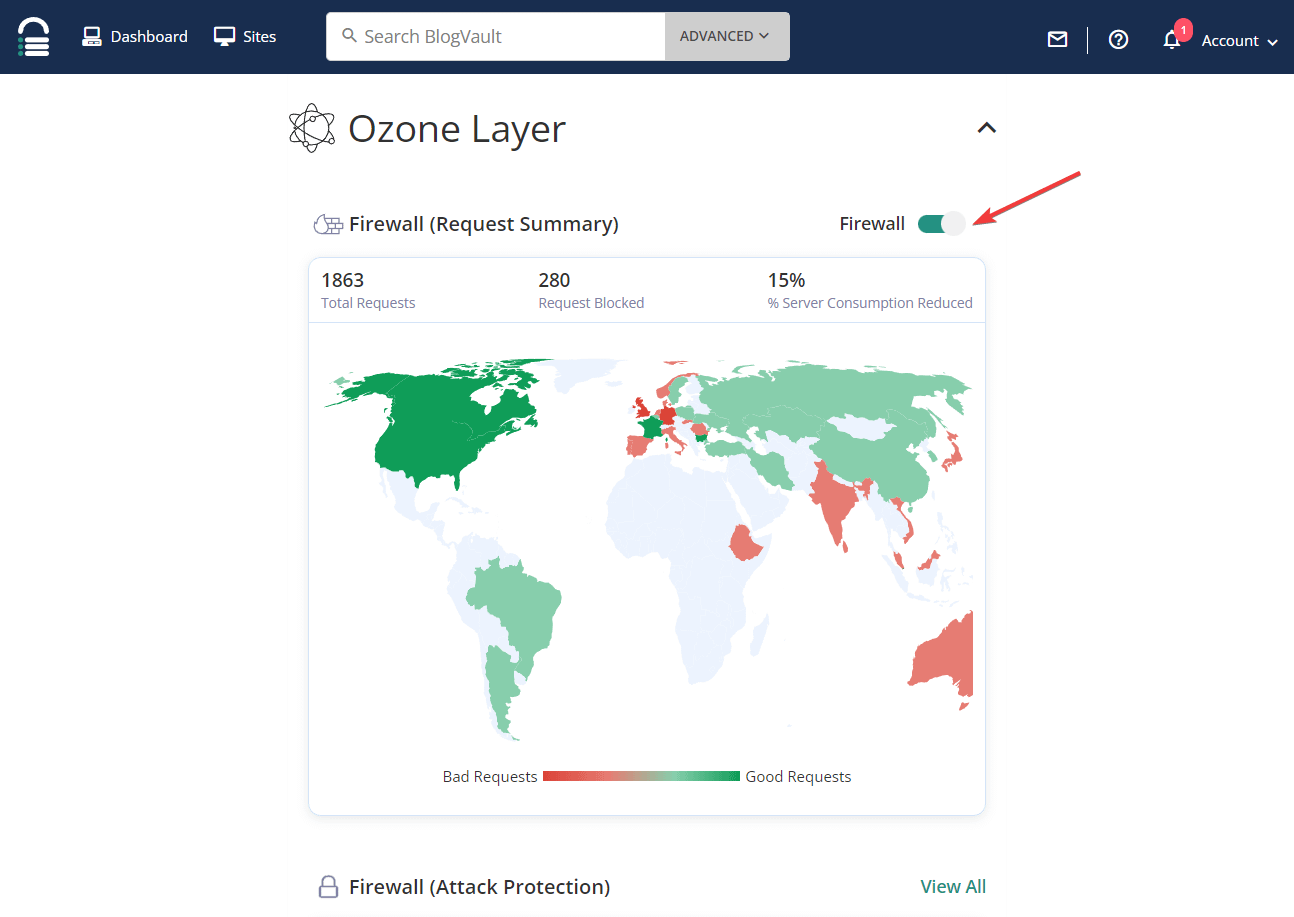
CDNs usually also have external dashboards. Access it and disable your CDN’s firewall.
Now check if your website is still showing curl error 28.
If disabling the firewall doesn’t work, try the next solution.
2. Deactivate Plugins
WordPress plugins and themes often make API requests to send and receive data from remote servers. When remote servers take too long to respond to that request, the cURL operation times out, triggering cURL error 28.
So in this section, we will find out if a plugin or theme is causing the error on your website by deactivating them.
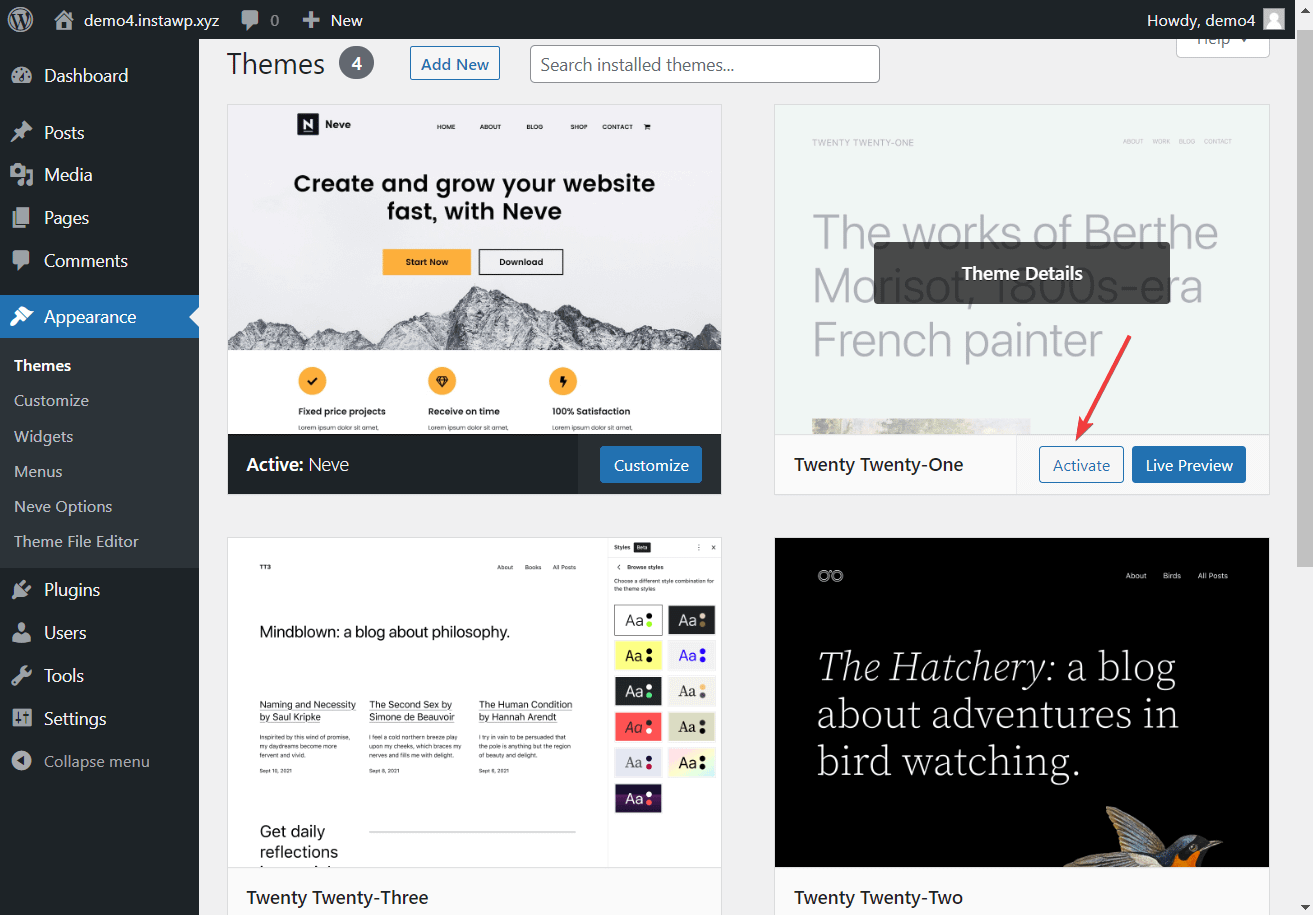
To deactivate your current theme, go to Appearance → Theme And Active Any default WordPress theme like Twenty Twenty-Three or Twenty-Two, etc. Then check if the error is gone.
After that deactivate all the plugins Plugins → Installed Plugins, choose Select all plugins Deactivate option, and hit apply button.
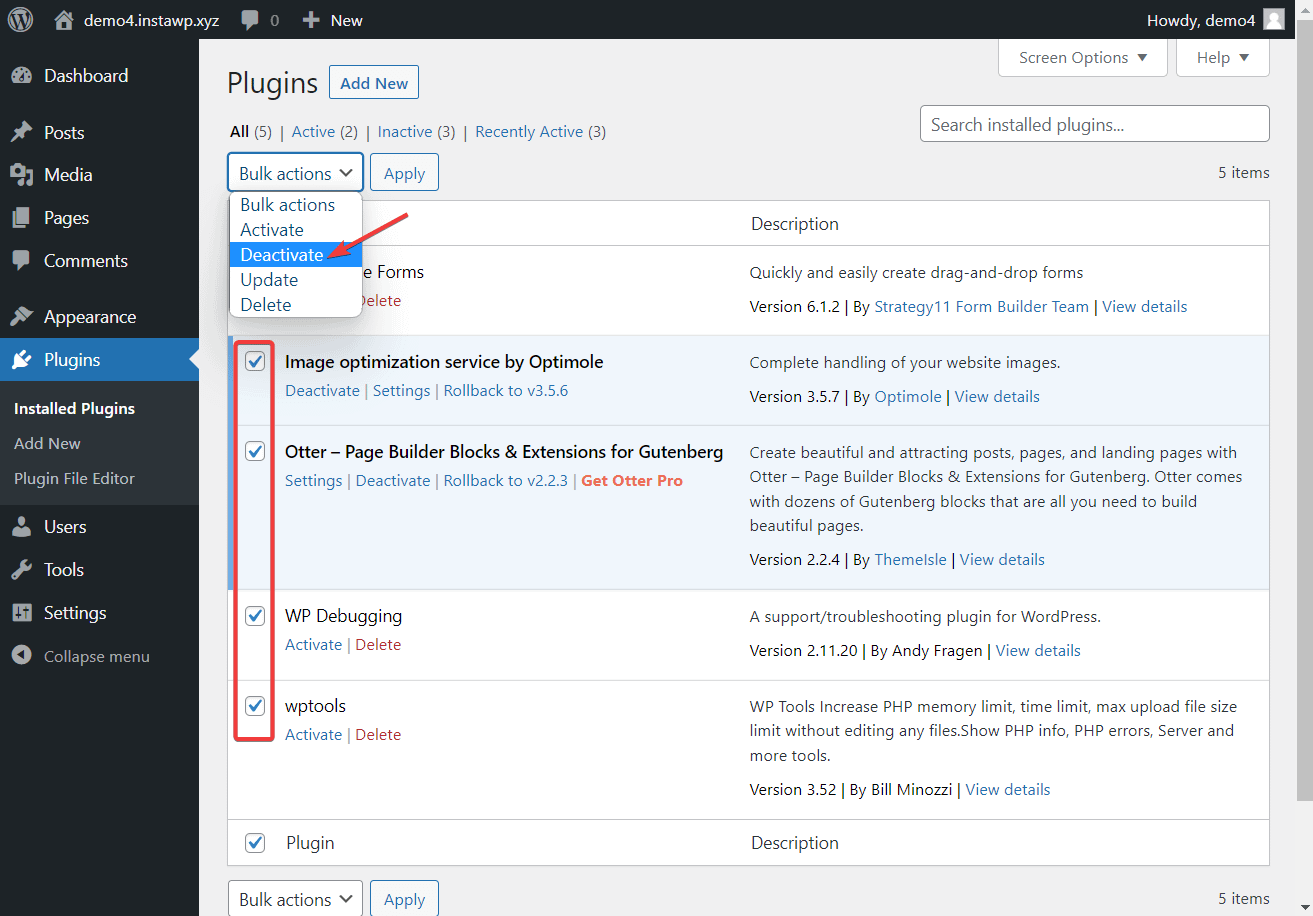
Check your site to see if the error is showing up. If it isn’t then the next step is to find the culprit plugin.
it can be done by Activating Plugins Individually And then check your website every time the plugin is activated. The culprit plugin will trigger the error as soon as it is activated. remove that plugin from your site and replace it with an alternative.
If you cannot access your WordPress dashboard, you can disable themes and plugins using FTP.
3. Check for SSL misconfiguration
Web servers consider some curl requests to be insecure due to improper SSL installation. This can trigger errors like cURL error 28 or cURL error 7 (http_request_failed).
You need to check your SSL installation to verify if your SSL certificate is the real culprit Qualys SSL Labs Test, just enter your URL and hit submit button. This tool will run a few tests and show any misconfigurations found in your SSL installation.
SSL misconfiguration can be resolved by reinstalling the certificate.
For reinstallation, you will need to take help from your SSL vendor which can be your hosting provider or an independent SSL provider.
4. Update PHP and cURL versions
To check whether you are using the latest versions of PHP and cURL, do a quick Google search and note down the latest versions of both software.
Next, open your WordPress dashboard and go to Tools → Site Health → Info → Servers,
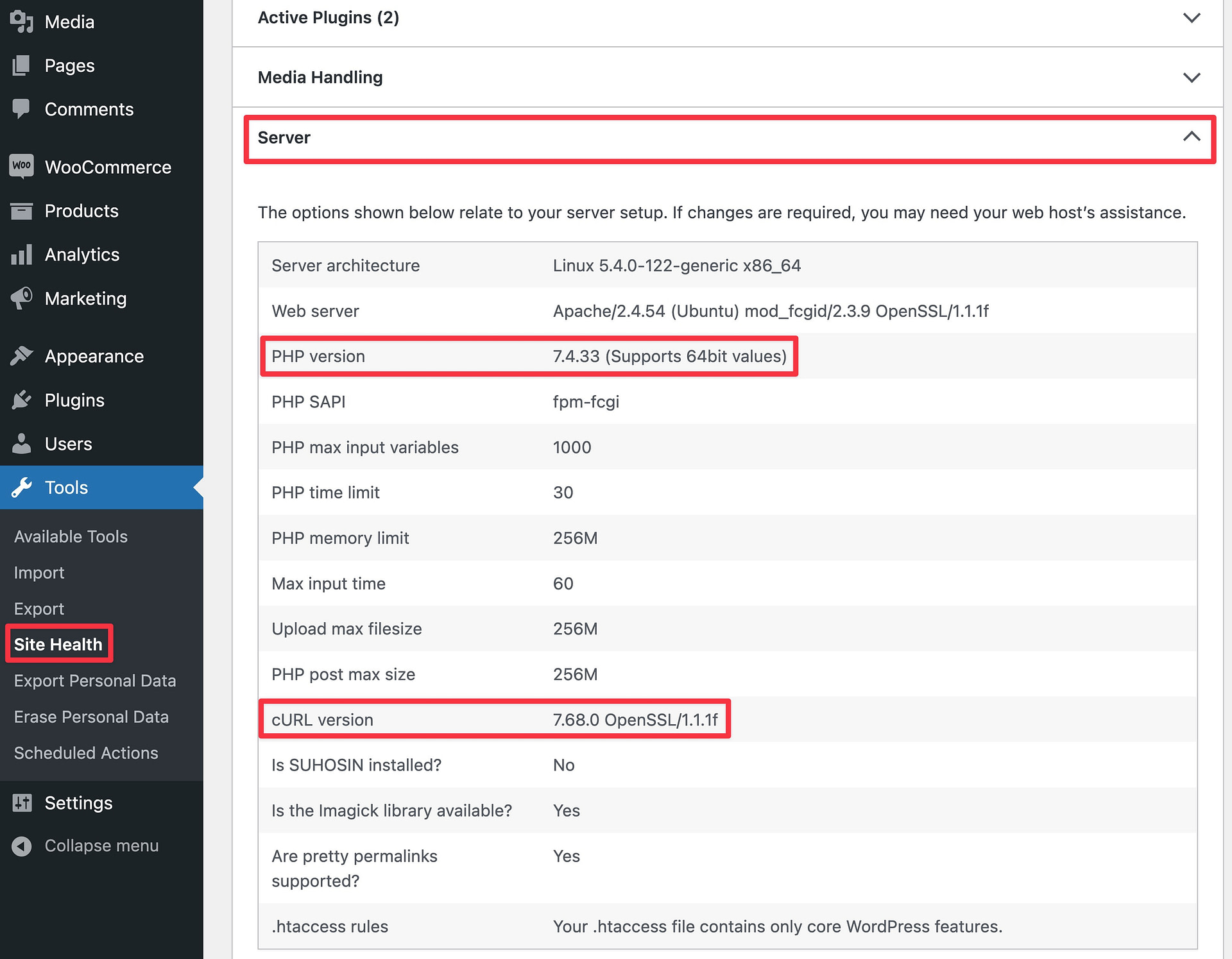
Do your PHP and cURL versions match the latest versions? If not then you need to update them. We have already covered how to update PHP in a separate article. To update Curl, you will need to contact your hosting server and ask them to update the software for you.
5. Verify DNS Settings
cURL error 28 can also appear on a WordPress website due to DNS misconfiguration.
DNS misconfiguration can happen on your local computer or on your hosting server. We recommend that you verify your computer’s DNS settings first. This way:
Windows
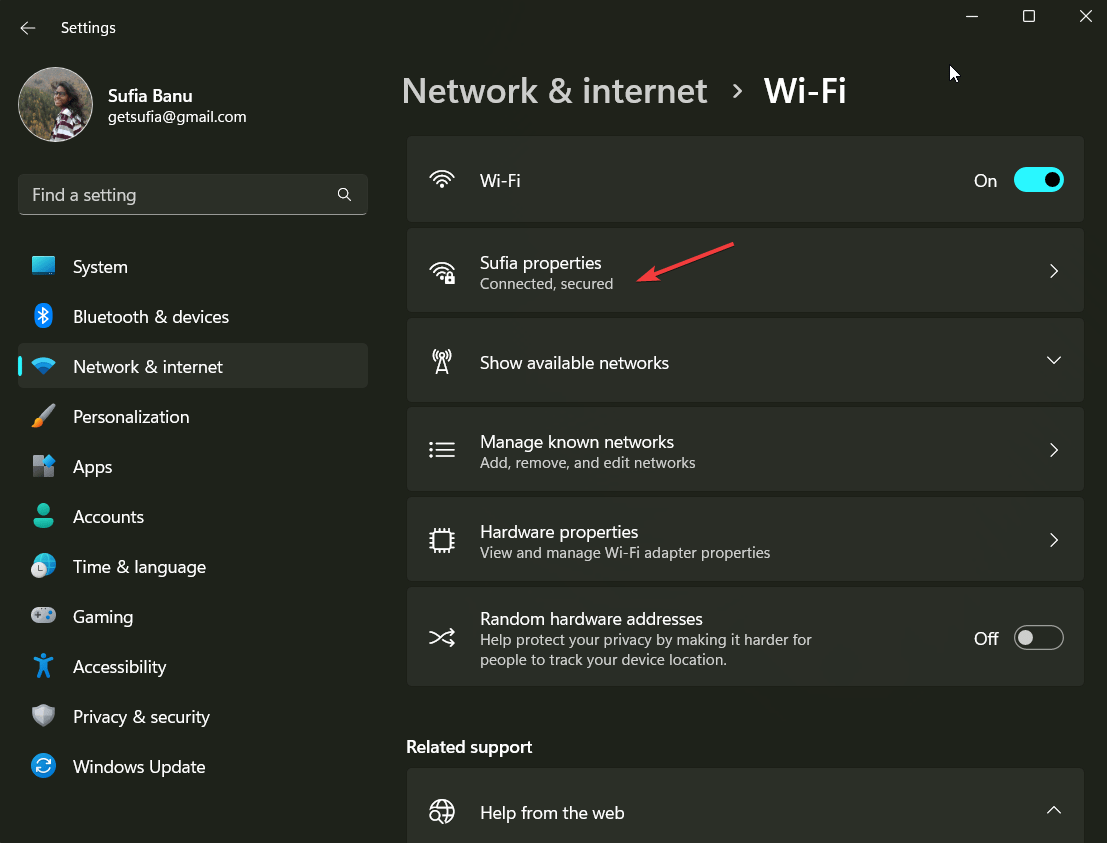
Using the Windows start button, go to Adjustment network and Internetchoose wifi Or ethernet whatever you are using, and check Property,
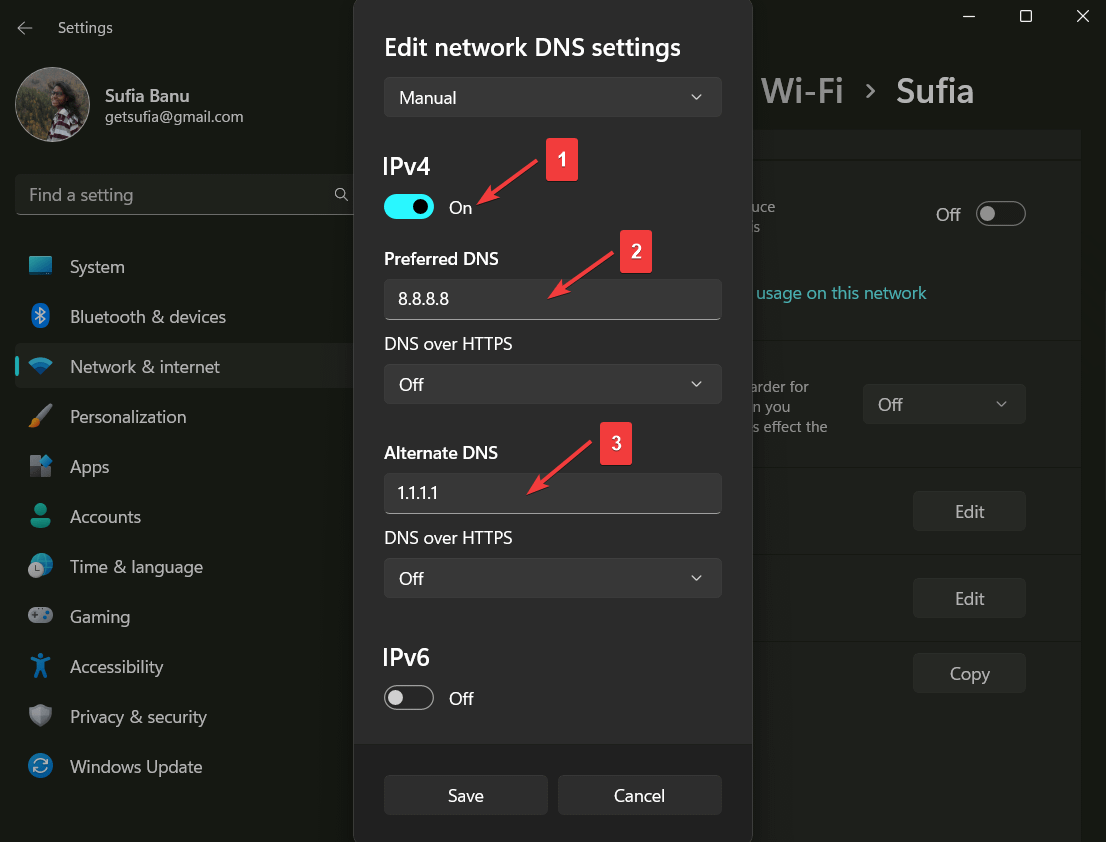
Choose the edit-in button DNS Server Assignment Option. A new window will appear with a dropdown menu. select from menu manual and toggle ipv4 Option But,
then in preferred DNS In the box, enter the following Google Public DNS address: 8.8.8.8,
and in the alternate DNS In the box, enter the Cloudflare DNS address: 1.1.1.1,
Beat the save button and check whether the cURL error is still showing on your website or not.
MacOS
go for System Preferences → Network,
Select your current local area connection and hit the advanced button.
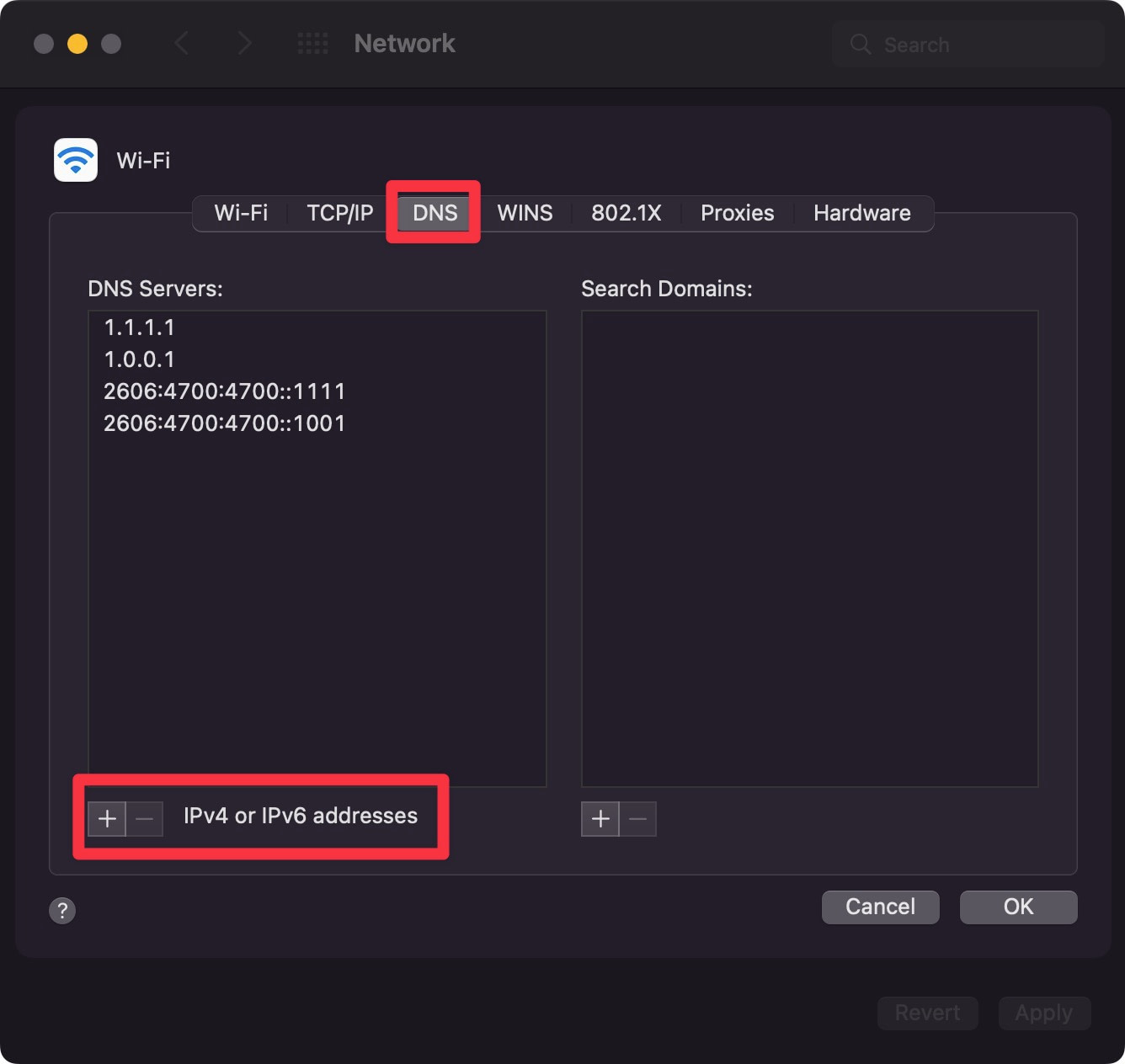
Next, select the DNS tab.
click on + button below the DNS server list and enter An IPv4 (8.8.8.8) or IPv6 (2001:4860:4860::8888) address.
be sure to click Correct when you finish.
If the error is still showing up, talk to your hosting provider. Let them know all the steps you have taken to fix this error. They should be able to quickly verify and correct any errors on their behalf.
Fix cURL error 28 for good
Curl error 28 is a common WordPress error that occurs due to SSL certificate misconfiguration, outdated software, DNS misconfiguration, and inability to connect to a remote server, among other reasons.
To fix this particular WordPress error, you need to take the following steps:
- disable firewall
- deactivate plugins
- Check for SSL misconfiguration
- Make sure PHP and cURL are up-to-date
- Check DNS settings on your computer and hosting server
