


If you’ve ever wondered how to find the RSS feed of a website, this guide will do the trick for you!
RSS feeds are a great way to stay on top of the latest news from blogs, websites and social media. These online files are an excellent source of information that can inspire you to create relevant content for your audience.
But that’s not all: You can add RSS feeds to your site to keep your readers up to date with the latest news and stories online.
An RSS feed is a file that contains some or all of the latest content from a publisher. For example, a blog’s RSS feed would be a collection of its latest posts, and a podcast’s RSS feed would be a list of its latest episodes.
These feeds use a standardized, computer-readable format that makes it easy for readers or other applications to access the content. For example, most podcast apps work by fetching RSS feeds from podcasts.
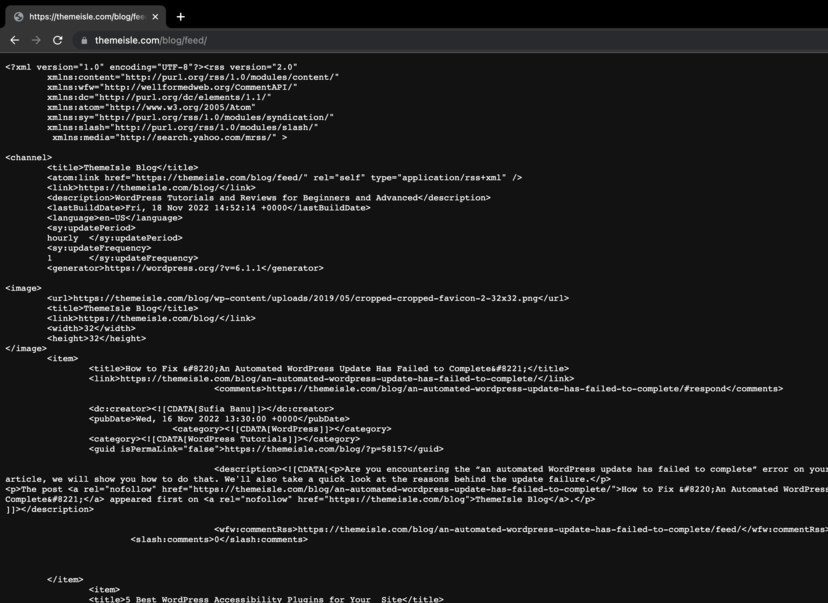
A feed typically consists of the content itself, as well as additional metadata about that content (such as its publication date).
Here’s an example of what an RSS feed for a blog might look like:
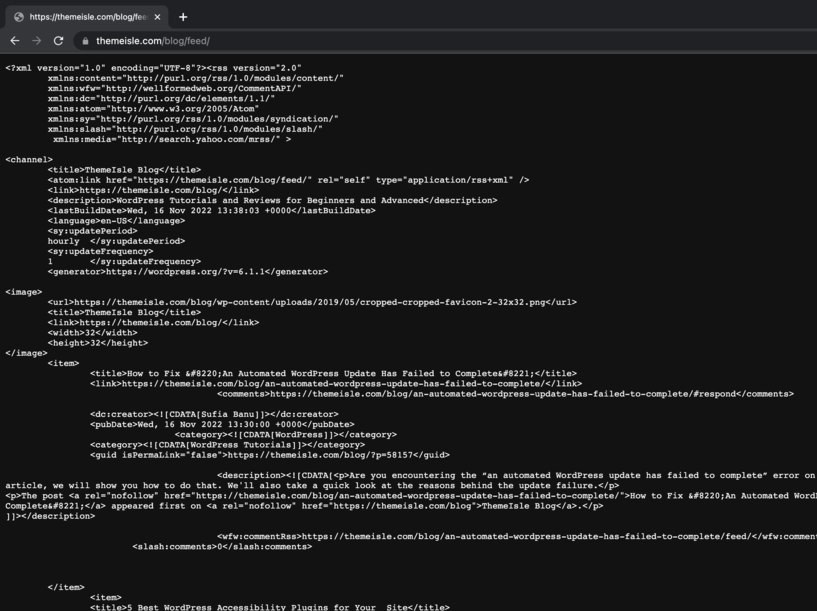
How to Find a Website’s RSS Feed: Four Different Ways
These are the four easiest ways to find the RSS feed URL of any website on the Internet:
check source code
The expression “source code” sounds intimidating, doesn’t it? Well, the reality is that you don’t need to be a developer to check the source code of a website.
This method is straightforward. To view the RSS feed URL of any site, follow these steps:
1. Go to the website. For our example, we’ll use DomainWheel’s blog, which is an excellent source of information for news company domain name And how-to guide,
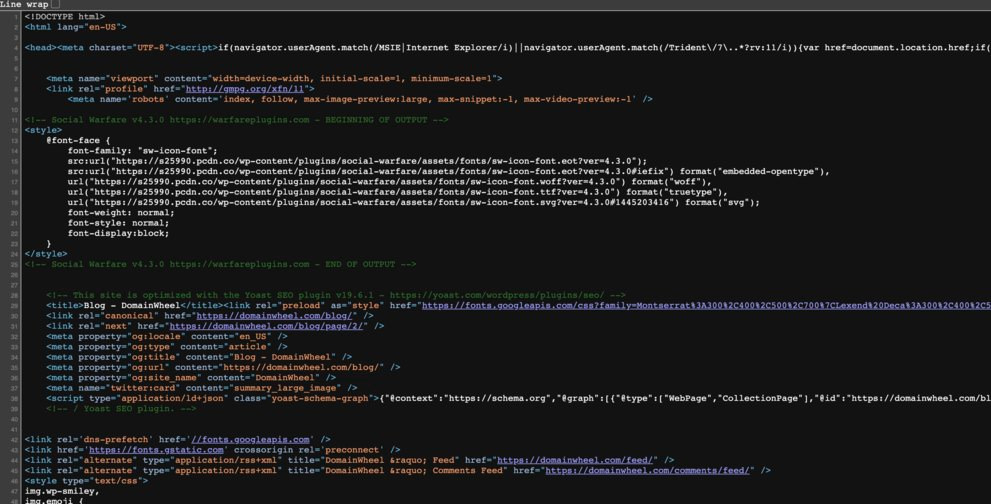
3. Click Command + F (on Mac) or Control + F (on Windows) To enable the “Search” feature in your browser. Search for “RSS” in the search bar:
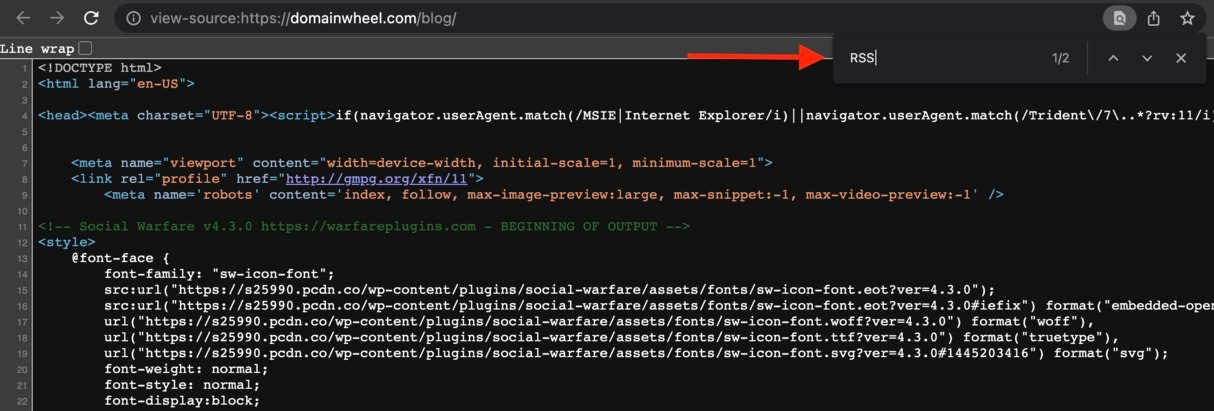
4. Once you search for this word, you will get a line of code that says: <link rel="alternate" type="application/rss+xml" title="DomainWheel » Feed" href=" />
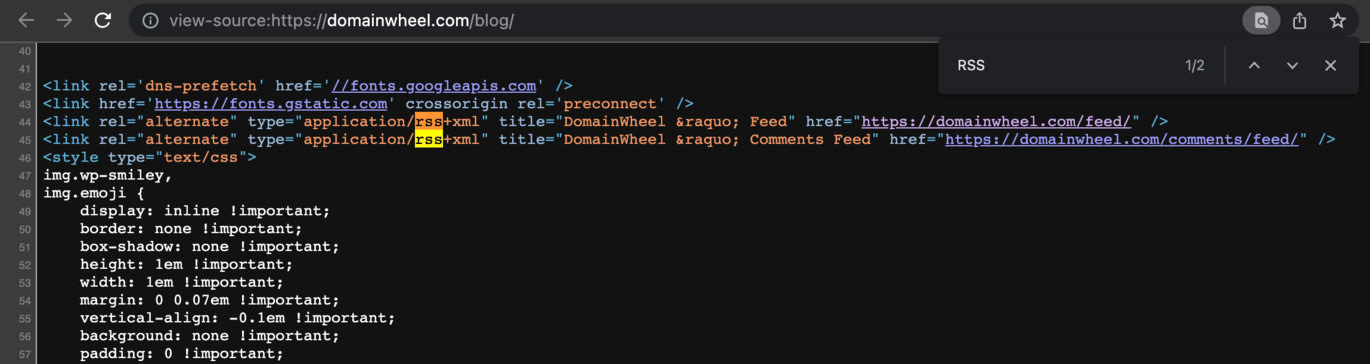
5. Find RSS Feed URLs Later href = in quotation marks. in this case, it is https://domainwheel.com/feed/,
Add ‘/feed/’ to the end of the WordPress website URL
A simple way to know the RSS feed URL of a site is by adding the suffix /Fodder/ at the end of the URL address.
Before you give it a go, keep in mind that this method only works with WordPress websites.
4. IMPORTANT: Before assuming that a WordPress site’s RSS feed URL structure follows https://example.com/feed/, complete the steps described above. It is always best to double check the URLs to avoid displaying broken, or incorrect RSS feeds on your website.
What if you want to find the RSS feed URL of a non-WordPress website? For this purpose, you can add suffix /RSS/ at the end of the site’s URL address.
This method works well with some of the world’s leading news sites. For example: either https://edition.cnn.com/rss,
use a browser extension
For another method on how to find the RSS feed of a website, you can take help of Chrome browser extension.
This RSS reader is a popular Google Chrome extension that’s very easy to use and comes with everything you need to find RSS feed URLs.
Check any site’s RSS feed URL with Feedbro in three steps:
1. Once you have installed the extension in your browser, click on feedbro icon,
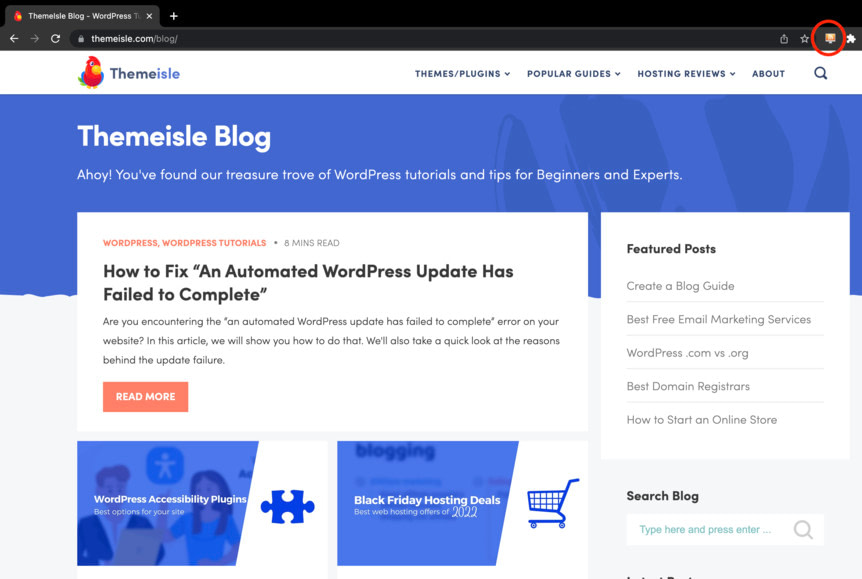
2. Go to Find feed in current tab and click RSS button for the feed you want to view:
You can search for RSS readers in other browser stores if you don’t use Chrome as your go-to browser. Search for the keyword “RSS reader” mozilla firefox add-on or Opera Store add-ons and choose a tool from the results list.
Most websites provide RSS feeds, but not all allow users to easily access them. Gone are the days when news sites and blogs emblazoned their feeds with the iconic orange RSS icon.
Fortunately, there are tools you can use to generate RSS feeds from almost any site. rss.app is one of them.
To get started creating RSS feeds with RSS.app, follow these steps:
1. Sign up for RSS.app.
2. Type the URL of the site in the search bar and press Make,
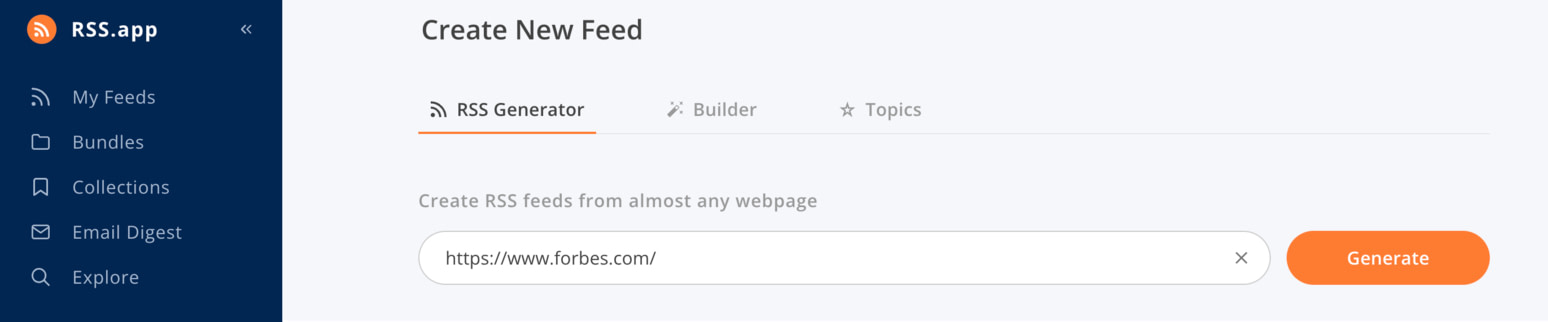
3. View feed preview. Next, click save feed,
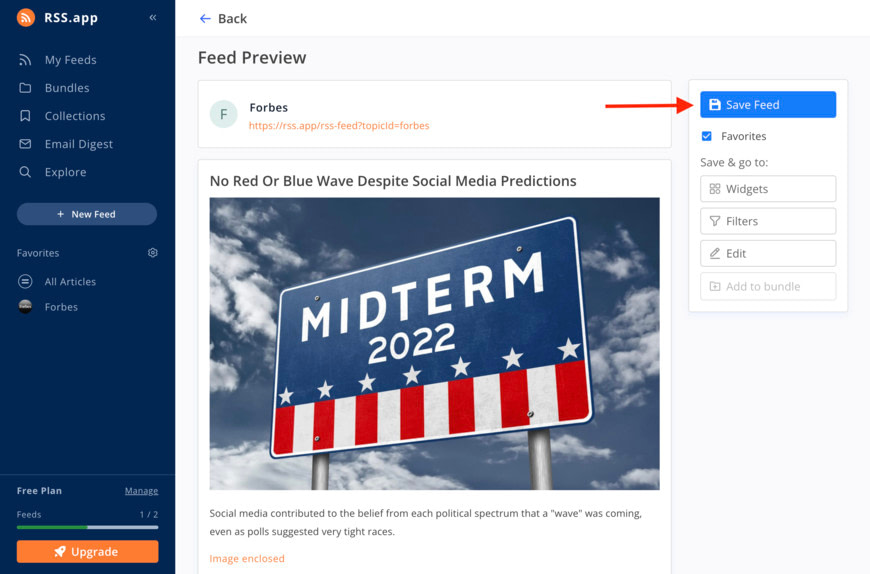
4. Your feed is ready! Now, you can copy the RSS feed URL and add it to your site:
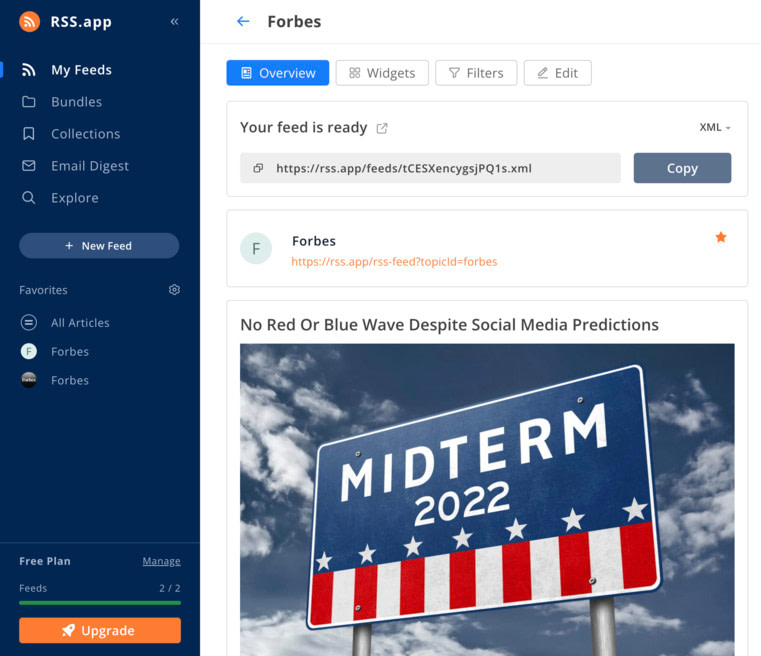
After you sign up for RSS.app, you get access to a free seven-day trial (no credit card required). During this week, you can generate up to ten feeds.
When the trial ends, you have the option of subscribing to a paid plan starting at $8.32 per month (annual billing).
Because it costs money, this is probably a last resort when it comes to finding the RSS feed of a website.
How to display external rss feed on my wordpress site?
So far we have talked about how to find the RSS feed of a website. But what can you actually do with that RSS feed, beyond subscribing to it in your favorite reader?
Well, if you have built a website with WordPress, you can use the Feedzy plugin to display external feeds on your WordPress site:

With our plugin, you can choose the best content online, add it to your site, and improve your content curation strategy.
There are many reasons to love Feedzy:
- Import RSS Feeds to WordPress Posts.
Now that you know how to find a website’s RSS feed, Feedzy can unlock all kinds of cool ways to use that RSS feed content on your site.
Feedjie is a freemium content curation tool. The free version is available on WordPress.org and then paid plans start at $99 per year. For more information, visit the Feedzy pricing page.
How do I create an RSS feed for my WordPress site?
As a site owner, you should promote your content by sharing an RSS feed with your audience. This way, they can get frequent updates on your latest content, stories or business releases.
If you have a WordPress site, you can find your RSS feed URL by adding /feed/ to the end of your website URL.
But what if you want to target a specific audience and create a personalized feed? Then, you need to generate a custom RSS feed.
Final thoughts
If you’ve read this far, congratulations! you already know how to find the rss feed of a website In just a few easy steps.
Now that you’ve learned how to find the RSS feed URL of (almost) any website, you can use it to promote your content and stay informed about the latest developments in your industry.
