
Anchor links not only improve the user experience on website pages and posts, but they are useful for fast, interactive navigation within a page, often resulting in a boost to SEO. In this guide, you will learn how to set up anchor links in WordPress using WordPress blocks, HTML, and plugins.
But first, peruse this table of contents created with anchor links!
What is an anchor link?
An anchor link serves as a hyperlink within a page or posts that a user clicks to navigate to another part of the page.
This is a form of interactive internal link, but instead of sending users to another page on your site, they are directed to another section of the site. current Page.
In addition, anchor links play a strong role in SEO efforts, given how they help define a page’s structure for search engines and users, especially when used as a table of contents.
In essence, anchor links reduce scrolling, as a simple click brings visitors to the content they want.
Common Uses for Anchor Links in WordPress
Here’s a look at the main uses of anchor links to understand how you can implement them on your website:
- Table of contents: Create a list of anchors for specific headings of the page or post; When a user clicks on a table of contents item, they go to the correct header.
- “Back to Top” button: Often implemented as a counter-navigation item for a table of contents, a “back to top” link or button returns the user to the beginning of the page; This is especially useful for pages with long content.
- Directories / Wiki: A collection of data or content stored on a page often requires navigational links; This use of anchor links works similarly to a table of contents, but wikis and directories have different formats for navigation, with anchor links scattered throughout the content.
- Navigational menus on one-page websites and landing pages one-page website still needs a way for users to move around, so instead of a traditional menu that directs visitors to new pages, an anchor link menu auto-scrolls to relevant sections. does.
- Links and calls to action in Hero bannersGiven that anchor links work well inside buttons and hero images, you can add a call-to-action button that, when clicked, sends users to a conversion form or checkout module.
How to Create Anchor Links in WordPress (Block and Classic Editor Methods)
Adding anchor links manually in WordPress can be done in both the block (Gutenberg) editor and the classic WordPress editor. We’ll show you how to set up anchor links using both.
Adding Anchor Links in the WordPress Block (Gutenberg) Editor
Start by creating a page or post on WordPress. It’s best to work with anchor links when you’re done with your content.
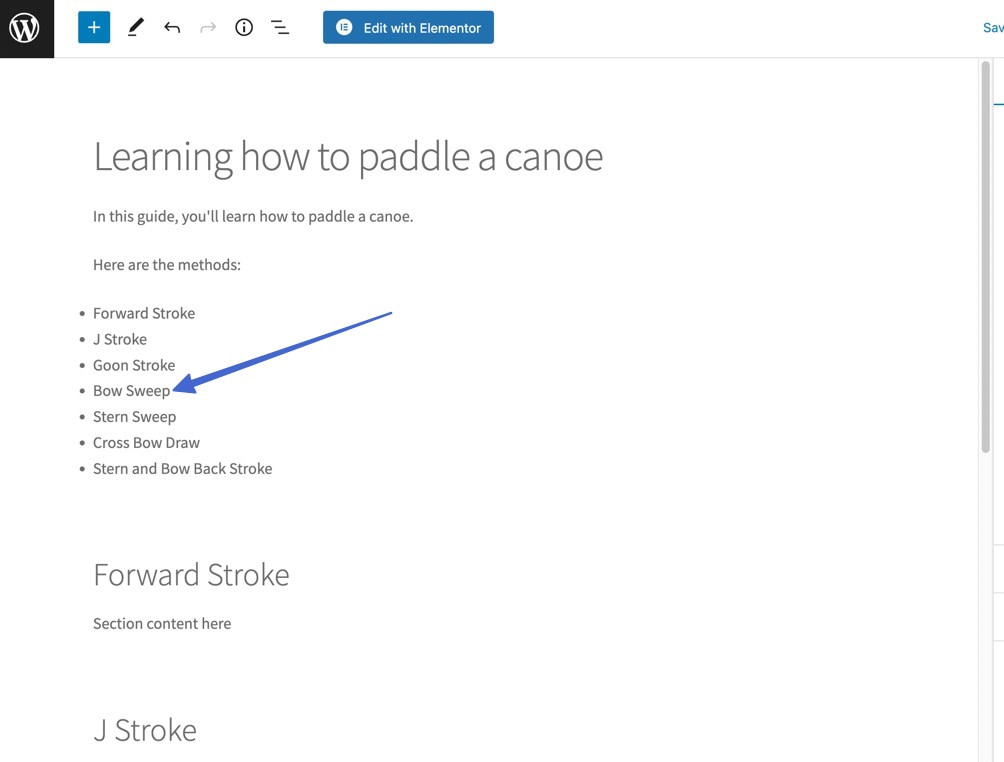
Create a table of contents at the beginning of the post. Take a mental note of the text segment you want to link; For this tutorial, we’ll be linking to the “Bow Sweep” bullet point.
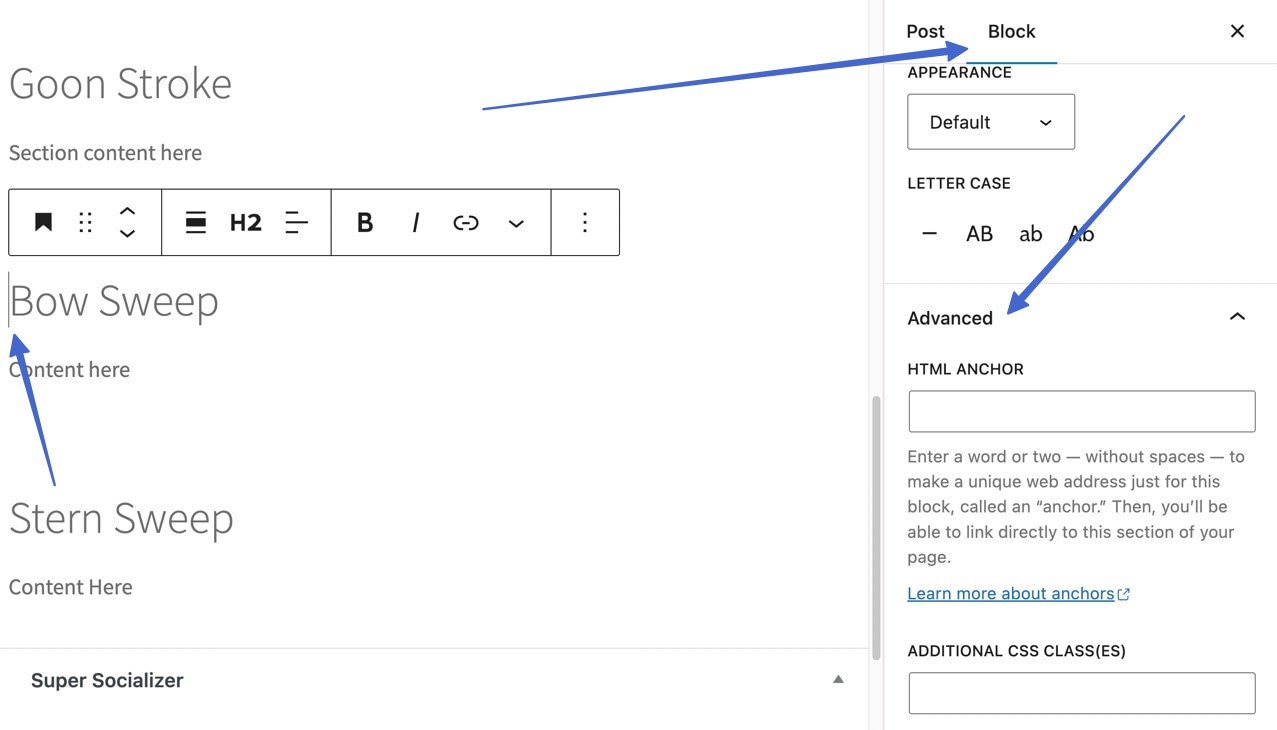
Scroll down to the (already created) section that deals with the text you plan to link. It’s best to keep the text for your link and header anchors the same, so as not to confuse the reader or yourself.
- Place a cursor before the header.
- Click the block tab.
- scroll down to open the advanced section.
Search HTML anchor Field.
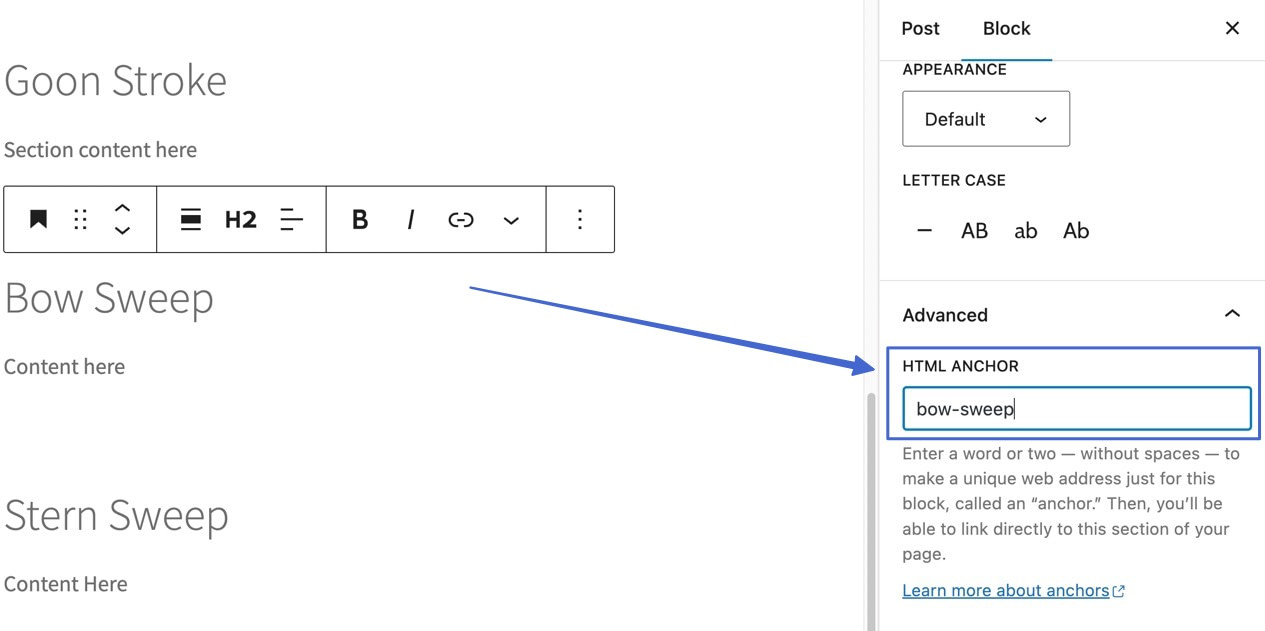
Type an HTML anchor that is short and memorable. You can’t have spaces in HTML anchors, so stick to a single word or include a dash.
As you can see, we’ve created a “bow-sweep” HTML anchor:
- Go back to the original text you want to link; In this case, it is an item in the table of contents.
- Highlight text to link.
- Click Add button.
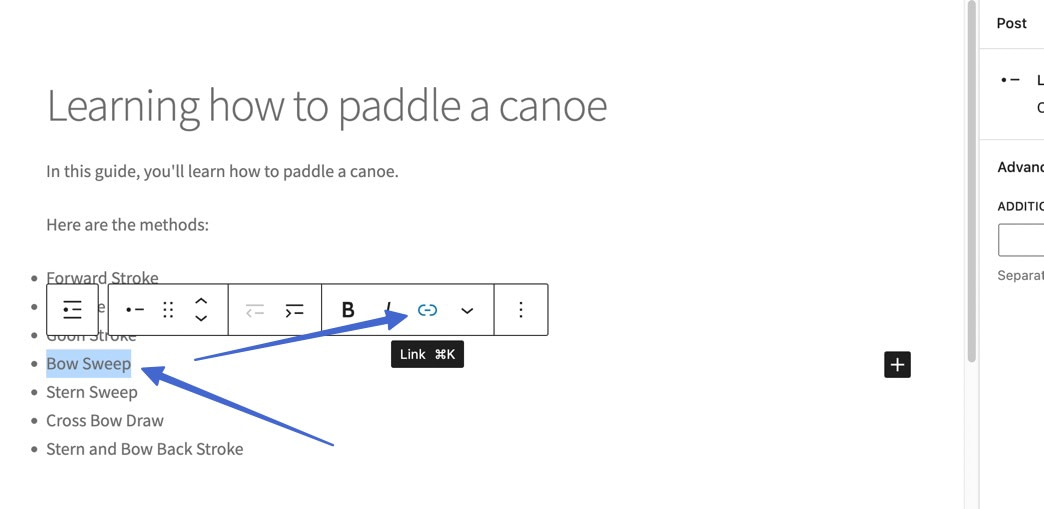
In the new field, type “,” after the HTML anchor you just added to the header. Click enter,
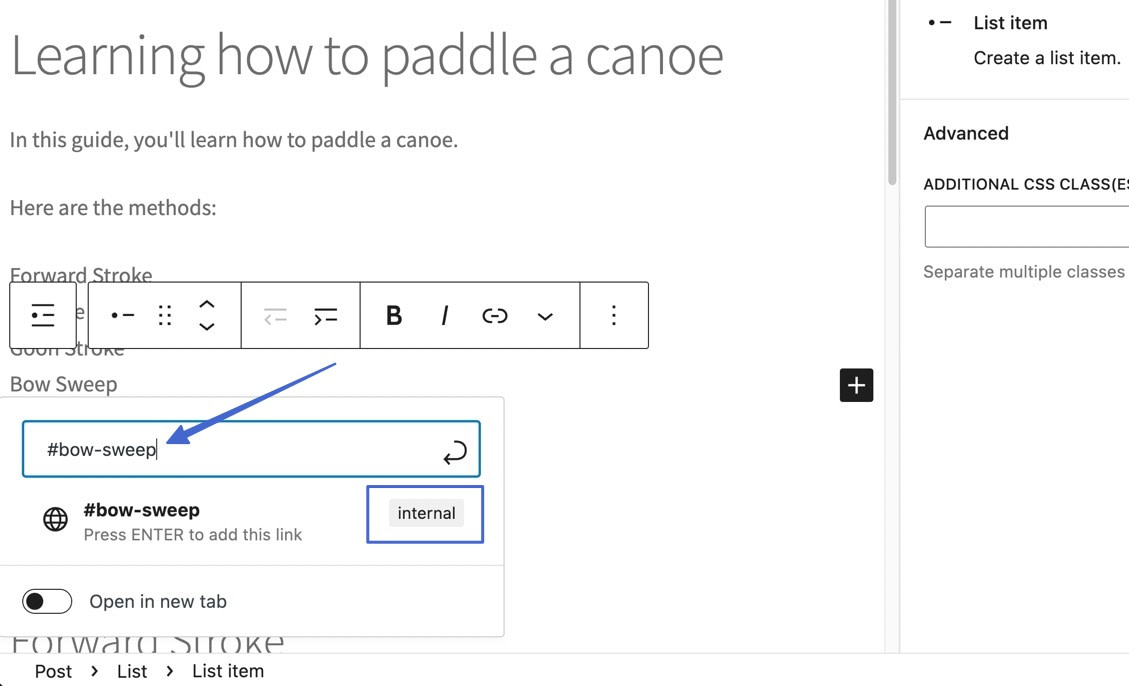
You will see on the backend that the text is hyperlinked:
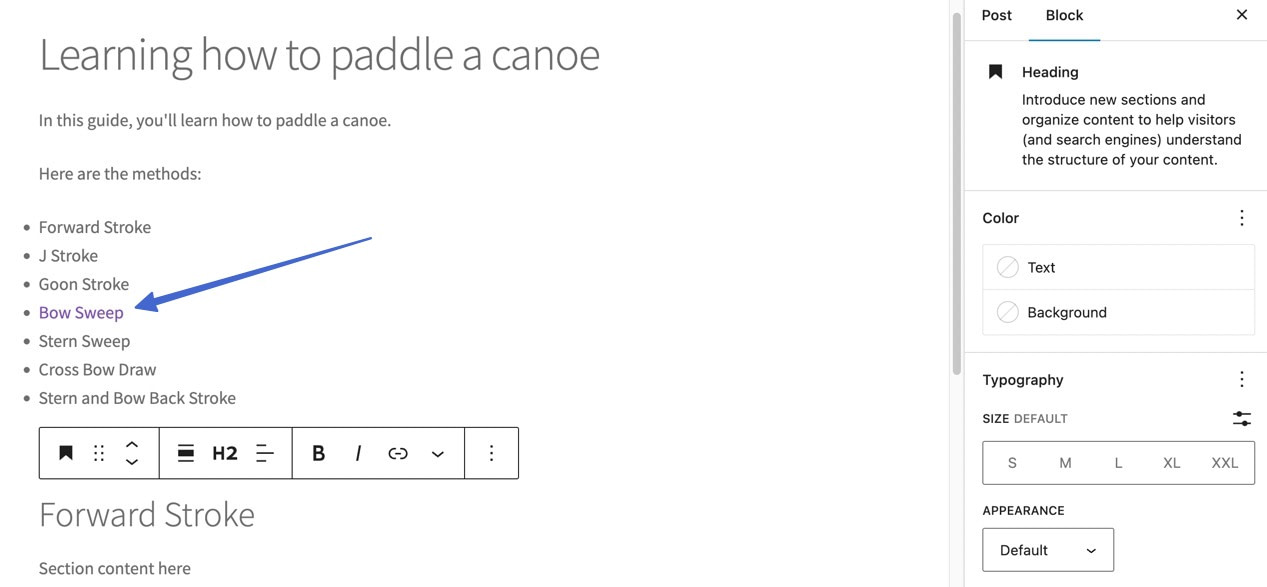
Go to front end to test it. Clicking on the link causes the page to focus on the desired anchor at the bottom; In this case, the “Bow Sweep” header.
Adding Anchor Links in the WordPress Classic Editor (HTML)
There is no specific block or field for adding anchor links in the WordPress classic editor; Rather, you use HTML Basic lesson Editor. Don’t worry, there is minimal coding, just copy and paste.
- Open a page/post in WordPress.
- Create some content with a header, and the text you want to link (such as a table of contents).
- For reference, find the text you want to link.
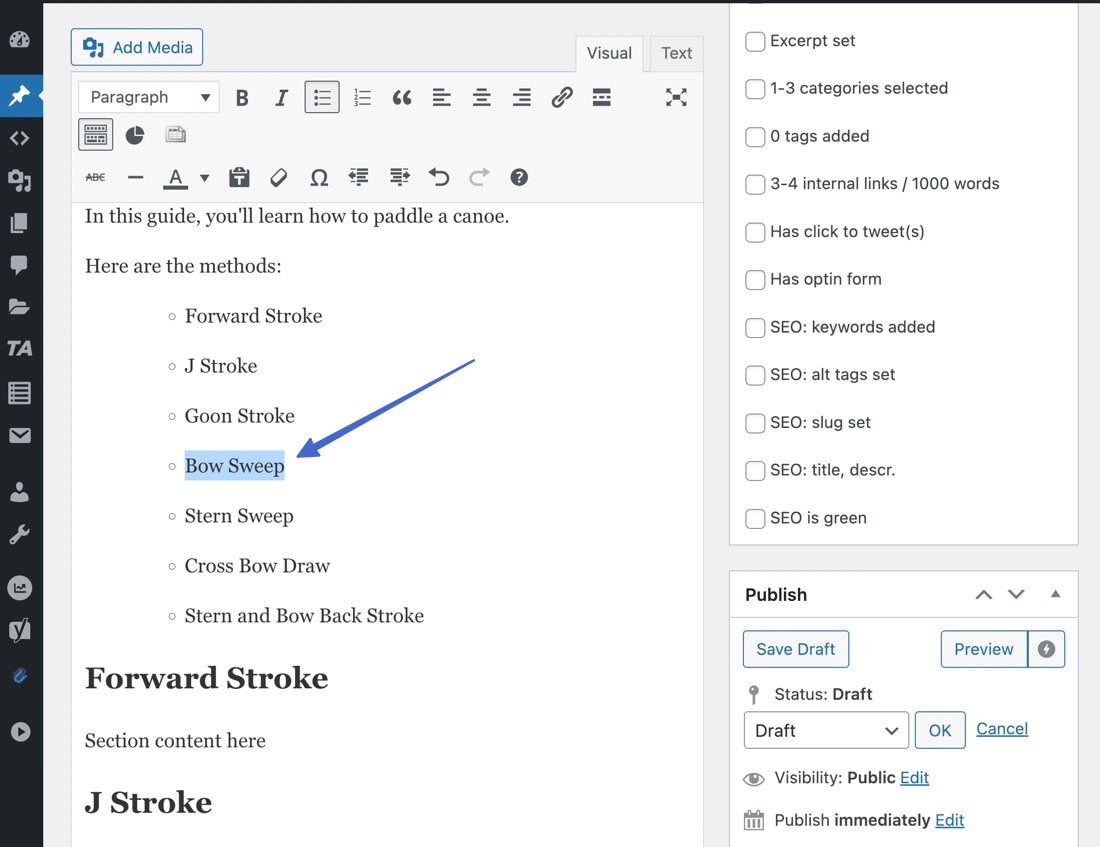
- Scroll down to the header for which you want to add an anchor link.
- Highlight that header to find the correct location when switching Basic lesson Editor in the next step.
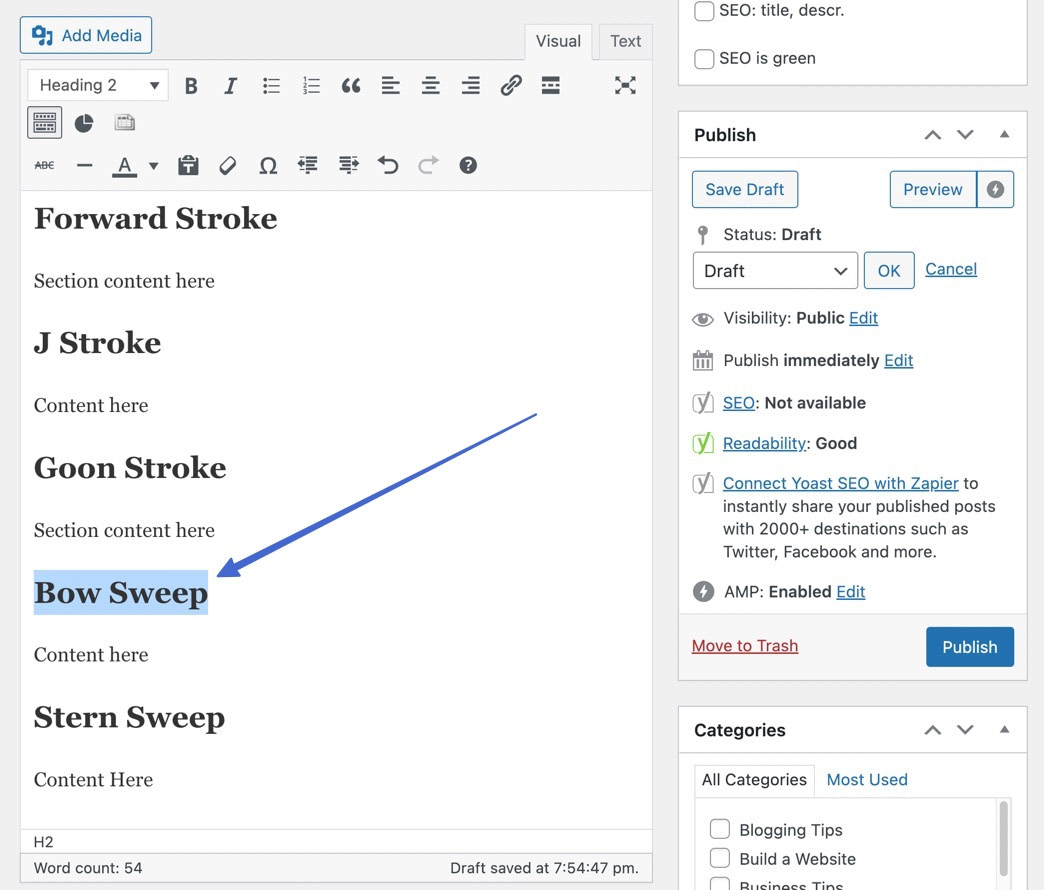
Switch on, Basic lesson Editor
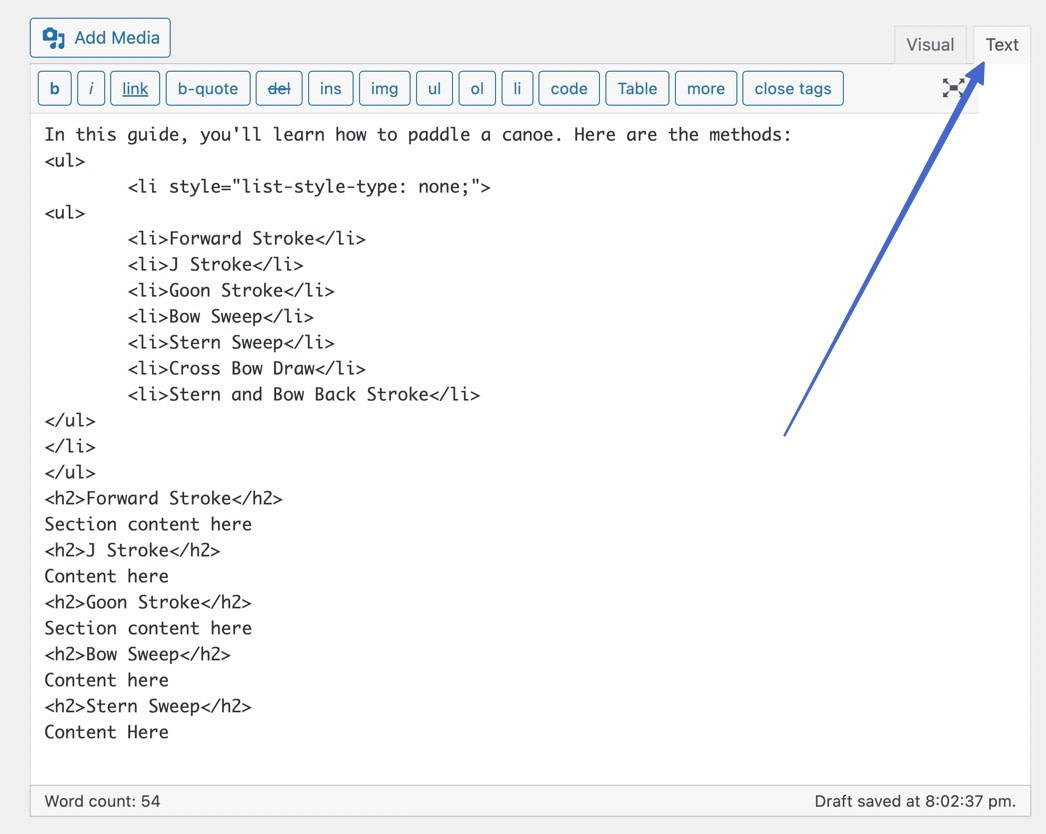
Find the highlighted text within the code. Sometimes, WordPress brings you right to it. The reason I suggest highlighting text is that it’s easier to find, because the section remains highlighted Basic lesson Editor.
Paste this code in the same place (replace “example-anchor” with whatever you want, and “example-header” with the header you did earlier):
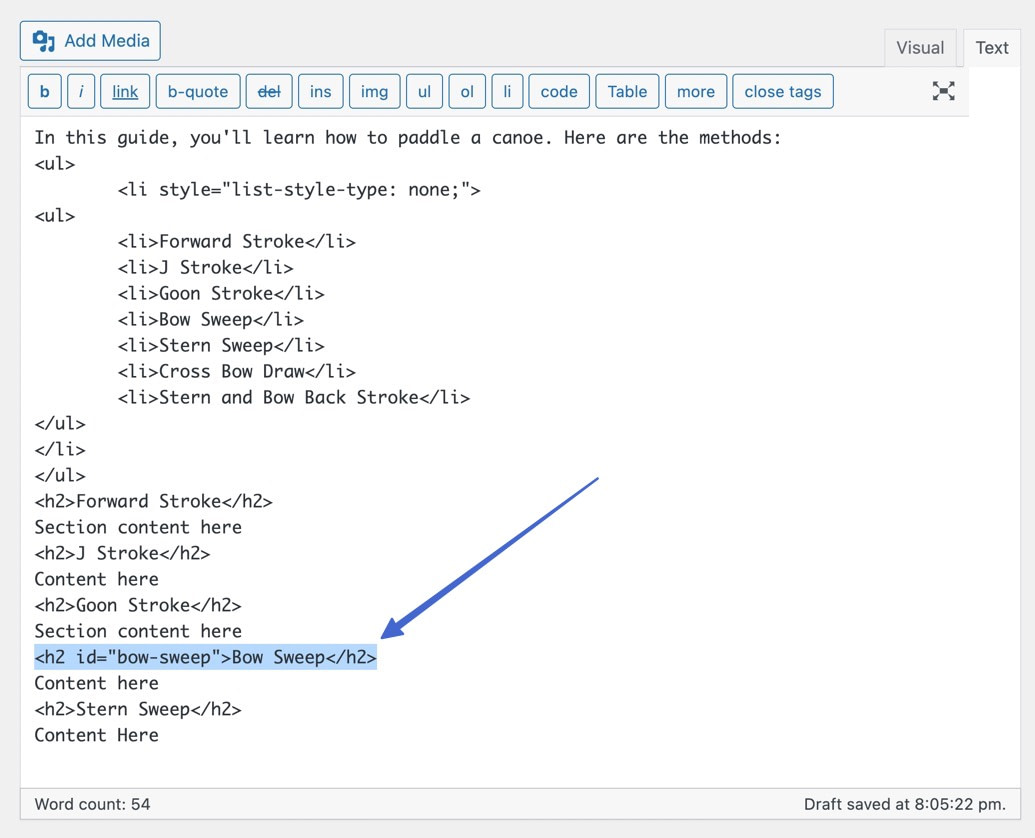
You now have your anchor HTML set up.
- stay in the Basic Lesson Editor tab.
- Go to the text you want to link. In this tutorial, it’s the text “Bow Sweep” in the table of contents.
- Highlight and delete text.

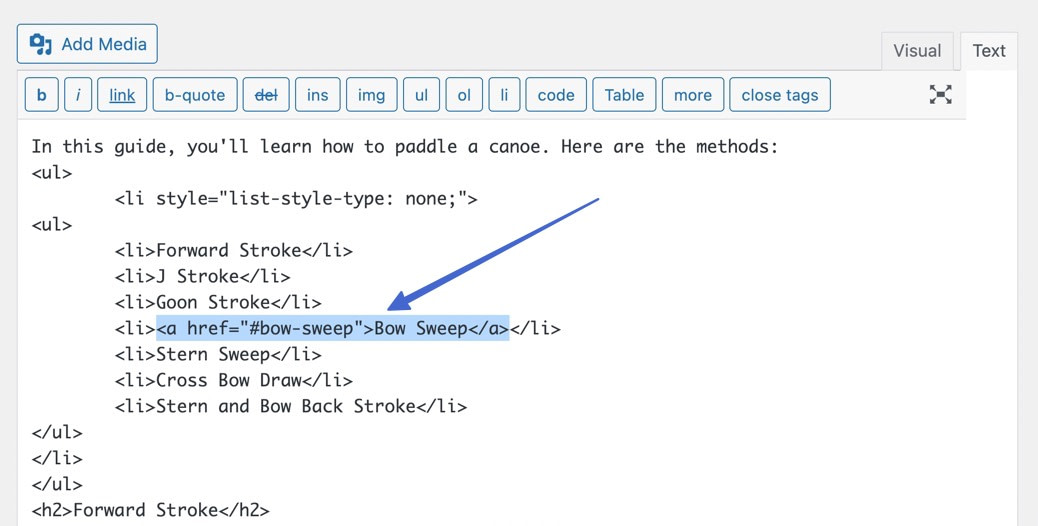
Keeping the cursor in the same spot, paste this code in place (replace “example-anchor” with the anchor you used from the previous step, and “example-text” with the text you want to use). want):
Remember, you must include a “, before the HTML anchor text.
⌛Note: In this example, we have <li> Tags in HTML; are for making a list item (bullet point) so you shouldn’t mess with them,
As an alternative, you can leave the HTML text editor to actually add the link.
To do this (anchor HTML Basic lesson tab):
- Go to the picture tab.
- Highlight the desired text.
- Click insert/edit link,

- Paste or type in the HTML anchor you created earlier.
- Add a “, Before anchor.
- Click apply,
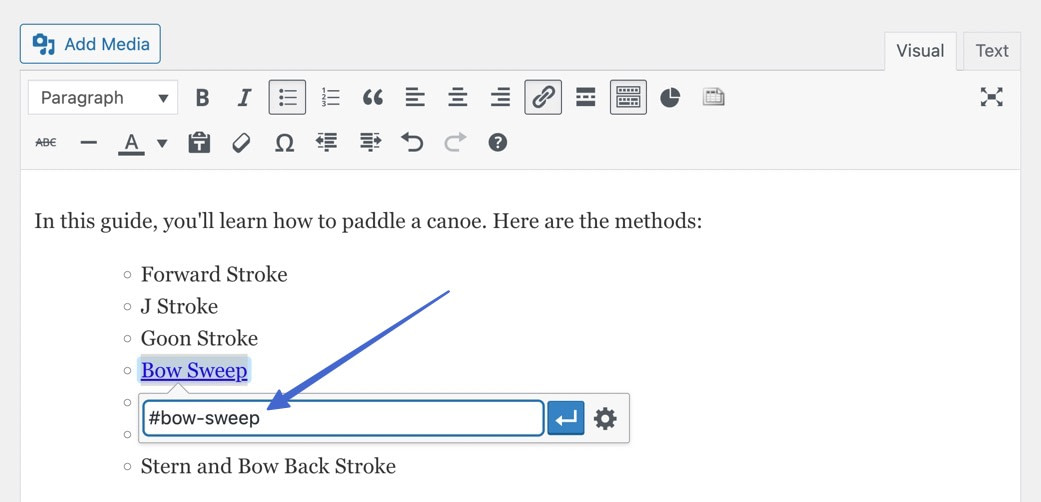
You should now see a link in the editor:
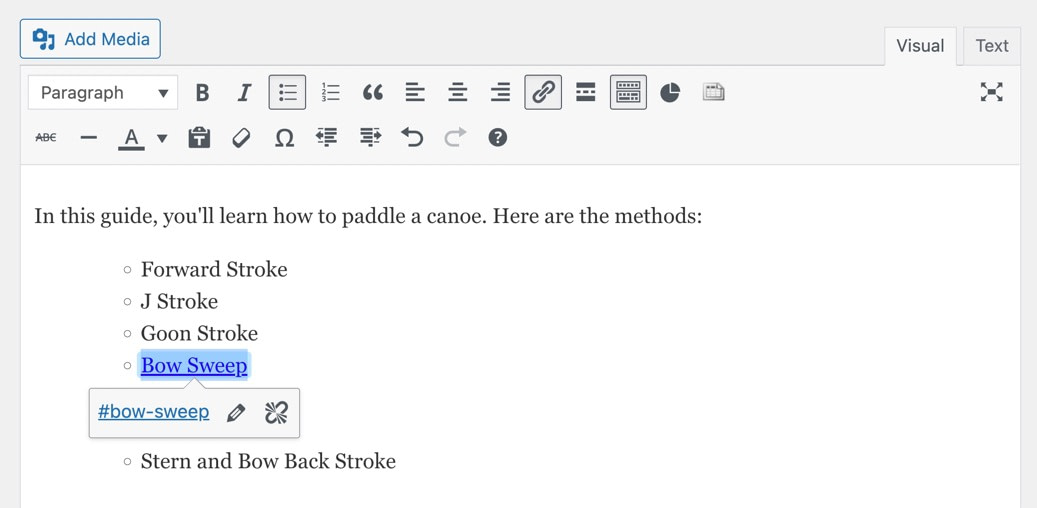
Finally, go to the front. Click on the link to see if it takes you to the correct anchor header.
How to automatically add anchor link table of contents
Creating a table of contents manually with anchor links is time-consuming.
An easier way is to install a plugin that automatically generates a table of contents for WordPress posts using all included header tags. There’s a little less control over what elements end up in your table of contents, but it’s a significantly faster method.
Many plugins exist for this task, but we recommend the Easy Table of Contents plugin.
The plugin automatically adds a table of contents with anchor links leading to all headings within the content. But keep in mind that you won’t see anything in the editor; You must preview or publish the post to see the table of contents.
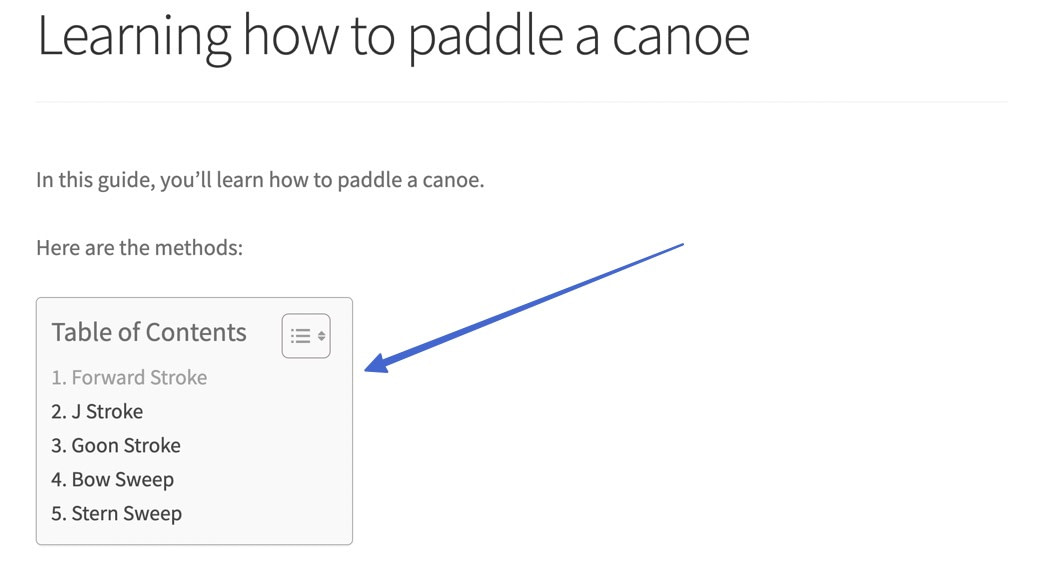
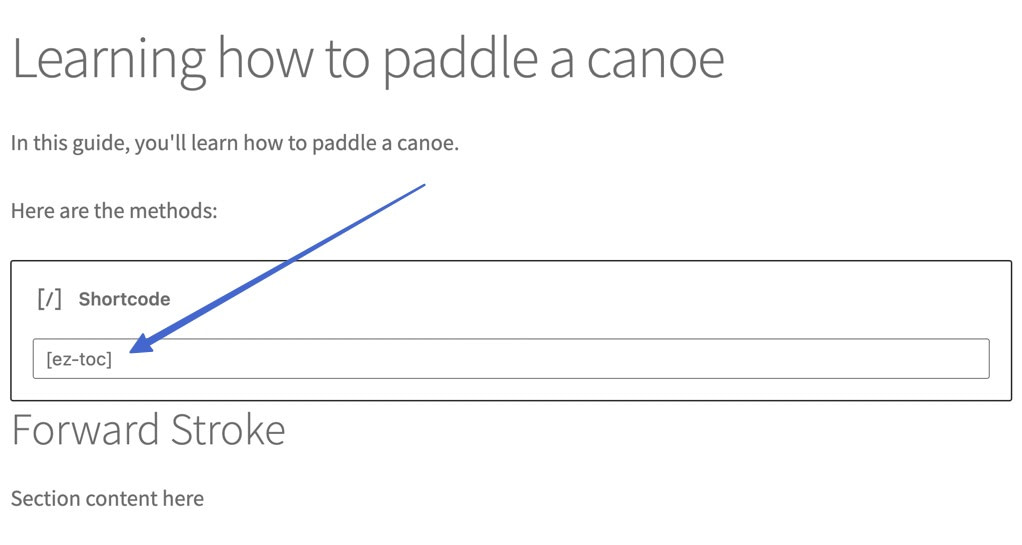
Easy Table of Contents lets you adjust which post types allow for an automatic table of contents. Also, you can use [ez-toc] Shortcodes to insert a table of contents anywhere, for both the classic WordPress editor and the block (Gutenberg) editor.
Final Tips for Anchor Links in WordPress
It’s easy to get swept up in anchor links and table of contents once you learn how to create them.
So, here are the tips to implement anchor links correctly:
- Use anchor links only for very long content, When you have a table of contents for a 200-word article, you defeat the purpose of a better user experience.
- keep anchor text short, The point is to make things easy for the user.
- Make sure the anchor text and header are the same phrase/word, Users expect to see exactly what the link said.
- Place the anchor link at top of the page, It is best for instant navigation.
- Consider adding a “back to top” anchor link, It should either go with the user or sit at the bottom of the page.
- Make sure the anchor header is actually visible when the anchor link is clicked, Scrolling to find the header is no good.
- Always test anchor links before publishing content, A wrong bit of HTML can result in a broken link.
