
Is Elementor not loading on your website?
This can happen for a variety of reasons, including plugin conflicts, low PHP memory, and hosting server issues.
Why is Elementor not loading on your site?
You encounter the following situations when Elementor is not loading on your site:
- A blank page where the Elementor logo keeps blinking forever
- Widgets on the left side of the screen are grayed out and trying to load
In either case, you are unable to access the content area of the post or page.
While there can be many reasons for Elementor not loading, the most common is a plugin or theme conflict, which Means a plugin or theme installed on your site is conflicting with the code in Elementor.
Another common reason why Elementor is unable to load is your server. low PHP memory limit,
PHP memory limit refers to the maximum amount of server memory that each PHP script is allowed to consume. This limit helps prevent poorly written scripts from eating up all the memory available on the server. That said, all plugins or themes that require more than standard PHP memory are poorly written.
Less common reasons why Elementor might not load include technical issues from your hosting provider’s end, browser conflicts with extensions colliding with Content Delivery Network (CDN) Like Cloudflare, etc.
Now that you have an idea of why Elementor is not working on your site, let’s try and fix it.
How to fix Elementor not loading issues: nine troubleshooting tips
To fix the problem, you need to complete the following steps one by one:
- Clear your browser cache
- Update Elementor – Both Free and Pro (if using both)
- Deactivate Plugins and Themes
- Switch to a different browser or disable all extensions
- If you are using Cloudflare’s CDN then disable Cloudflare Rocket Loader and clear the cache
- upgrade to the latest PHP version
- Increase PHP Memory Limit
- Disable theme preloader
- Get help from Elementor support
Before we dive into each of these steps, back up your site. You will be making modifications to your site which is risky and you may end up with a broken website. So take a backup of your entire site before proceeding.
1. Clear Browser Cache
Whenever you experience problems with your site, the first thing you should try is clearing your browser cache.
The browser cache stores some website files locally in order to improve performance. But if these website files become out of date, it can cause all kinds of weird problems on your site.
We’ve got a guide that shows you how to clear the browser cache for all the popular browsers.
If you are using Chrome, how to clear the browser cache:
- Click on the “three dots” icon in the upper right corner.
- Expand the more tools Submenu in the dropdown menu that appears.
- Click Clear browsing Data,
- Choose Cached Images and Files In the pop-up that appears.
- Click clear data,
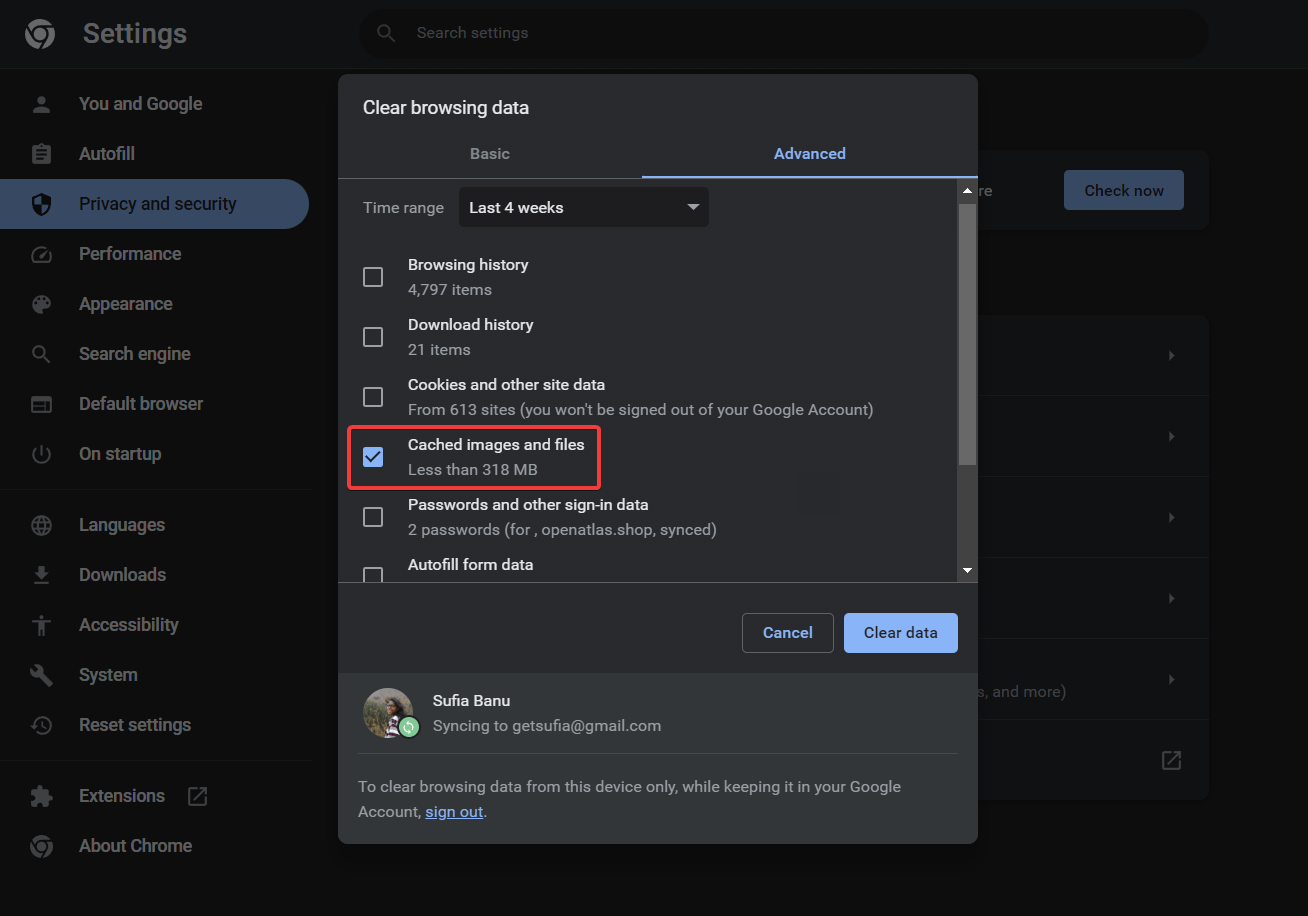
Next, open your site to see if the element is loading properly. If it doesn’t, try the next solution.
2. Update Elementor
Outdated plugins are known to cause conflicts with other plugins and with the WordPress core. Update the Elementor plugin, if an update is available.
If you are using both plugins, be sure to update to the free version of both Elementor and Elementor Pro.
3. Deactivate Plugins and Themes
Plugins and theme conflicts are the number one reason behind the “Elementor not loading” issue.
There is a good chance that the Elementor problem on your site is also caused by a plugin or theme installed on your site.
Several plugins or themes are known to be incompatible with Page Builder. you can find them mentioned Here, See if any of these plugins or themes are installed on your website. If you find any mail, uninstall the software immediately.
If you don’t get a match, the Elementor problem probably isn’t due to a plugin or theme conflict! To find out, you need to deactivate every theme and plugin installed on your site.
Here are some tips for diagnosing theme or plugin compatibility issues that may be causing the Elementor can’t load error.
Enable safe mode
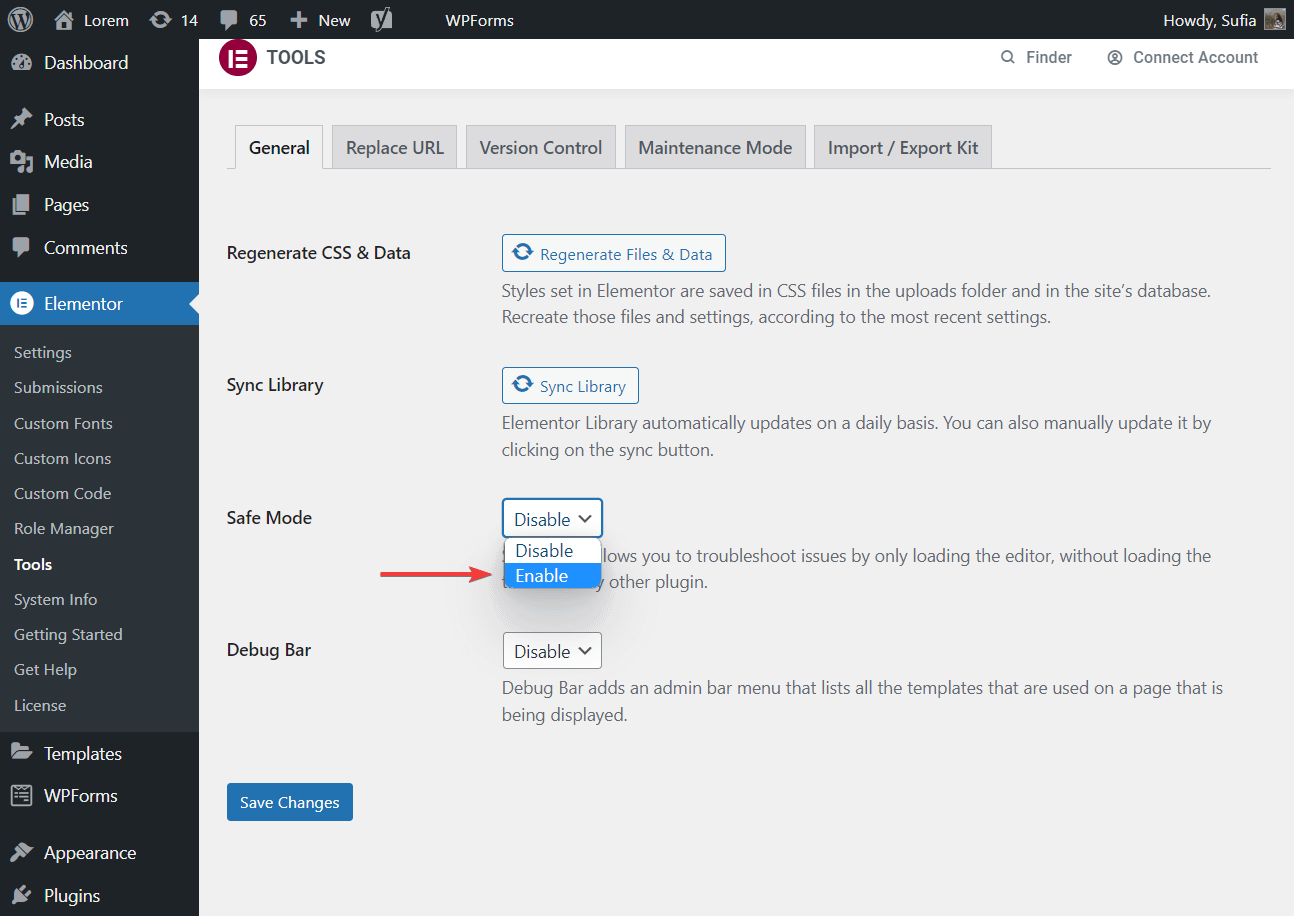
To get started, you’ll want to enable elementors safe mode,
- Open your WordPress Dashboard.
- go for Elementor → Tools → General → Safe Mode,
- Choose Able by button safe mode drop-down menu.
Then open a page or post and check whether Elementor is working or not.
Find the culprit plugin or theme
If Elementor is still not working, it’s not a plugin or theme issue. We recommend jumping straight to Step 4. However, if Elementor is now loading, then one of your plugins or themes is the culprit. You need to find it and remove it from your website.
This can be done by disabling each plugin installed on your site and then enabling them one at a time.
but first, disable Elementor Safe Mode.
then go to Plugins → Installed Plugins and choose every plugin installed on your site. chose Deactivate option from the dropdown menu and hit Apply button.
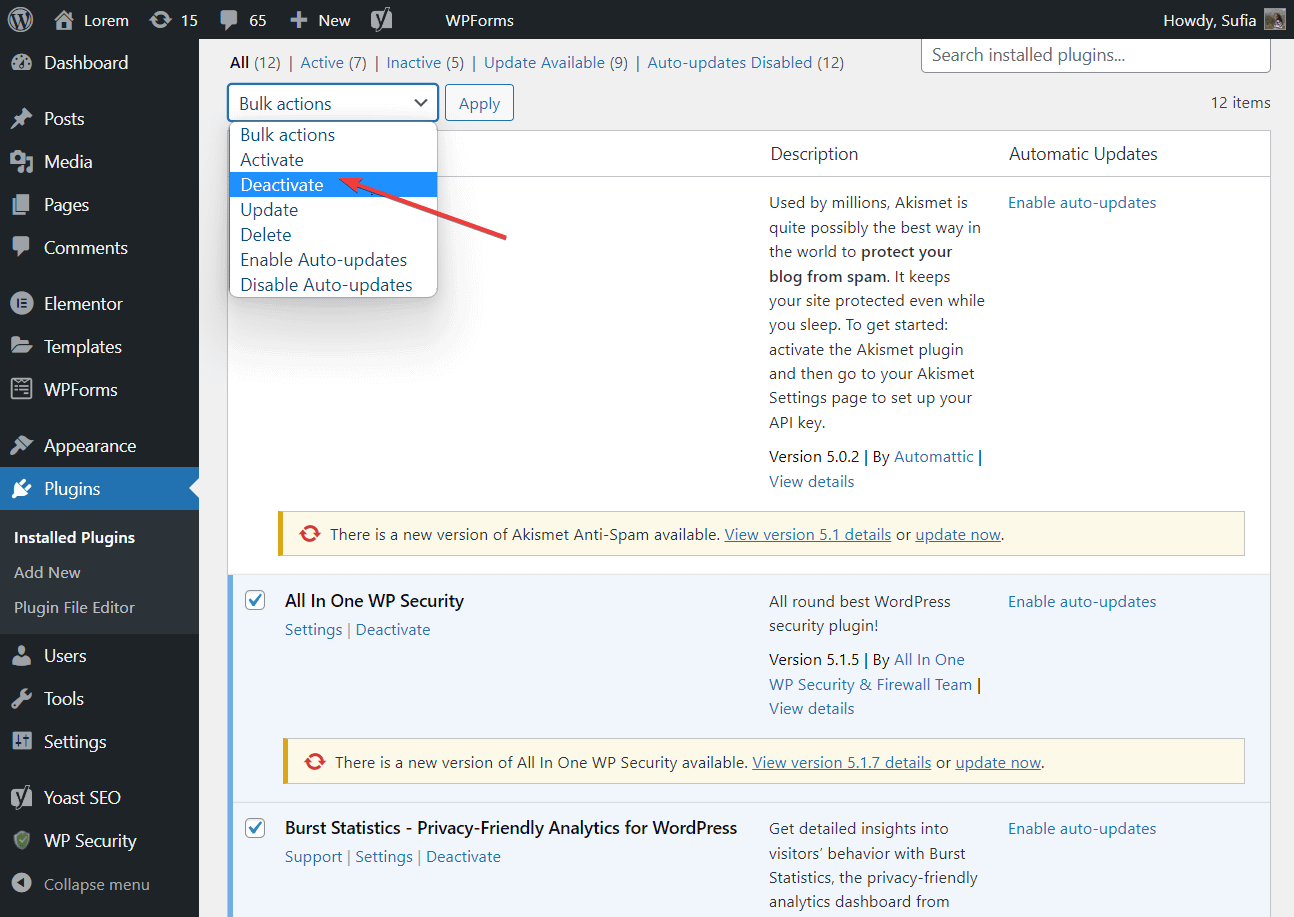
Then start activating the plugins one by one.
Every time you enable a plugin, open a post or page and check if Elementor is loading.
If you’ve worked your way through the plugins but Elementor can’t point to the plugin due to a loading error, the culprit is probably the active theme on your site.
To disable your active theme, go to Appearance → Theme And activate another themePreferably one of the WordPress themes like Twenty Twenty One, Twenty Nineteen, etc.

4. Switch the browser or disable the extension
Elements loading problems have been known to be caused by an extension installed on your browser.
We recommend opening the site in a different browser, preferably one that does not have any extensions installed.
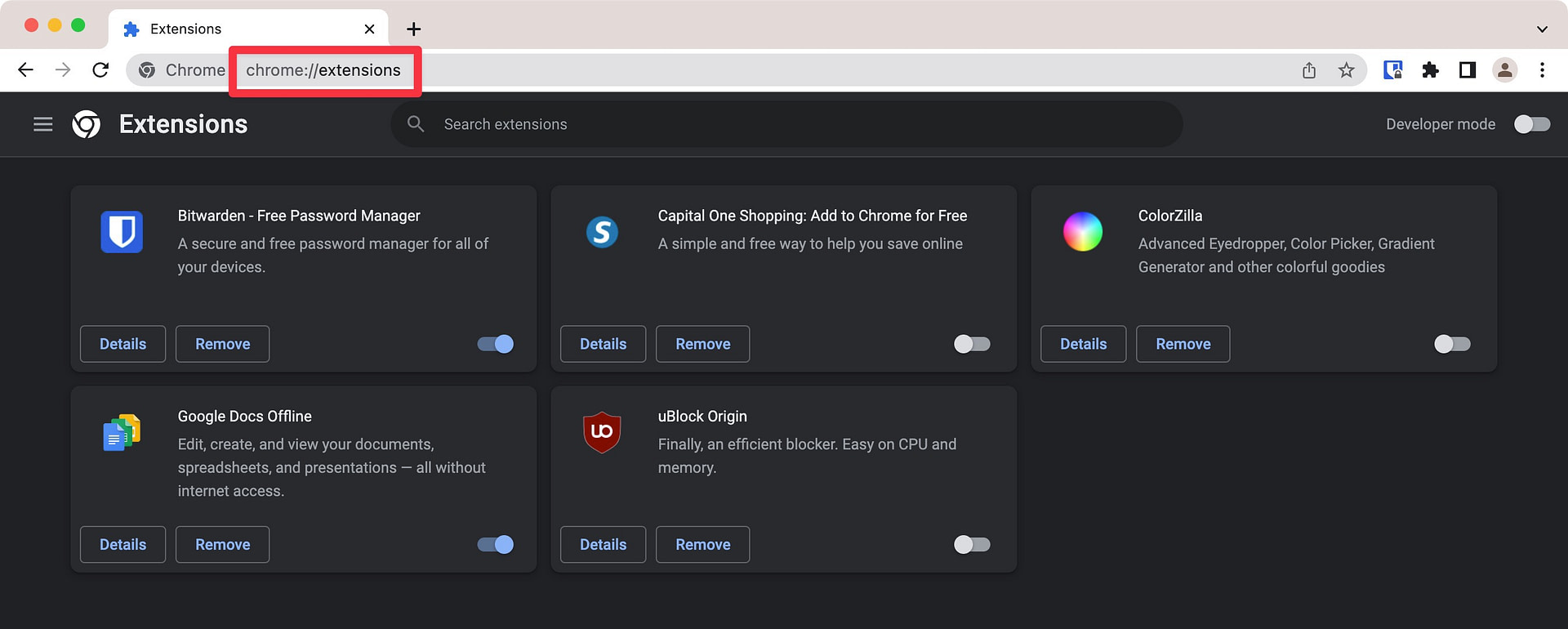
But if you don’t have a browser without any extension installed, temporarily disable the extension and check if Elementor is loading on your site.
To manage extensions in Chrome, you can paste this into your browser address bar and hit enter – chrome://extensions/,
5. Disable Rocket Loader in Cloudflare (if using Cloudflare)
If you are using Cloudflare to speed up your Elementor site, Cloudflare’s rocket loader feature has been known to cause Elementor not loading issues.
Here’s how to disable Cloudflare Rocket Loader:
- Open your site’s dashboard in Cloudflare.
- Use the sidebar to select customization Below pace Adjustment.
- Scroll down rocket loader,
- Use the toggle to disable the rocket loader.
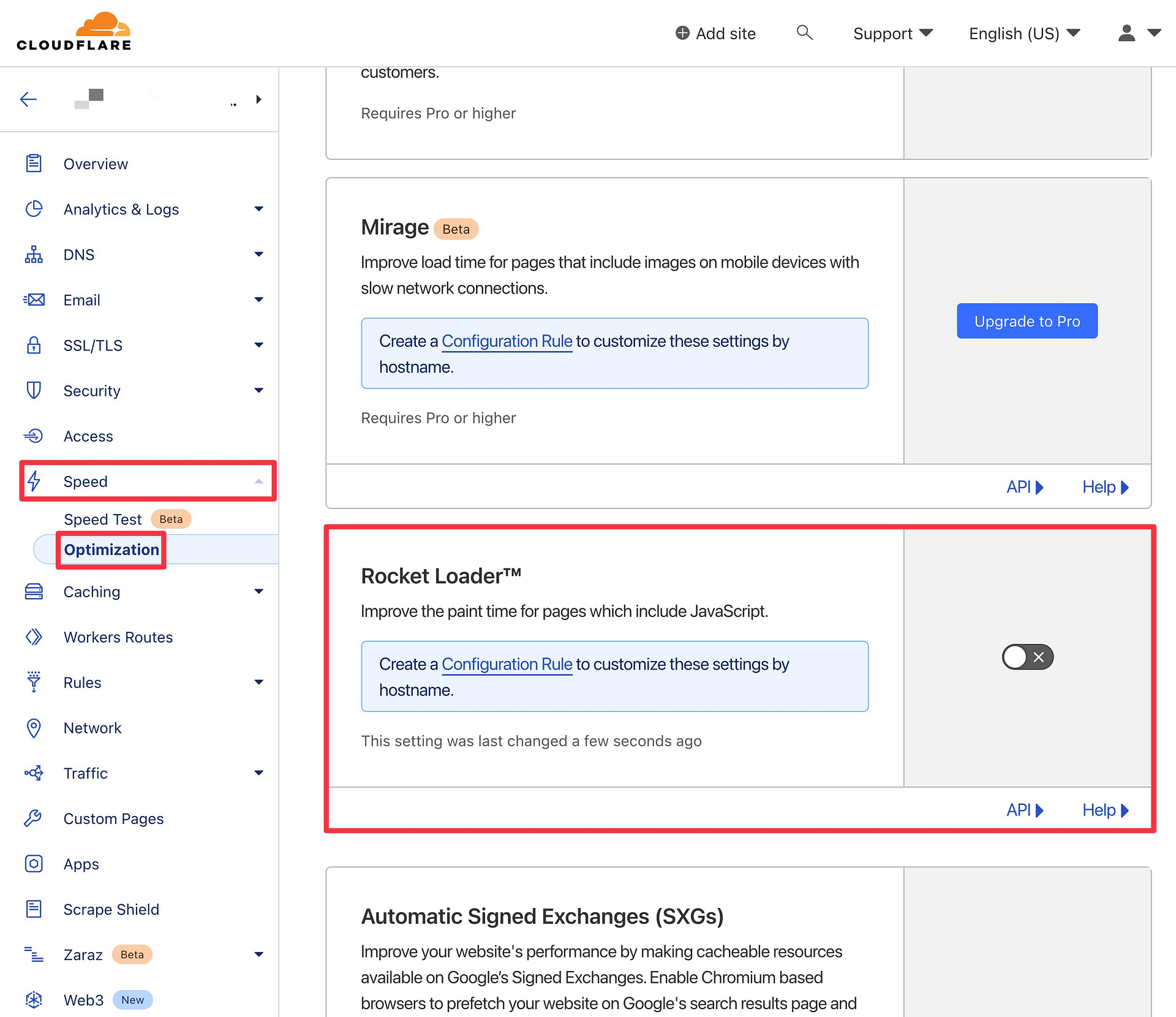
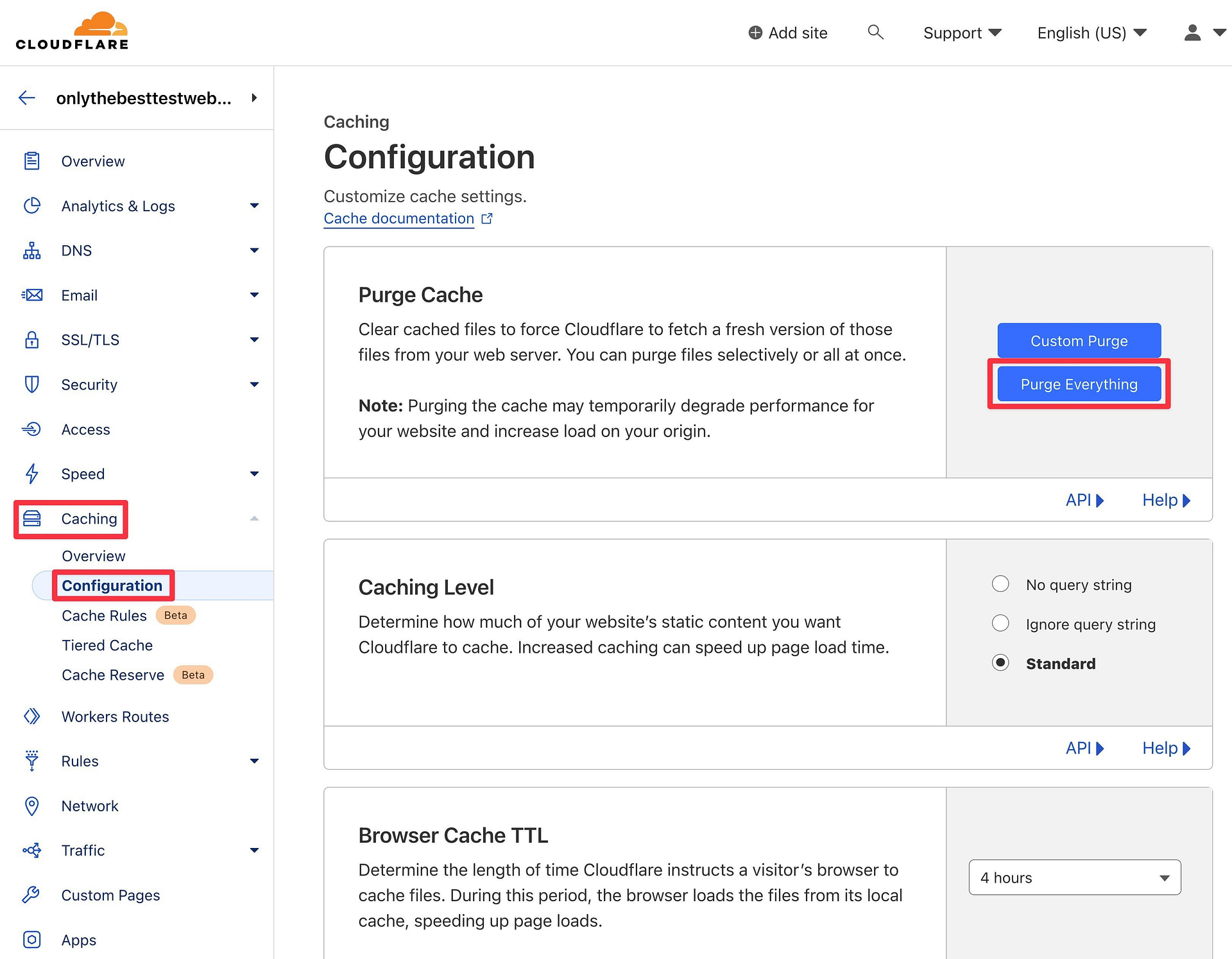
In addition to disabling Rocket Loader, you might also want to consider disabling Cloudflare’s caching, if you’re using it — at least when you’re working in Elementor.
Or, you can try purging the Cloudflare cache instead of disabling it. you can do it by visiting caching → configuration In your Cloudflare dashboard, click the More clean everything button.
6. Upgrade to the Latest PHP Version
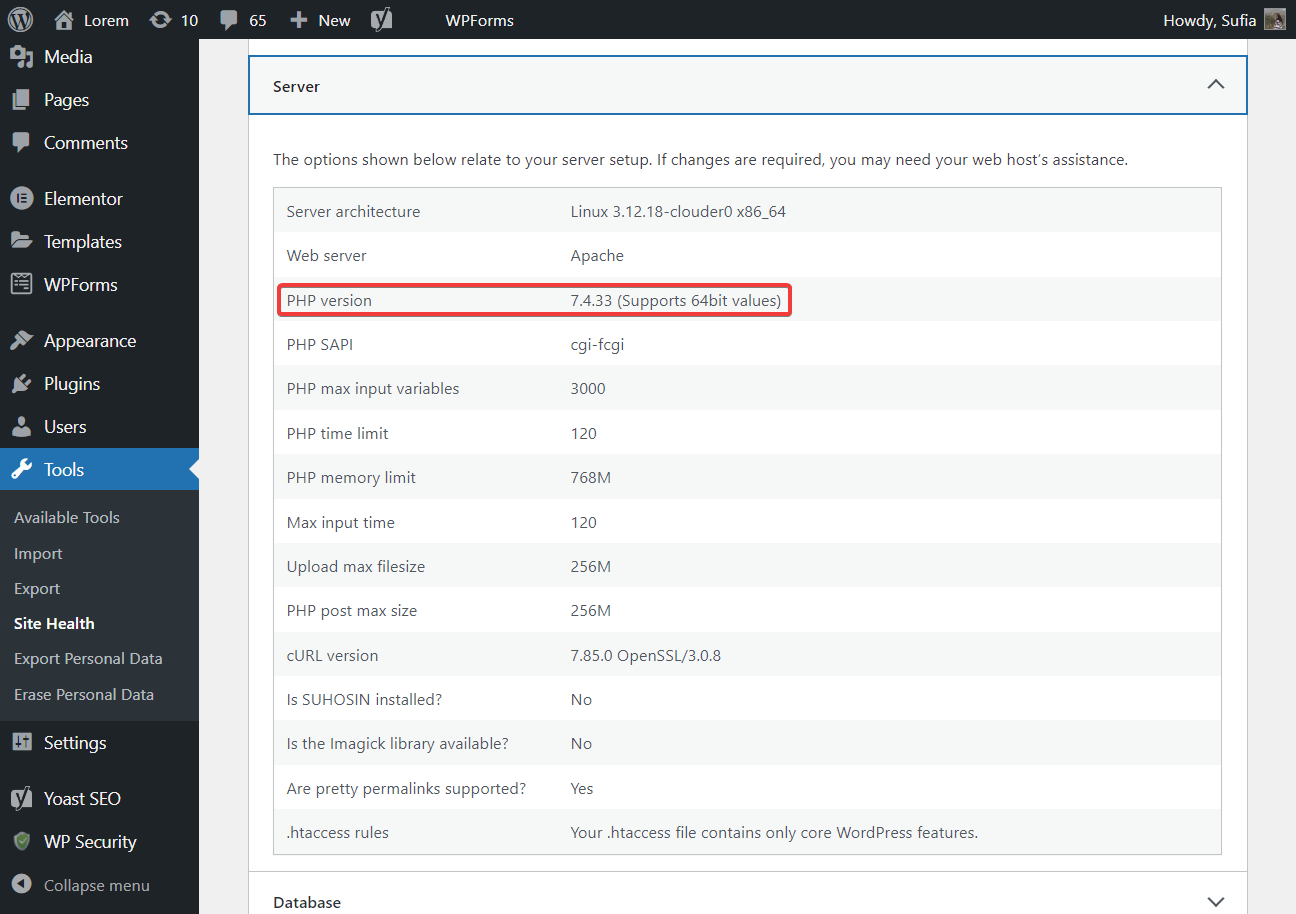
PHP is the programming language on which WordPress is built. All WordPress plugins and themes require PHP. For the Elementor plugin to work on a WordPress site, you need PHP 7 or above.
You can check the PHP version of your site by opening your WordPress dashboard and going to Tools → Site Health,
If you need to update your PHP version open your hosting account, go to cpanel scroll down, and select the Select PHP version Option.
On the next page, you will get an option named current PHP version With a dropdown menu. from the menu, Select the latest PHP version, That’s it.
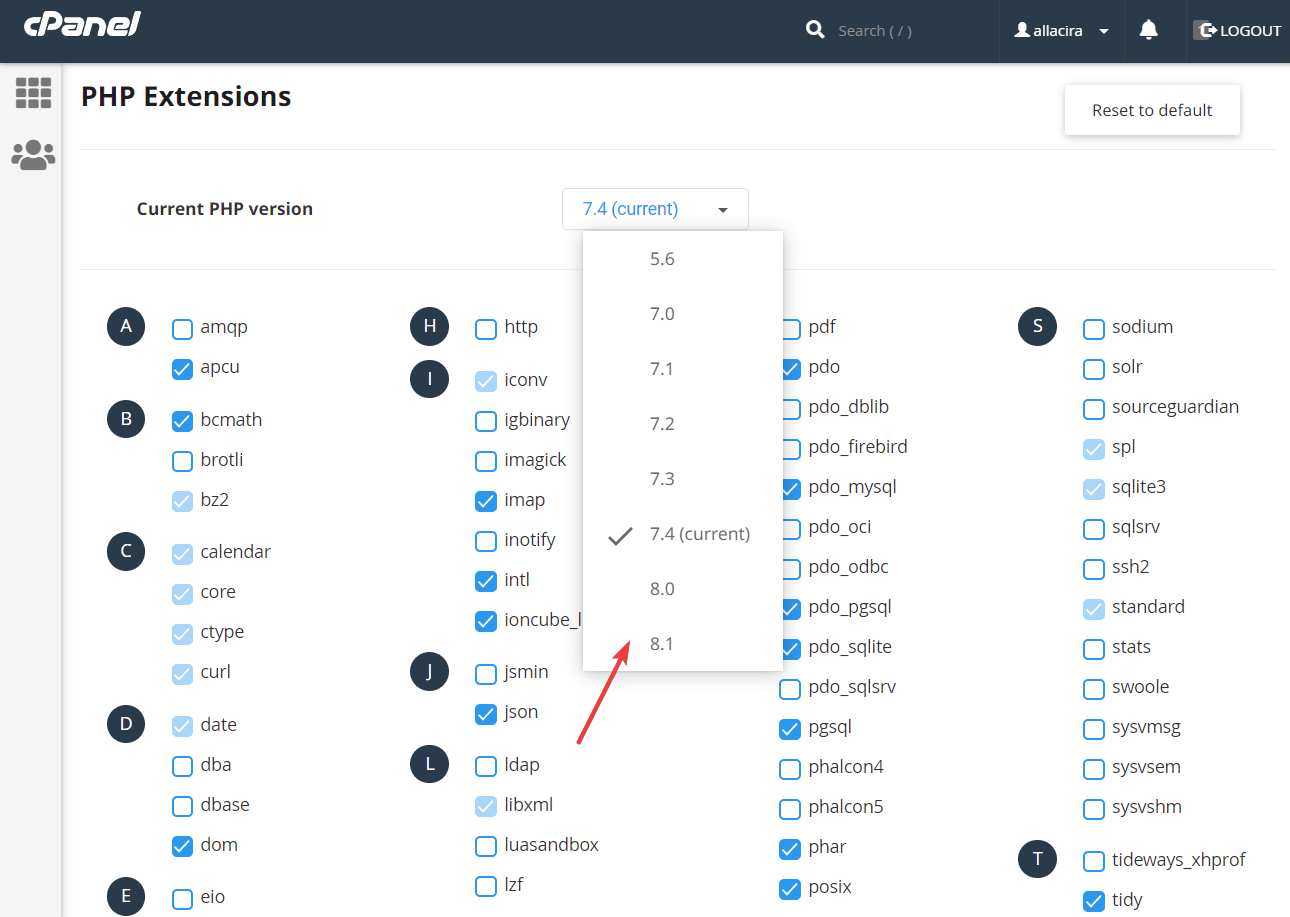
If your host does not provide cPanel, you can reach out to your host’s support for assistance.
7. Increase PHP Memory Limit
Increasing the PHP memory limit can fix Elementor not loading problems.
There are three different ways to increase the PHP memory limit:
- wp-config.php file
- (.htaccess file)
- (php. ini file)
We’ll show you how to edit the wp-config.php file. If you want to use a .htaccess file or php.ini instead, we have a separate guide for that.
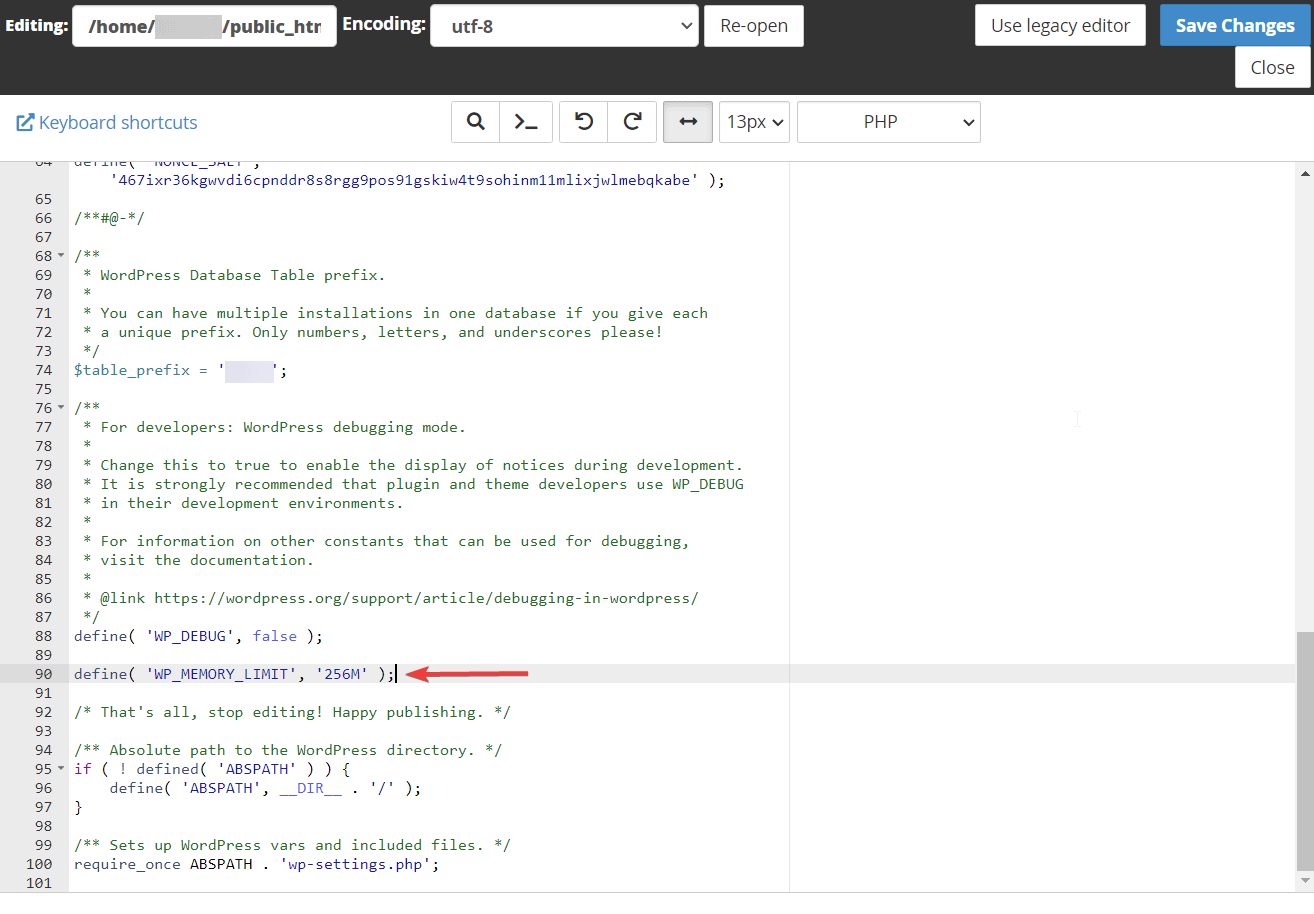
To edit the wp-config file, go to your hosting account and go further cPanel → File Manager → public_html → wp-config.php,
If your host does not offer cPanel, you can also connect to your server using FTP,
Right-click on the wp-config.php file and select the edit button. The file will open on a separate tab. Find this sentence:
define( 'WP_MEMORY_LIMIT', '32M' );
increase numeric value by 256m,
If you can’t find the code snippet, put it just above this line – /* That's all, stop editing! Happy publishing. */
Beat Save Changes button at the top of the screen and exit the file. Try loading Elementor now.
8. Disable Theme Preloader
The theme preloader displays a loading image (usually animated) that tells visitors that content is loading. These preloaders negatively affect the elementor.
So if your theme has preloaders, disable them.
How you disable your theme’s preloader will depend on the theme. Some themes offer a dedicated setting in the WordPress customizer, while others may require you to add a custom CSS snippet to your site.
You can ask the support team or do it yourself by visiting the theme developer’s website and find help documentation on how to disable the preloader.
9. Get Help From Elementor Support
If the “Elementor can’t load” error persists, contact the Elementor support team and ask for help.
Tell them about all the steps you have already taken to solve the problem.
They should be able to get the page builder up and running right away.
Fix Elementor Not Loading Error Forever
Here’s what you need to do when Elementor stops working:
- Clear your browser cache
- Update Elementor – both Free and Pro (if using both)
- Deactivate Plugins and Themes
- Switch to a different browser or disable all extensions
- If you are using Cloudflare’s CDN then disable Cloudflare Rocket Loader and clear the cache
- Upgrade to the latest PHP version
- Increase PHP Memory Limit
- Disable theme preloader
- Get help from Elementor support
For some other ways to enhance your Elementor experience, you might also be interested in our Best Elementor Themes and Best Elementor Add-on Plugins roundups.
