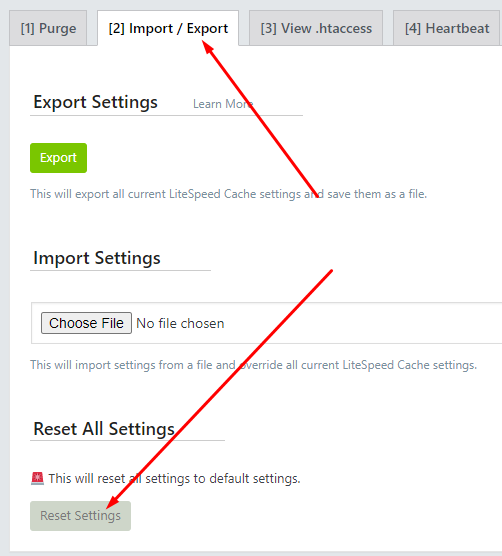

Sometimes you need to reset your LiteSpeed Cache plugin settings to default settings for some reason. Could be a problem with a cache hit or whatever. Here in this article, we will learn how to reset the default settings of Litespeed cache?
LiteSpeed Cache Plugin
LiteSpeed Cache is a WordPress plugin that helps you improve your website performance by caching pages and posts, reducing the load on your server and speeding up your website for visitors. It is designed to work with the LiteSpeed web server, but can also be used with other web servers such as Apache. The plugin offers a wide range of features including browser and server-side caching, Gzip compression, and support for Content Delivery Networks (CDNs). This includes customization of your website’s CSS, JavaScript, and HTML, as well as options for image optimization and lazy loading.
Key Features of LiteSpeed Cache Plugin
Some of the key features of the LiteSpeed Cache plugin include:
- Browser and Server-Side Caching: LiteSpeed Cache can cache pages and posts on the browser and on the server, which leads to faster page load times and reduced server load.
- gzip compression: The plug-in can compress your website files using Gzip, which can reduce their size and improve the speed at which they are delivered to visitors.
- Support for cdn: LiteSpeed Cache can integrate with Content Delivery Networks (CDNs), which can help distribute your website content across multiple servers, improving its performance and reducing the load on your own servers .
- Customization of CSS, Javascript and HTML: The plugin includes options to optimize your website’s CSS, JavaScript, and HTML files, which can reduce their size and improve their performance.
- Image optimization and lazy loading: LiteSpeed Cache can optimize your website images, reduce their file size and improve their loading times. It also includes lazy loading, which can improve loading times for pages with many images by only loading images as needed.
Reset LiteSpeed Cache Default Settings:
ls provides a reset to default feature of the cache settings. To do this follow these steps.
- Log in to your website WordPress admin dashboard using your credentials.
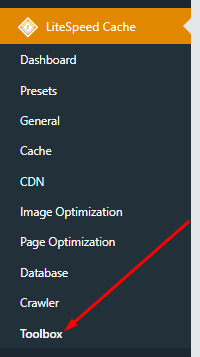
- go to LiteSpeed Cache -> Toolbox
3. Go Now import Export Option you can see a reset button which you can press and everything will be done.