
Is Your WordPress Not Sending Emails? This can be a real disaster for any website owner, especially if you are running a business that uses email marketing campaigns to reach customers. Thankfully, you can easily fix the problem and get your WordPress up and running in no time flat.
In this tutorial, we will learn about the two most common reasons why your WordPress site is not sending emails as your wish. then we’ll give you three steps Solutions you can easily implement on your site to solve the problem.
Why is my WordPress not sending emails?
There can be many reasons why your WordPress site is not sending emails. Let’s take a look at some of the common problems WordPress users experience when it comes to email deliverability.
Misconfiguration
When most users find that WordPress is not sending emails, it is because their hosting server is not set up properly. The default setup uses your hosting provider’s servers and the wp_mail() function that is part of WordPress core. That function is based on the PHP mail() function.
Unfortunately, most hosting providers’ servers optimized for hosting websites do not send email, and some of them even disable that function outright. In other cases, even though the function is enabled, and emails are technically being sent, they may still be flagged as spam in the recipient’s inbox.
If you suspect this may be the case with your host, contact customer support and clarify the issue. They will also inform you whether it is possible to enable the mail () function.
How to solve this problem if it is caused by misconfiguration? Keep reading this post – we cover the solutions below.
Emails detected as spoofed
If the issue you are facing is that your contact form plugin does not deliver messages to your inbox (a known issue with Contact Form 7 plugins), those emails may be marked as spam by mail servers. can be recognized.
This often happens when the plugin sends an email from a different address than the one added From field in the email.
If you are using Contact Form 7, you can follow this guide wordpress not sending email Issues. You can also replicate the Contact Form 7 solution if you’re using a different plugin, as most contact form plugins have similar interfaces.
How to fix WordPress not sending email
The most likely explanation for WordPress not sending emails is configuration issues.
The best solution if so is using an SMTP solution rather than relying on the built-in wp_mail() functionality.
What is SMTP and how does it provide a solution for WordPress not sending email?
SMTP (or Simple Mail Transfer Protocol) takes the content of the email you intend to send and passes it through an external sending service instead of using WordPress’s native mail sender.
With this, your web server is not actually sending email, but it is delegating this responsibility via the SMTP protocol to a third party email server.
How to set up SMTP on WordPress
You need two elements: an SMTP plugin on your WordPress site, and a subscription to an email-sending service.
The plugin part is simple, post smtp is a great option.
- Install your SMTP plugin
- Route your emails
- Set notification
1. Install Your SMTP Plugin
In your admin dashboard, go to plug-in to find more post smtp Placement Click Install now And Active, You can read our beginner’s guide to installing WordPress plugins if you need additional guidance.
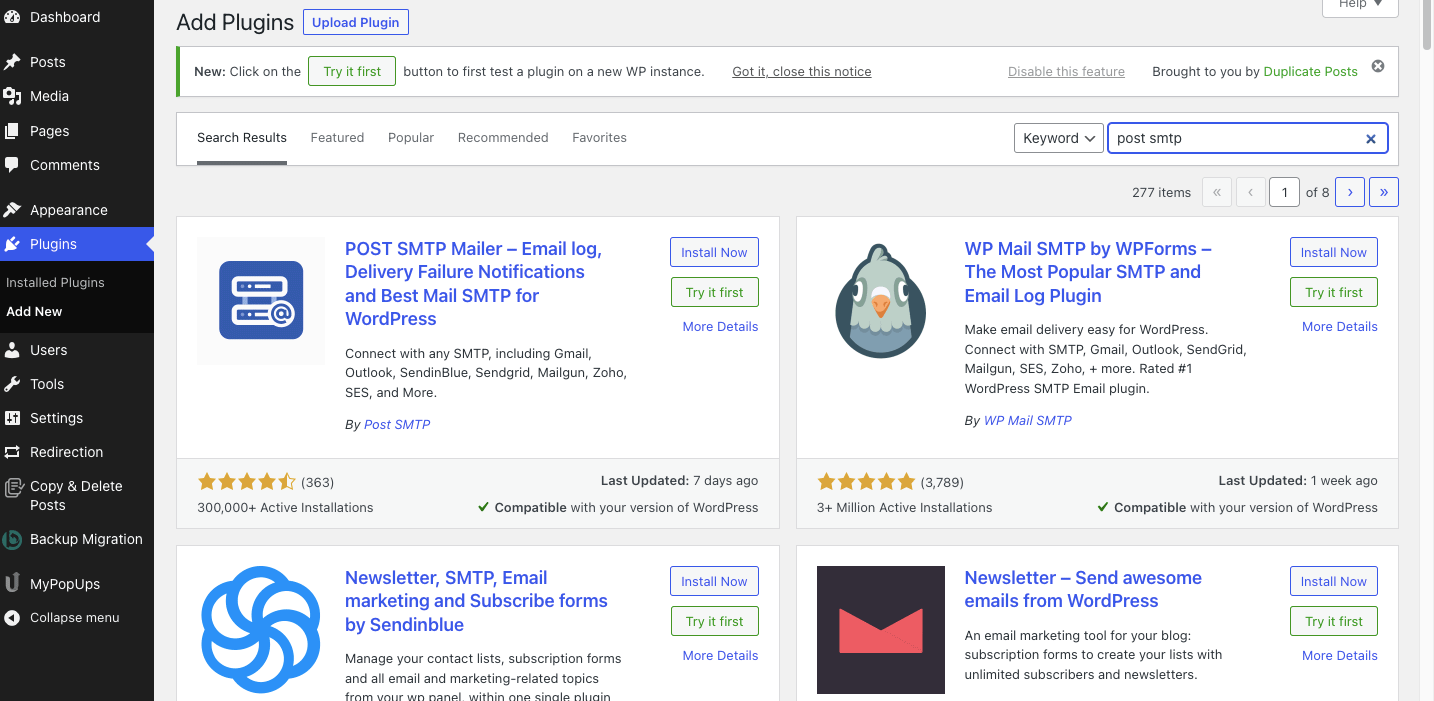
The SMTP plugin will replace the built-in wp_mail() approach and use a dedicated sending service instead. It will also work with contact forms, event plugins, and WooCommerce – anything that sends an email to your site and fixes many of the problems you’re likely to experience.
2. Route Your Emails
Next, we’re going to route the email through a different email provider, like Small (formerly Sendinblue), Gmail API, or Mailgun. SendGrid is another good option as it has a free plan that works with most WordPress sites.
We’ll use the setup wizard to show you around because it’s easier than manually editing configuration settings.
To get started, enter your details and click next,
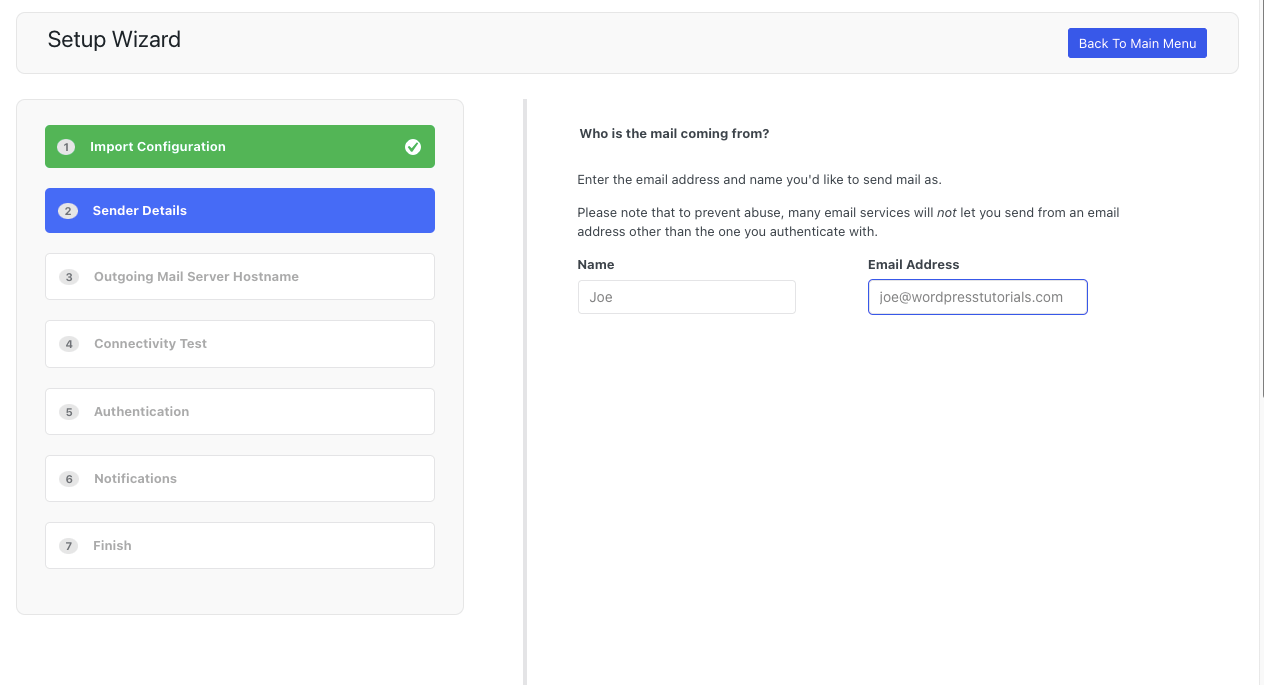
On the next screen you will see the outgoing mail server host configuration. Click next,
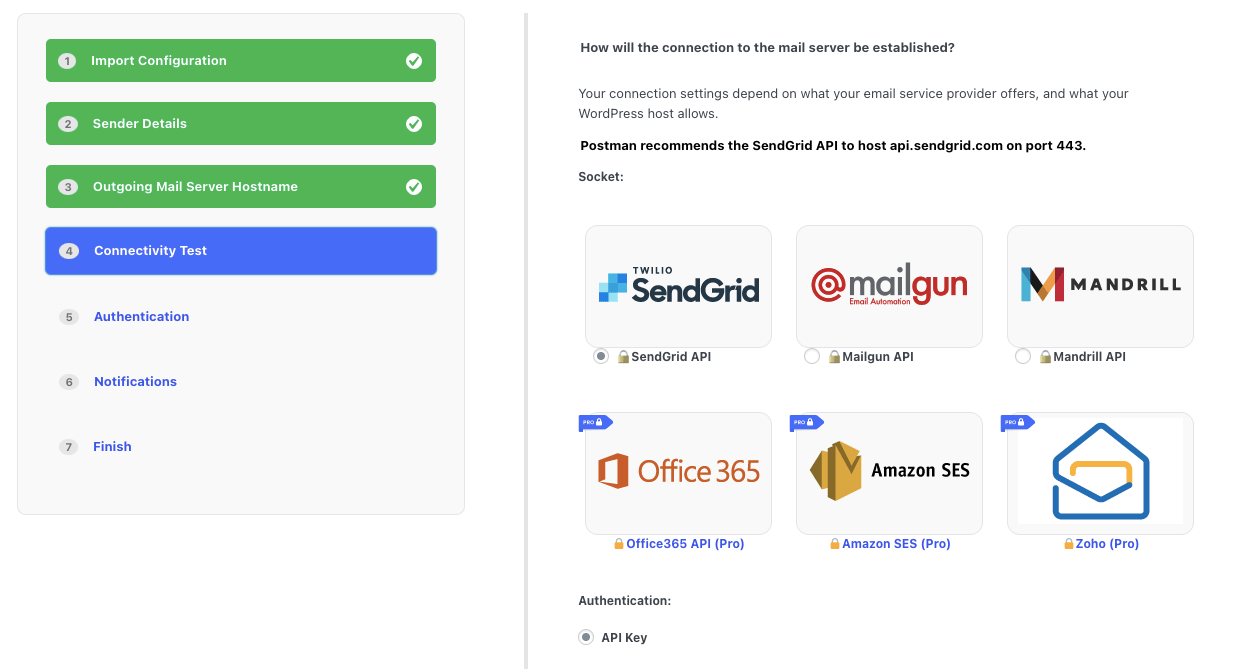
Choose the email-sending service you’d like to use to deliver your emails, such as the aforementioned Bravo, Gmail API, Mailgun, SendGrid, or others.
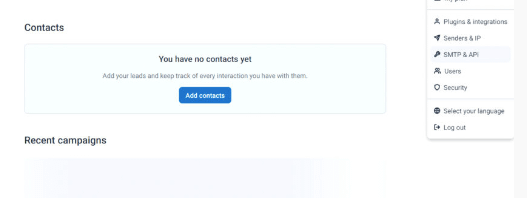
To use this solution, you must first create an account on Brevo.com. Once you’re logged in, click on your username on the right to access the drop-down and select SMTP & API.
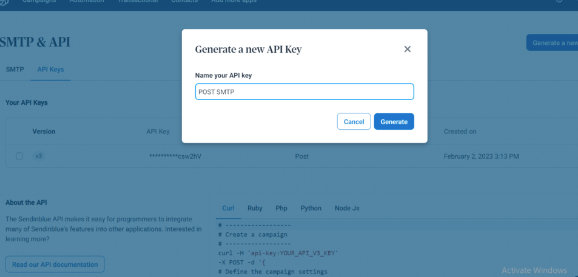
click on Generate a new API key then type the name of your API key then click Make,
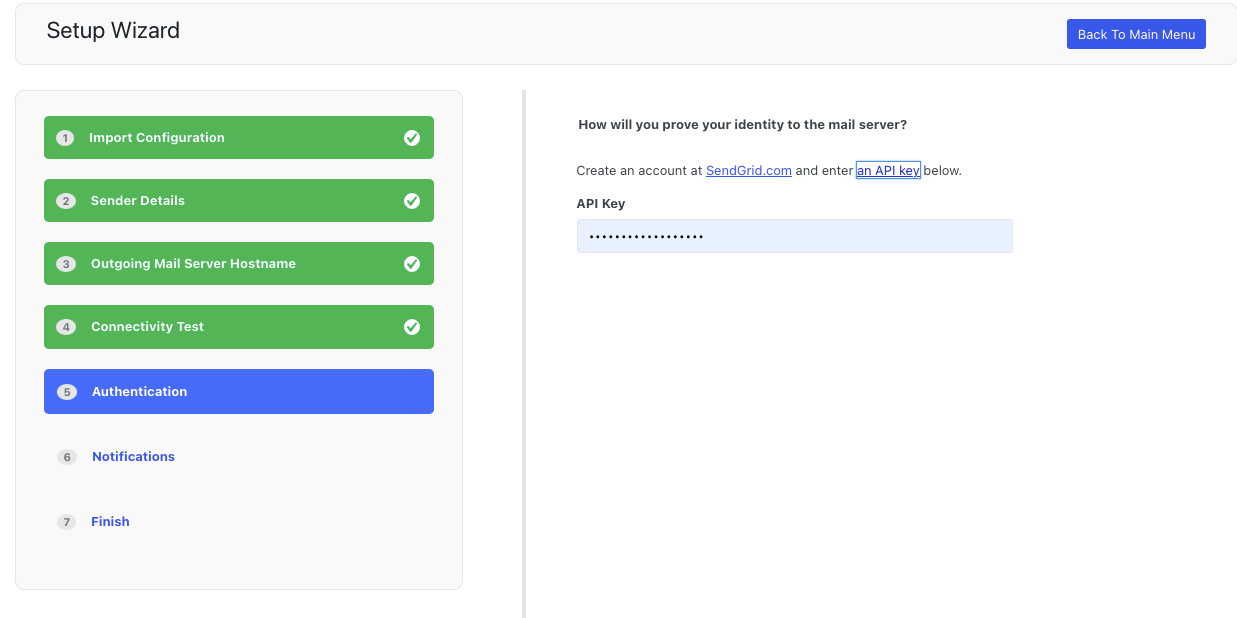
Press copy, Enter this key in the Authentication section of the setup wizard, and click next,
3. Set up Notifications
Next, you can set up notifications to tell you whether emails have been sent successfully or not.
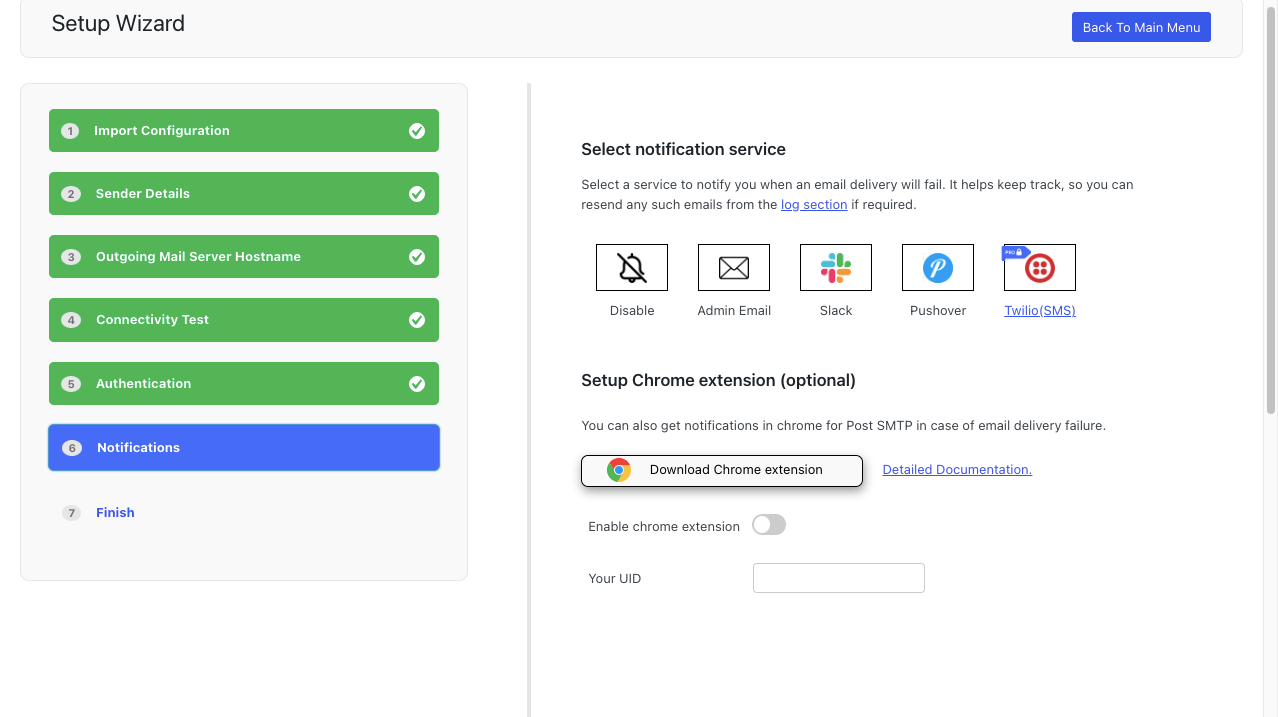
You can decide to receive notifications via Slack, your admin email, or any number of other plugins. Just click on your preferred option. A green tick will appear on the option you have selected. Click next,
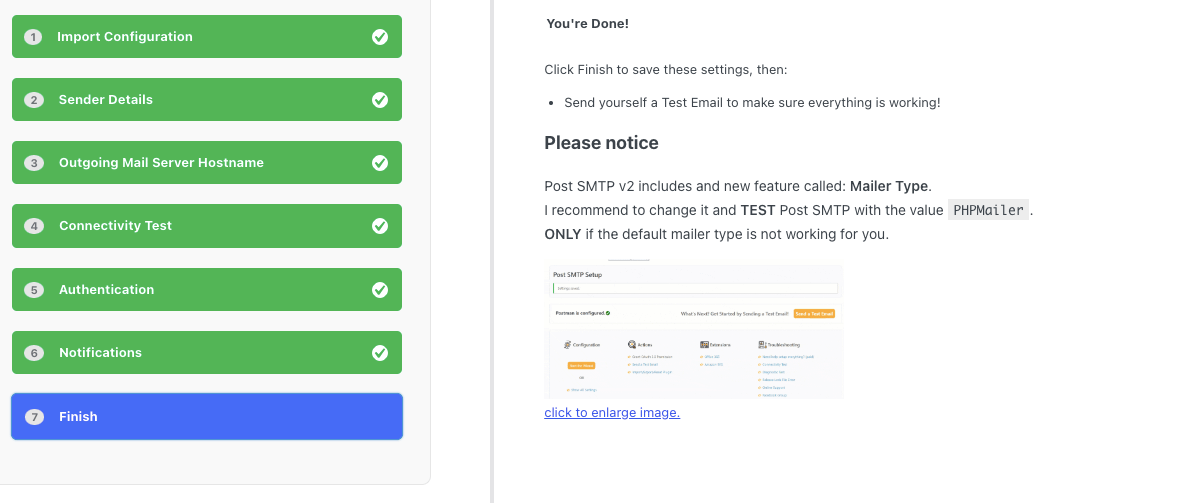
and you’re done! just click Finish to save the settings. It’s a good idea to send yourself a test email to make sure everything is working.
WordPress not sending emails solved!
It’s easy to panic when WordPress isn’t sending emails. Fortunately, most common email problems can be solved by Using a Simple SMTP Plugin Which changes the wp_mail() configuration, which creates a workaround and overcomes the issues.
This solution should also solve common spam and spoofing issues, which is why we recommend trying it before anything else.
