
Sometimes, you may find it necessary to hide the headings on your WordPress website. There could be lots of reasons for that (styling, content strategy, etc.), but whatever the case, there’s no shame in saying goodbye to these elements. If you are looking for an easy way to hide page titles in WordPress, then you have come to the right place.
In this article, we will cover You can do this in three different ways with step-by-step instructions.
We will also find out the effect of hiding page titles Your site may have SEO, so you can decide for yourself whether this is a good idea in your case.
How to hide post and page title step by step
Let us look at three cool alternatives that will allow you to hide page titles and post titles in WordPress. Before you try any of these, we recommend that you back up your site. Some of these methods involve editing theme files, so you’ll want to make sure you can go back to a previous version of them in case you encounter problems during the process. Don’t worry, though; If you follow these simple instructions carefully, you should be fine!
Hiding post title and page title using CSS code snippet
One of the easiest ways to hide the title of a post or page is to do so manually using the theme customizer.
Please note that if you are using a new block theme with FSE (full site editing) capability, you will not have access to the classic theme customizer. Don’t panic though, if you’re using a block theme with FSE the next method will show you exactly what you need to do to hide page titles in WordPress. If you’re using a classic theme and this doesn’t apply to you, let’s move on to the theme customizer.
You can get to this by going to your WordPress dashboard and then hovering over Appearance > Customize,
Then, scroll down until you see a section called additional CSS, This box allows you to add your own custom CSS code to change the look of your website – and can be used to hide page titles in WordPress.
Once you are here, paste the following CSS code:
.page .entry-title {
display: none;
}
Or
.post .entry-title {
display: none;
}
finally, press To publish,
So, what does this little piece do? It’s very simple. The first line refers to the element you are targeting with your CSS code. In this case, it is the entry title for the page. The second line tells the system to hide it. However, if you’re editing a blog post title or a page title like this, you should know something – you’re not actually deleting them. You are simply choosing not to show them to your site visitors. We will go into more detail about this in the following sections. For now, let’s assume the difference between removing titles and hiding them, and this distinction is important to your SEO strategy.
If adding this CSS code does nothing, it could mean that you are on a WordPress theme that uses a different name for your headings. You’ll have to look up what these are (you can use your browser inspect element functionality to do so). then just change the .entry title With the correct title tag.
how to inspect page elements in Chrome
- Navigate to any page, right-click, and select Inspection,
- Choose View > Developer > Developer Tools Jump to and from the top menu bar elements tab.
- Hover over the list of elements to see where they are highlighted on the page.
- Locate the heading tag and look for a class so you can target it through your CSS code.
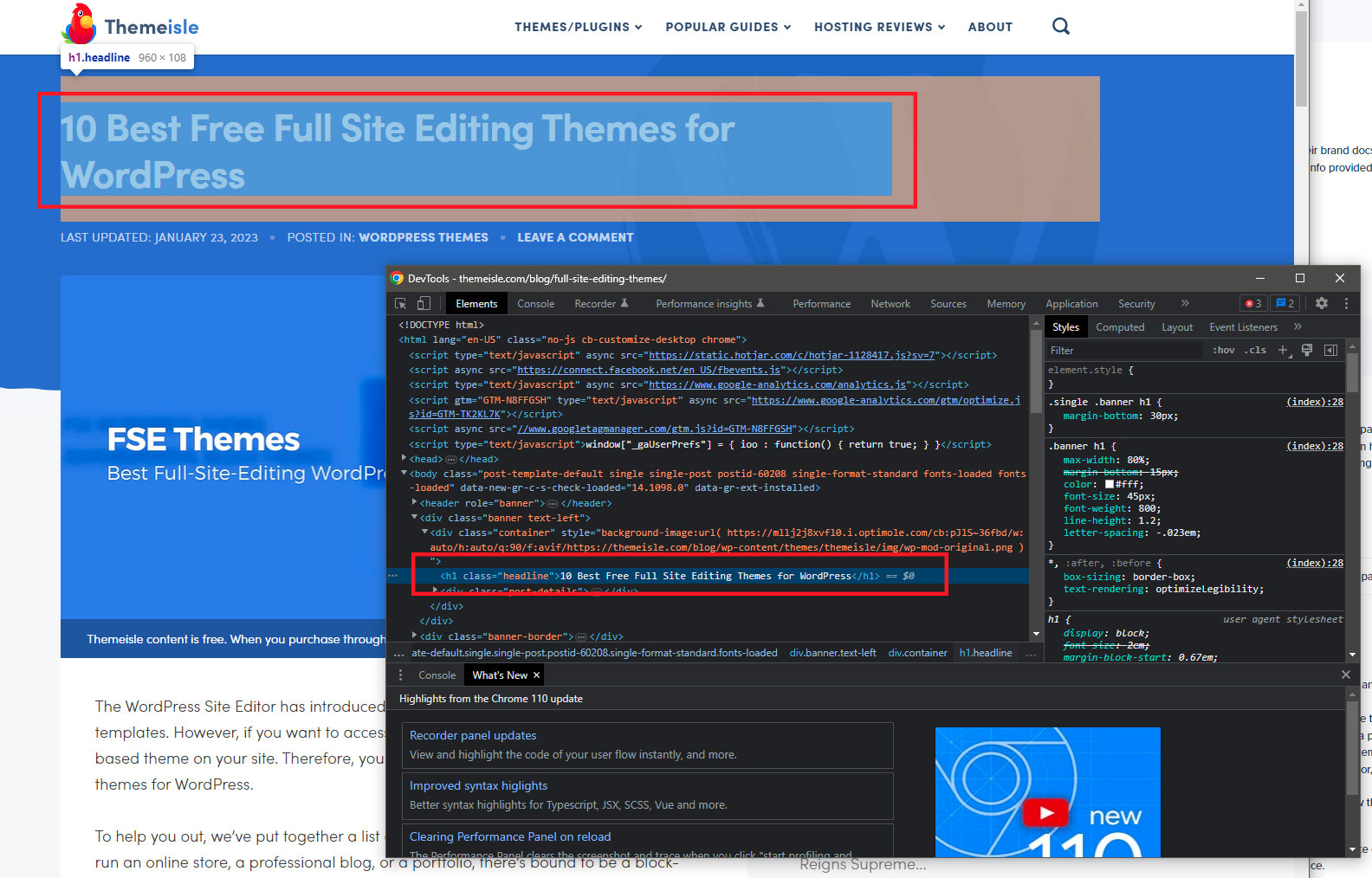
Pay special attention to which elements you are targeting when hiding the title. If you use a global class, for example, you will hide the page title in WordPress for all instances (or all pages). For example, take:
.page .entry-title {
display: none;
}
This snippet will hide all entry-title elements on all pages.
To edit a specific page title, and to edit other titles on your site, you’ll need the page’s ID. Then, you will be able to use this ID as part of your CSS code snippet (replace 2 with your ID):
.page-id-2 .entry-title {
display: none;
}
Hiding post title and page title using full site editor
If you are using the latest version of WordPress and a block-based theme, and you want to hide the page title in WordPress, you can do so using the full site editor.
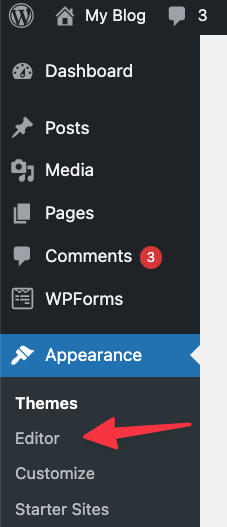
First, go to your dashboard and click Appearance > Editor,
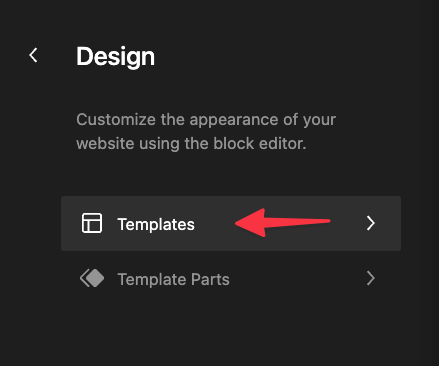
Next, go to templates,
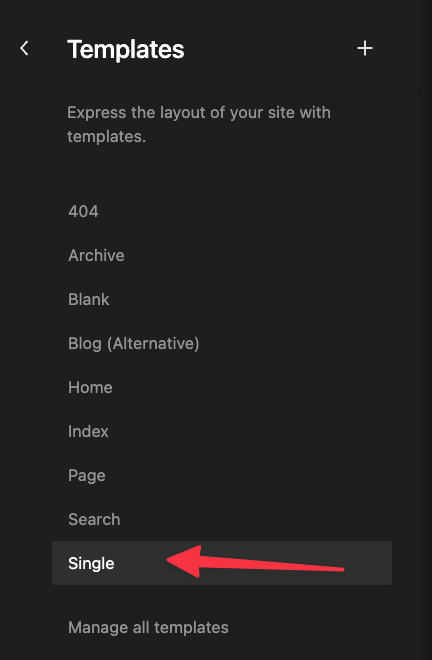
Finally, click on the Lonely template:
Once there, click on the post title element, then on Three points click remove the post title,

Click on the main save button in the upper right corner.
This will remove all titles from your individual posts and pages.
Hiding Post Title and Page Title Using a Plugin
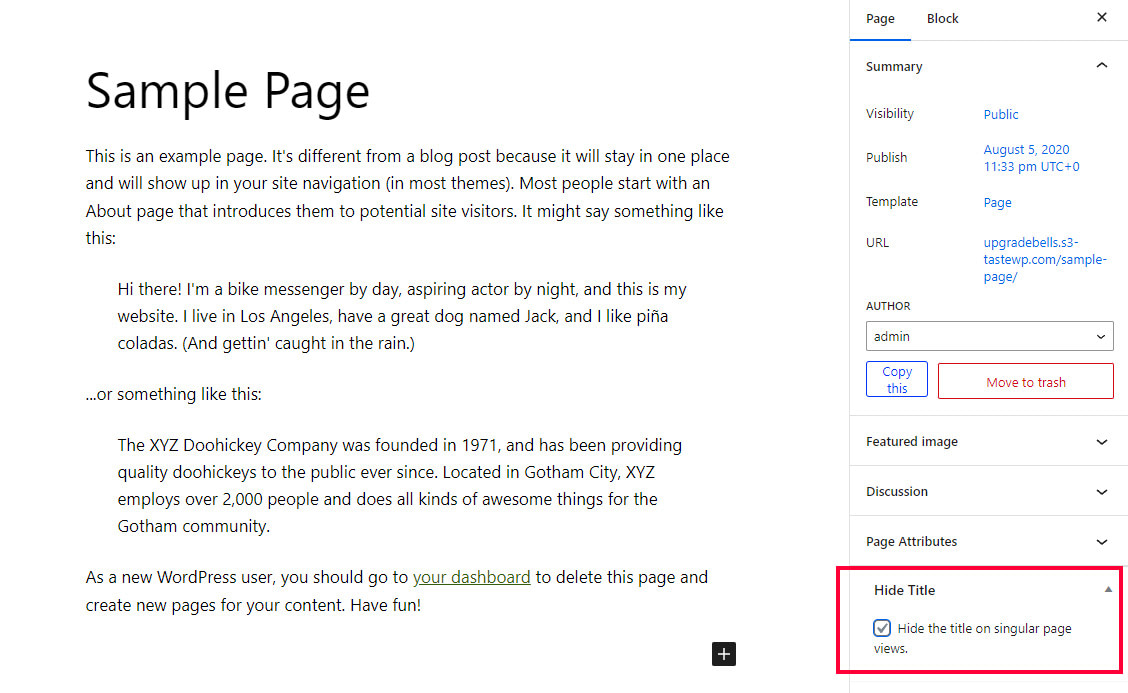
Another popular method you can use to hide page titles is to install a plugin for this purpose. For example, hide pages and post titles. The plugin allows you to hide specific pages and post titles easily.
Download, install, and activate your chosen plugin, then open the page or post you want to update. All you have to do is scroll down to the bottom of the right sidebar until you find the hide page And post title box and click to select the checkbox. Then, update or publish the post as you normally would.
When should you hide the page title in WordPress?
There can be many reasons for hiding the page title in WordPress. For example:
- Your theme styling makes them redundant. For example, suppose you want to display events in a calendar. You don’t need to call it “Calendar” as it is clear what the page does.
- You don’t need them to create an engaging landing page. A title is not required for Home, About, Contact, or Products, or any page used for advertising.
- The material looks better without them simply because it is more aesthetically pleasing.
There are a few things you should consider before deciding to remove your page and post titles, the main one being how this action can affect the SEO of your WordPress website.
Search engines read a variety of elements when they crawl a web page. For example, the title tag of your pages and whether or not it is present in the page’s code can have a significant impact on that page’s ranking potential.
Specifically, Google uses the title tag to determine the topic of your page. So if you decide to remove that title tag, Google will have a hard time deciding what the page is about. This can (but doesn’t necessarily have to) affect how your page is ranked. you’ve been warned.
Final Thoughts: Why and How to Hide Page Title in WordPress
Just because you don’t want the title to appear, doesn’t mean you actually need to remove it completely. Instead, the safer option is to hide it.
WordPress doesn’t have a specific feature to do this for all pages, posts, and templates, but we’ve gone through three ways in which you can make changes: using CSS code, using the full site editor, and Installing and activating a plugin. You can choose any of these methods to successfully hide the titles of pages and posts.
